How students see your plans
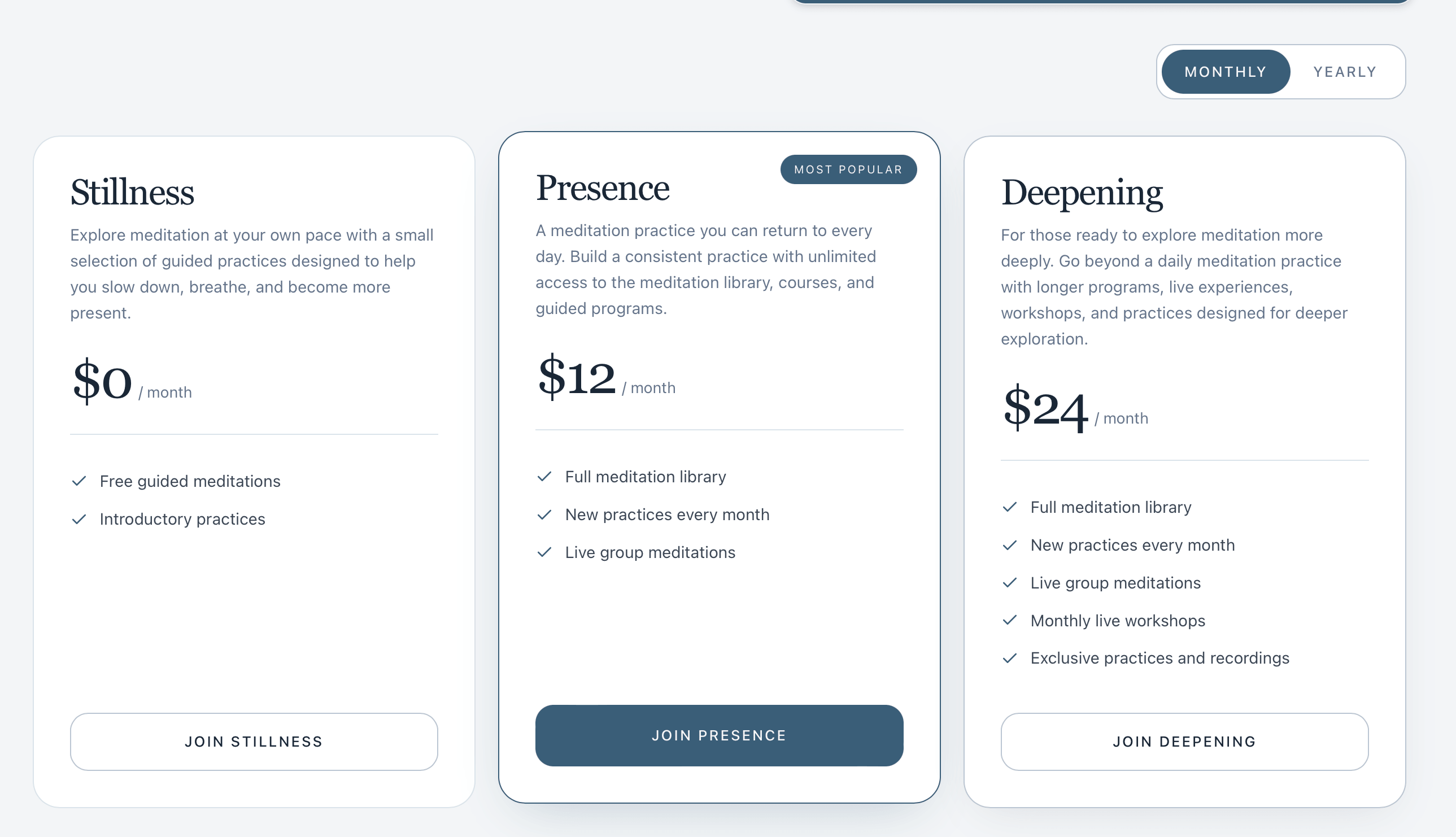
Your membership plans are displayed as blocks that you can place on any page in your portal. Students see the plans directly on the page — no separate pricing page required.
Pricing cards
By default, plans appear as individual cards side by side. Each card shows the plan name, description, price, and the feature list you configured in the features matrix. A toggle at the top lets students switch between monthly and yearly pricing when both options are available.
The plan marked as highlighted appears visually elevated with a badge — set through the highlight label in Membership details — to draw attention to your recommended tier. Each card has a join button labeled with the plan name.
Comparison table
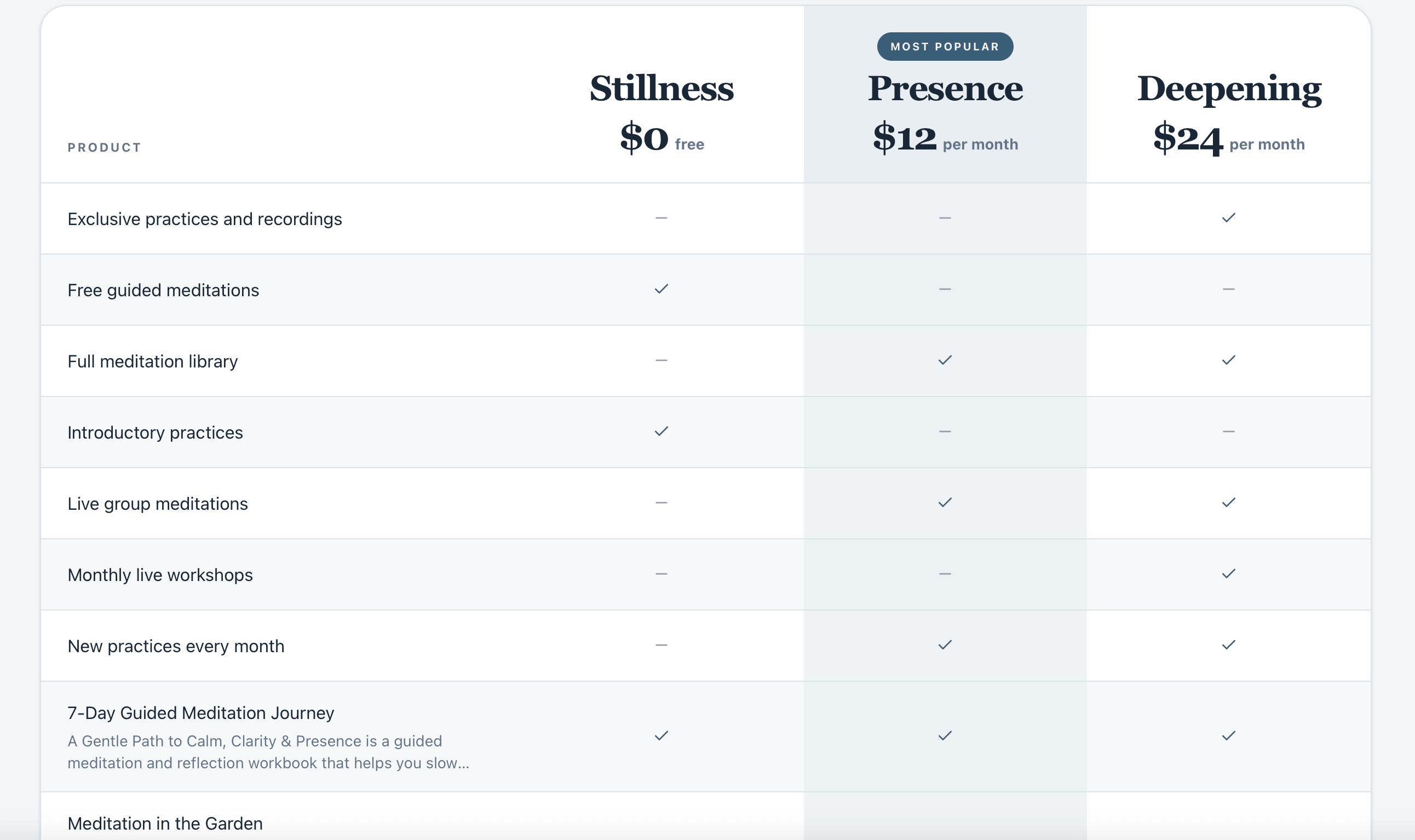
Below the pricing cards, students can also see a full comparison table. It lists all plans as columns and shows every product and feature as rows, with checkmarks indicating what each plan includes. This gives students a complete side-by-side view before committing to a plan.