Membership display details
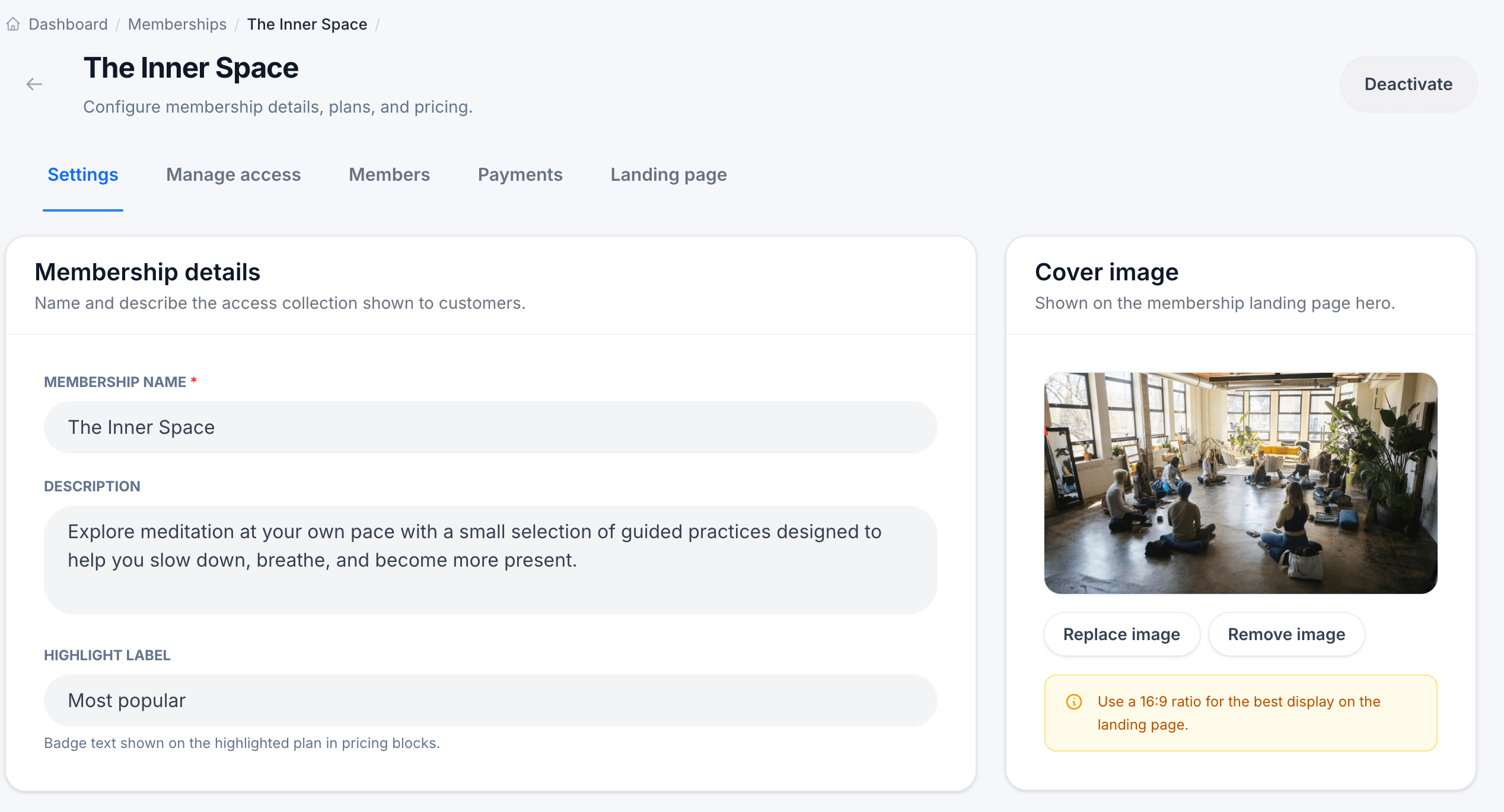
Open a membership and go to the Settings tab to manage its display settings.
Membership name and description
The name and description appear on the membership landing page that students see before subscribing. Keep the description focused on what members get access to.
Cover image
Upload an image to show on the landing page. Use a 16:9 ratio for the best display. Click Replace image to swap it out or Remove image to delete it.
Show in main menu
When on, adds a link labeled with the membership name to your portal's header navigation. Turn it off to keep the membership accessible by direct link only.
Highlight label
A short badge — like "Most popular" — that appears on one plan in your pricing display. Set it in the membership details and then choose which plan it applies to from the Plans section.