

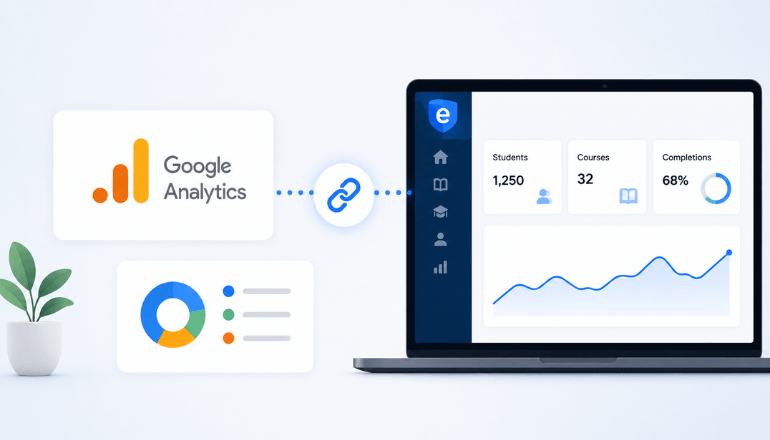
Most course platforms give you a built-in dashboard showing enrollments and revenue, and stop there. If you've ever wanted to know where your students are coming from before they enroll, how they find your portal, which pages they spend time on, or how traffic patterns change after you promote a course, that data has lived in a separate world until now.
eProfessor portals now support Google Analytics 4 integration. Add your GA4 Measurement ID in Look & Feel > Website > Advanced, and your student portal starts sending traffic data directly to your analytics property.
What this actually gives you
GA4 tracks activity on your portal pages: page views, sessions, traffic sources, device types, and geographic data. That means you can see whether students are arriving from organic search, a direct link in your email newsletter, a social media post, or a referral from another site. You can compare traffic across time periods, spot which course or landing pages are pulling the most visits, and identify drop-off points where visitors leave before enrolling.
For instructors running paid traffic or affiliate promotions, the integration gives you a clean way to validate whether those channels are actually driving portal visits, separate from what conversion tracking at the payment level can show.
How to set it up
You'll need a GA4 property set up in your Google Analytics account. From there:
- In GA4, go to Admin > Data Streams, select your stream, and copy the Measurement ID (it looks like
G-XXXXXXXXXX). - In eProfessor, go to Look & Feel > Website > Advanced.
- Paste the ID into the Google Analytics ID field and save.
That's the full setup. The tracking code loads automatically on your portal from that point forward. Give it 24–48 hours and data will start populating in GA4.
A note on custom domains and SSL
If you're using a custom domain for your portal and it's still in the SSL verification process, analytics will load during that window but you may see a gap in the data until the domain is fully active. Once SSL status moves from pending to verified, tracking runs cleanly on your branded URL.
If you haven't connected a custom domain yet, the integration works just as well on your default eProfessor portal address.
Why this matters for course businesses specifically
Course enrollment decisions often happen over multiple visits. A prospective student might find your portal through a search, browse a course page, leave, come back through a link you shared in a newsletter two weeks later, and enroll on that second visit. Without analytics, you see the enrollment but not the path that led to it. With GA4 connected, you start building a picture of how your audience actually moves through the decision, which is the kind of information that improves how you write, where you promote, and what you prioritize building next.
The Google Analytics ID field is available to all eProfessor plans. Find it in Look & Feel > Website > Advanced, or visit our help article for a step-by-step walkthrough.
Leave a Reply