

Managing Your Exam Questions
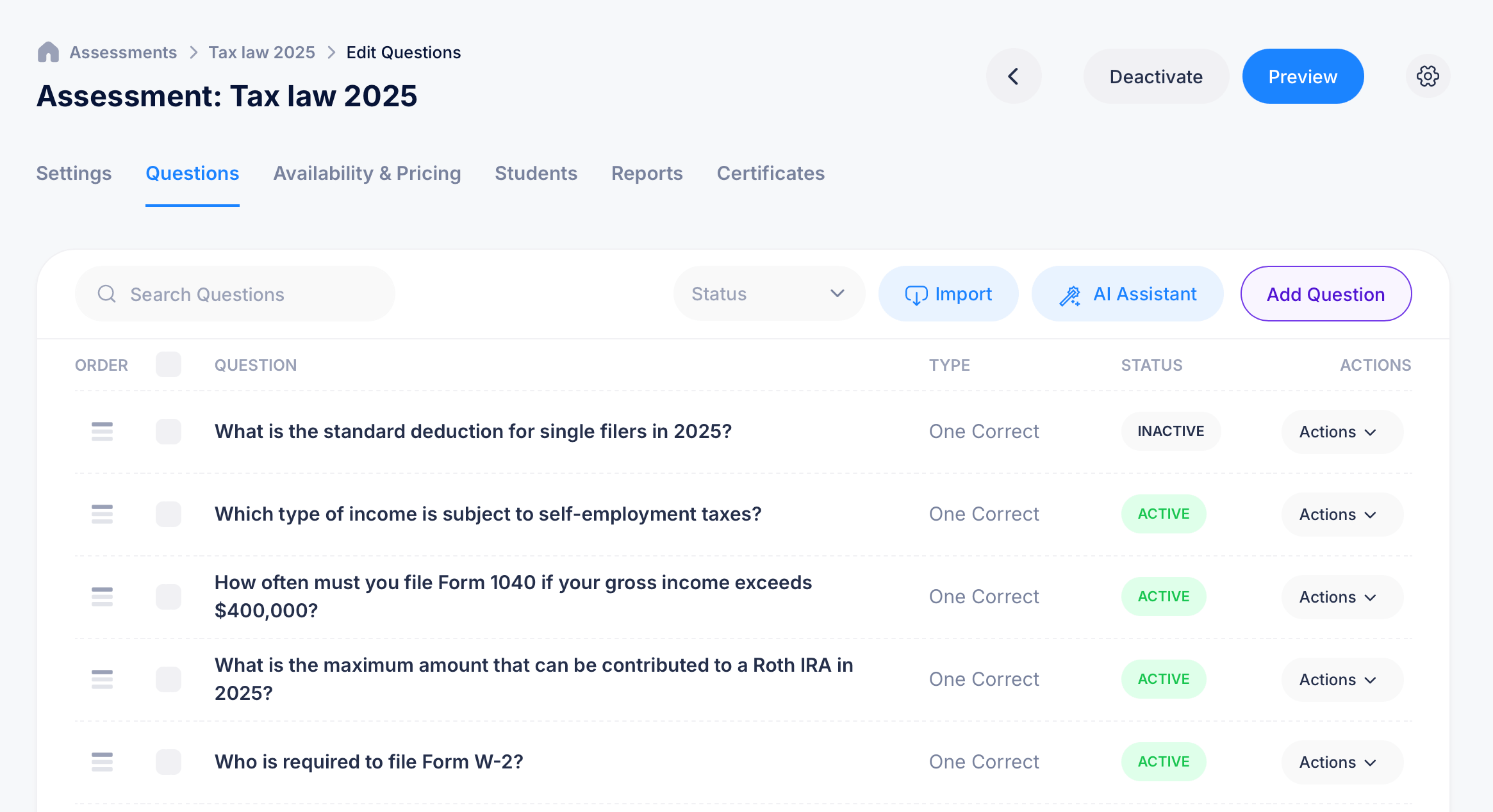
The Questions tab is where you build out everything a student will actually be asked in an assessment. Open any assessment and select Questions from the tab bar to manage your full question bank: adding, editing, importing, reordering, and activating or deactivating individual questions.
The question list
Each question in your bank appears as a row showing its Order (with a drag handle to reorder it), the Question text itself, its Type (such as "One Correct"), and its Status, either Active or Inactive.
Use Search Questions to find a specific question quickly in a large bank, and the Status filter to narrow the list down to just active or just inactive questions.
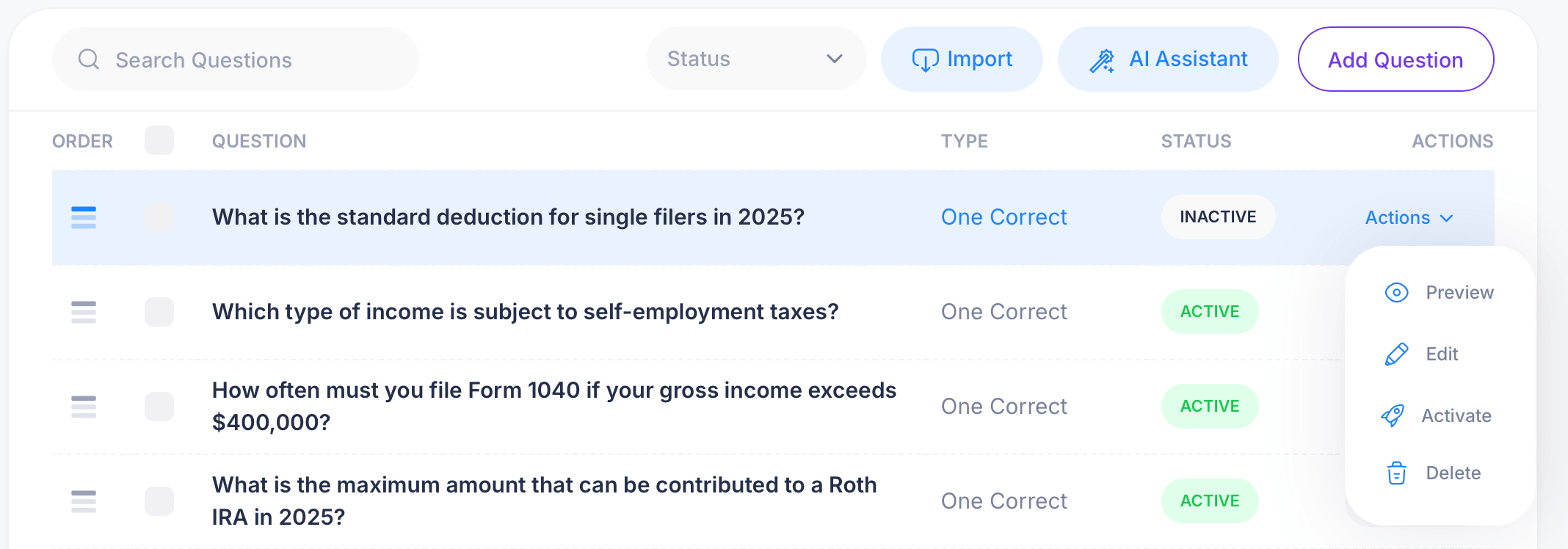
Click Actions next to any question to Preview it, Edit it, Activate or deactivate it, or Delete it entirely.
Adding questions
You have three ways to add questions to your bank:
Add Question opens the question editor directly, letting you build a single question from scratch.
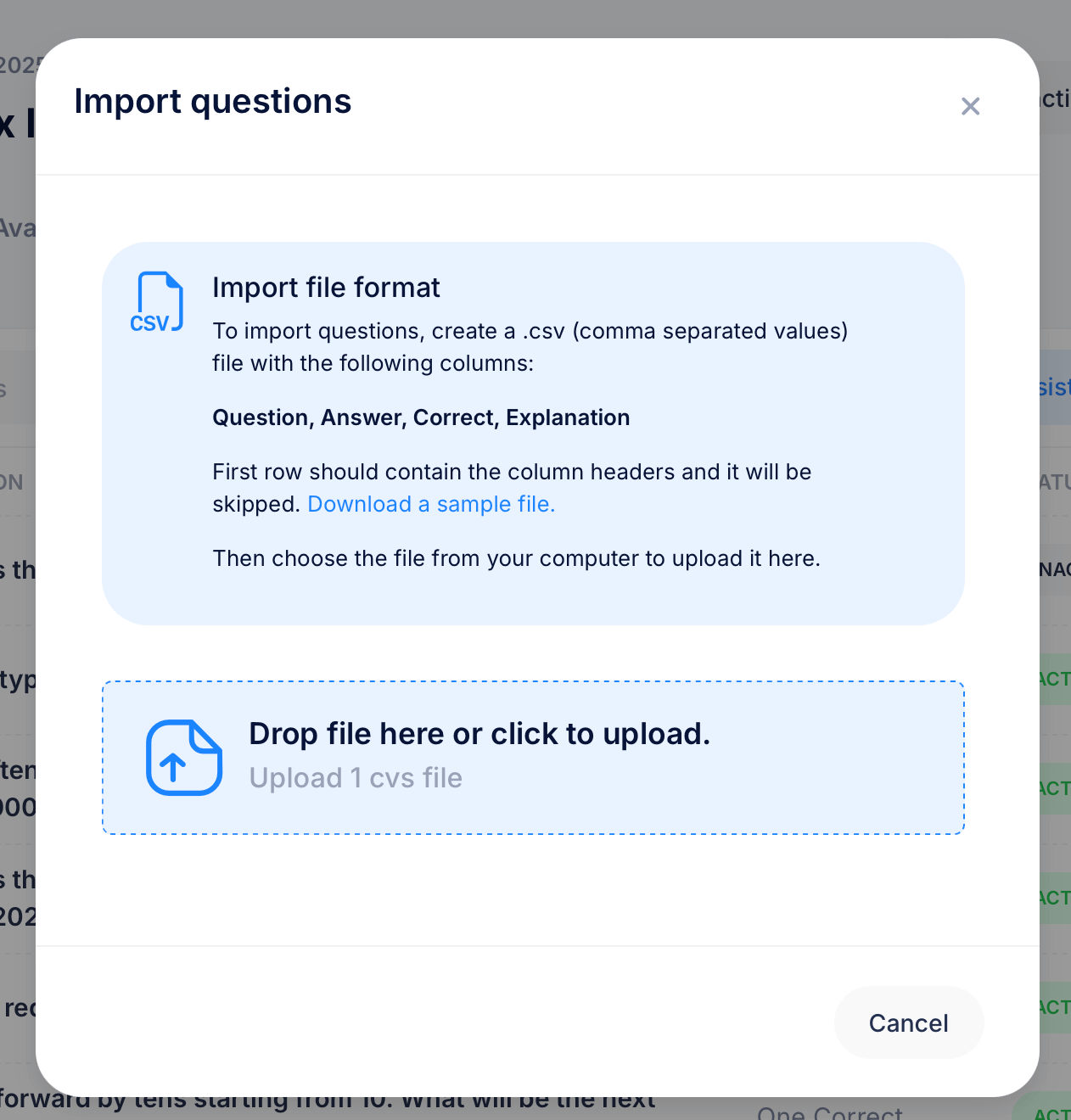
Import lets you bring in many questions at once from a CSV file. The required columns are Question, Answer, Correct, Explanation, with the first row reserved for these column headers (it gets skipped on import). A sample file is available to download if you want a template to start from. Once your CSV is ready, drop it into the upload area or click to browse and select it.
AI Assistant can help generate questions for you, useful if you want a head start building out a question bank rather than writing every question manually.
Building a question manually
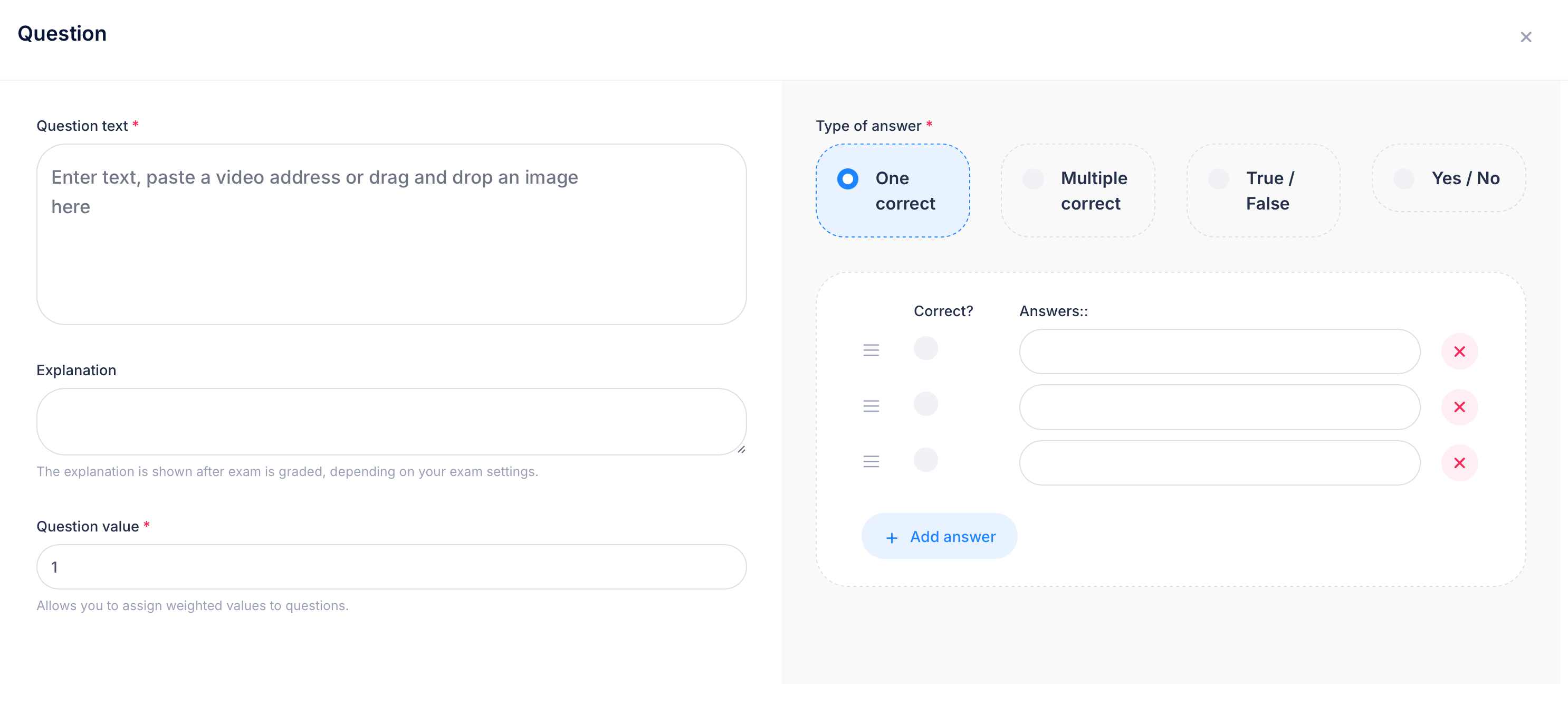
When you add or edit a question, you'll see:
Question text — the question itself. You can type text directly, paste a video address, or drag and drop an image into this field.
Type of answer — choose how the question is answered:
- One correct — a single right answer among the choices given
- Multiple correct — more than one answer can be marked correct
- True / False
- Yes / No
Answers — for One correct or Multiple correct questions, list out each answer choice and mark which one (or ones) are correct using the Correct? column. Use Add answer to add more choices, or the X next to an answer to remove it. Drag the handle next to each answer to reorder them.
Explanation — optional text shown to the student after the exam is graded, depending on your assessment's display settings. Use this to clarify why an answer is correct, especially useful for a practice-oriented exam.
Question value — a number representing how much this question is worth. This lets you assign weighted values, so a more important or more difficult question can count for more than a simple one.
Previewing your assessment
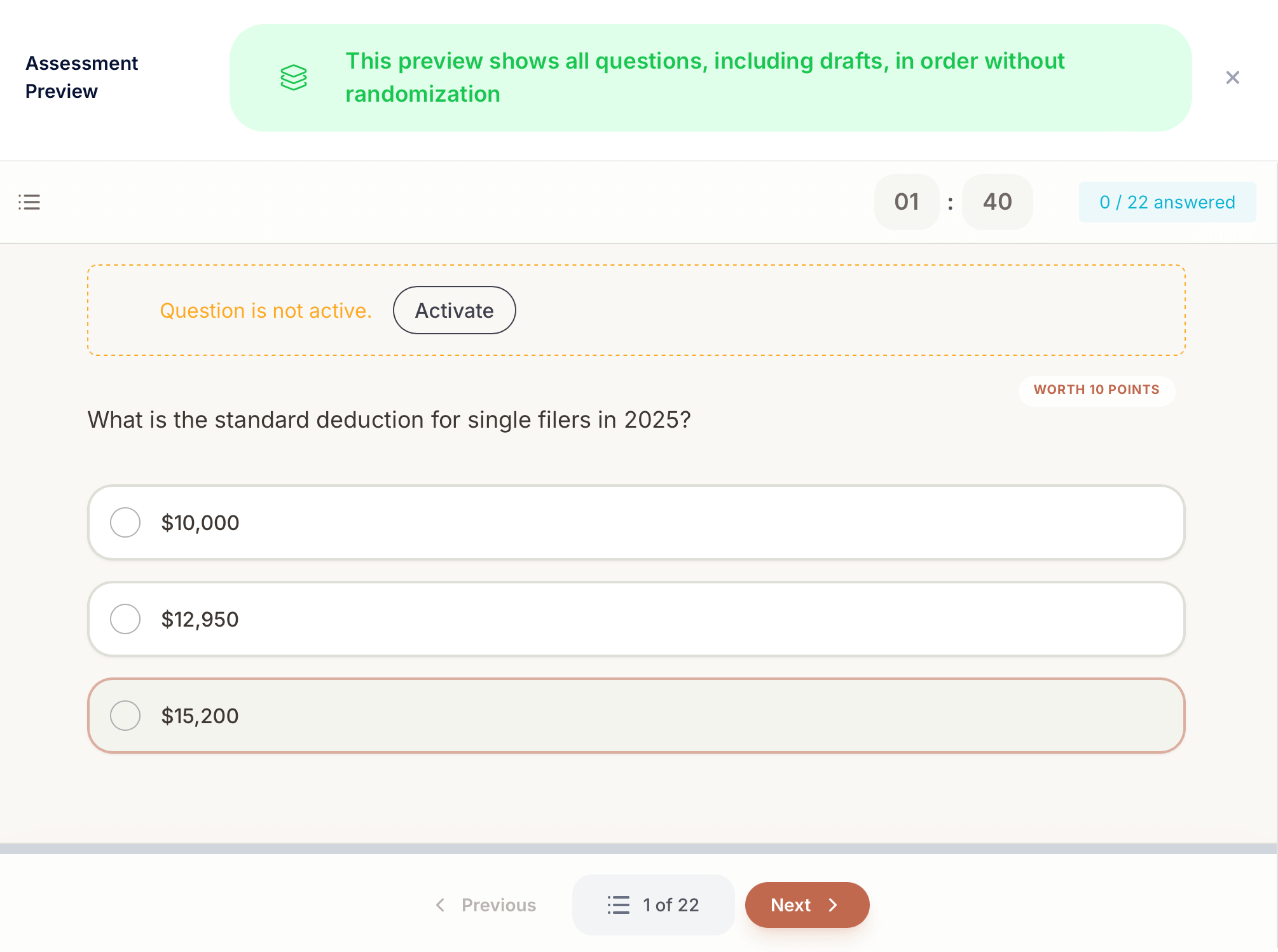
Click Preview from the assessment's main page to see exactly what a student would experience taking the exam. The preview shows every question, including drafts and inactive ones, displayed in order with no randomization applied, even if randomization is turned on in Settings. This is intentional: preview mode is for reviewing your content, not simulating exactly what a specific student would see.
If a question shown in preview is inactive, you'll see a note reading "Question is not active," along with an Activatebutton to turn it on right from the preview screen.
Tips
Keep a question's status as Inactive while you're still drafting it or unsure about its wording, rather than deleting it outright. Inactive questions stay in your bank and can be reactivated anytime. Deleting a question can be undone immediately after, but that option disappears once you refresh or navigate away, so it's safer to deactivate rather than delete if there's any chance you'll want the question back later.
If you're building a large question bank, importing via CSV is much faster than adding questions one by one through the editor, especially if your questions already exist in a spreadsheet or another system.
Use Question value deliberately if some topics matter more than others. A 10-question exam where every question is worth 1 doesn't let you emphasize the topics you consider most important, while weighting key questions higher does.