

Using the Forms Library
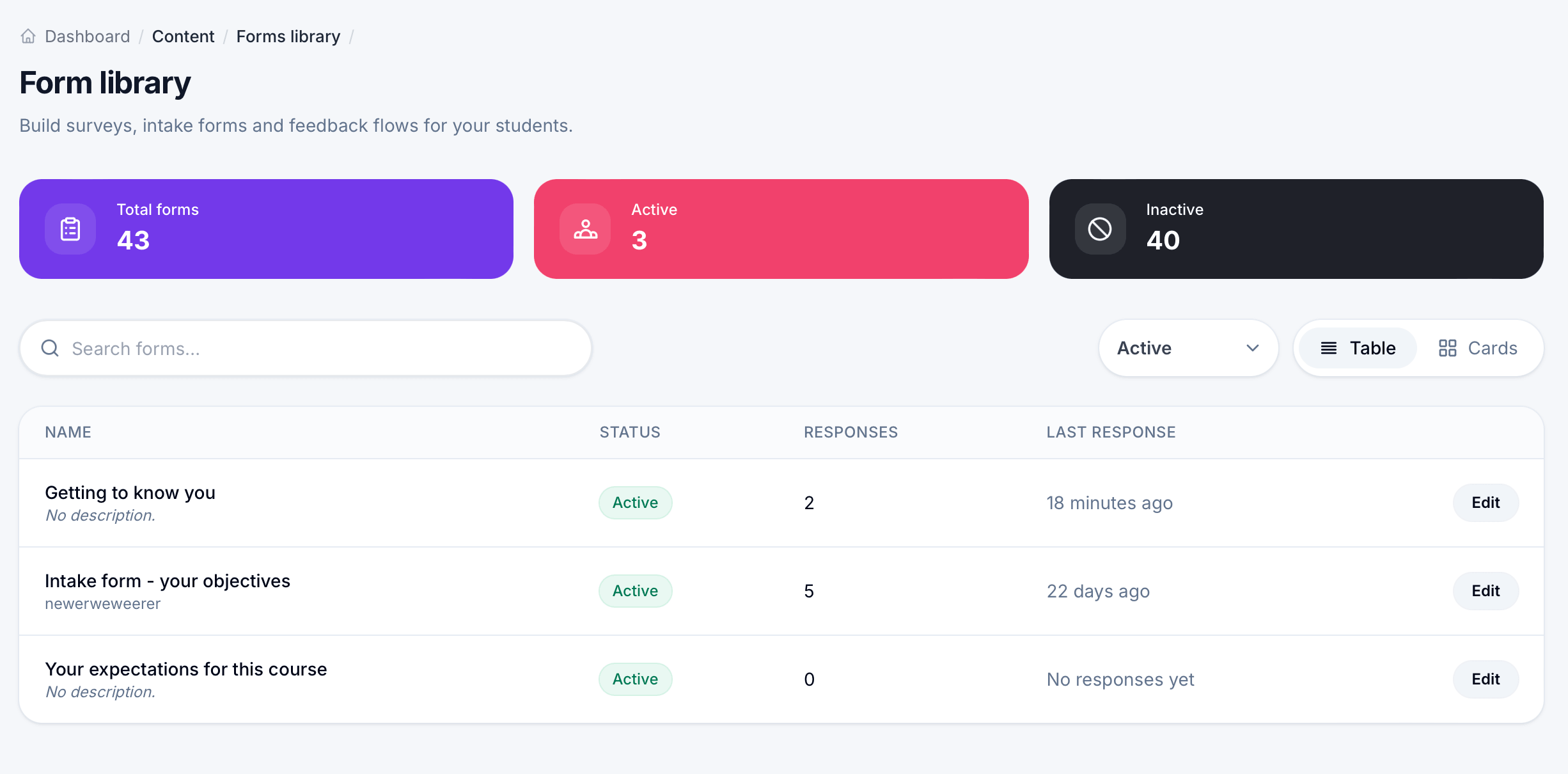
The Forms library, found under Content, is where every form across your entire account lives in one place, separate from any single course. From here you can build new forms, edit existing ones, and see at a glance which forms are active, which aren't, and how many responses each has collected.
The library overview
Open Content > Forms library to see three summary cards at the top: Total forms, Active, and Inactive, giving you a quick sense of your overall form usage.
Below that, Search forms lets you find a specific form by name, and a status dropdown (defaulting to Active) filters the list. Toggle between Table and Cards view depending on how you prefer to browse.
The table lists every form with its Name and description, Status (Active or Inactive), total Responses, and Last Response date, showing either a relative time like "18 minutes ago" or "No responses yet" if nobody has submitted it. Click Edit on any row to open that form.
A form's overview page
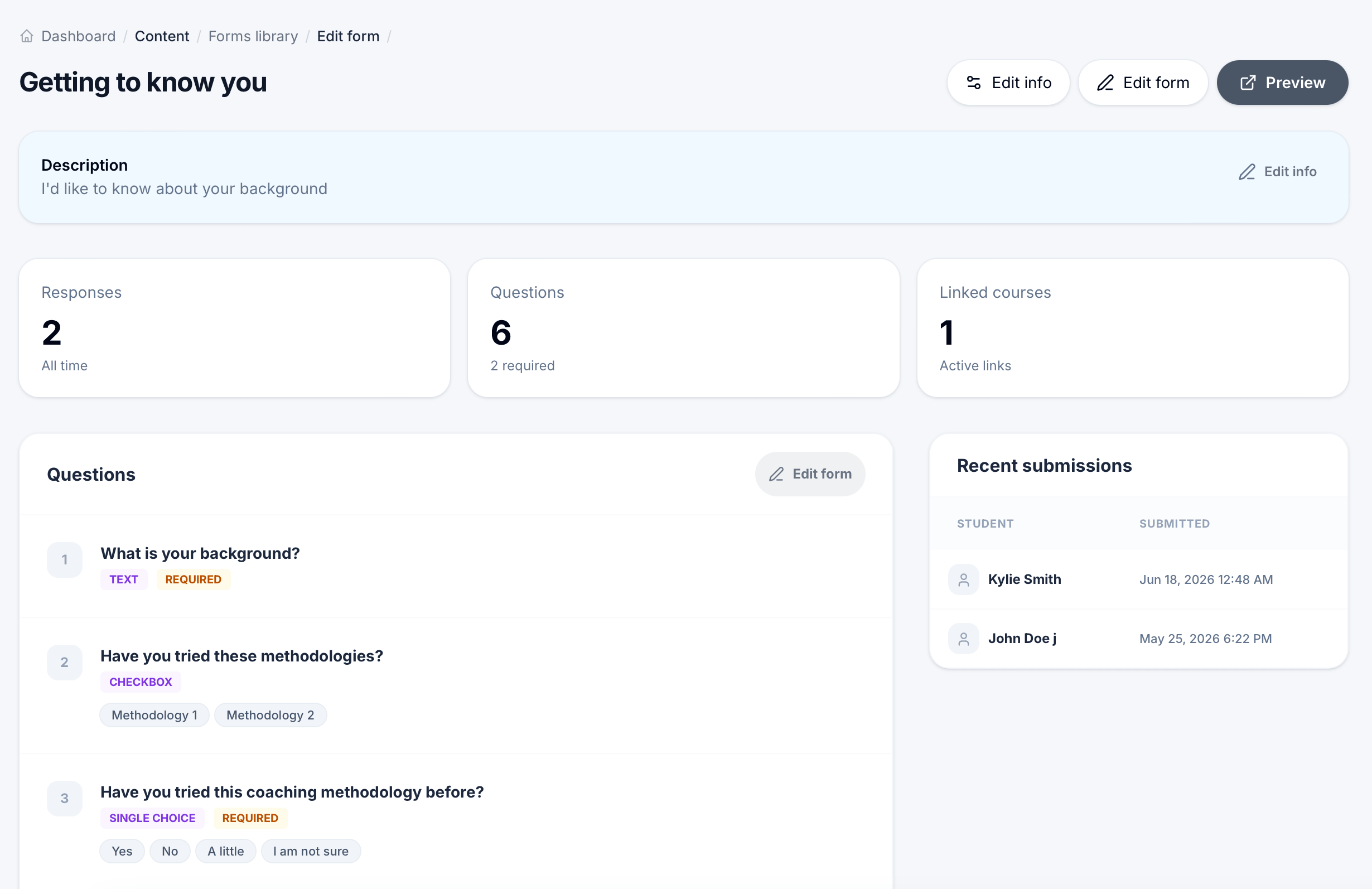
Opening a form from the library takes you to its overview page, which is similar to what you'd see opening a form from inside a specific course, but framed around the form itself rather than one course's use of it.
Three stat cards summarize the form: Responses (all time), Questions (with how many are required), and Linked courses, showing how many active courses currently use this form. A form built once in the library can be linked into multiple lessons across different courses, which is exactly why Linked courses matters here, it tells you how widely this particular form is being reused.
A Description panel shows the form's subtitle text, with Edit info to change it. Below that, the Questions panel lists every question with its type and whether it's required, and a Recent submissions panel on the side shows who's responded most recently and when.
Three buttons in the top right let you manage the form: Edit info, Edit form, and Preview.
Editing form info
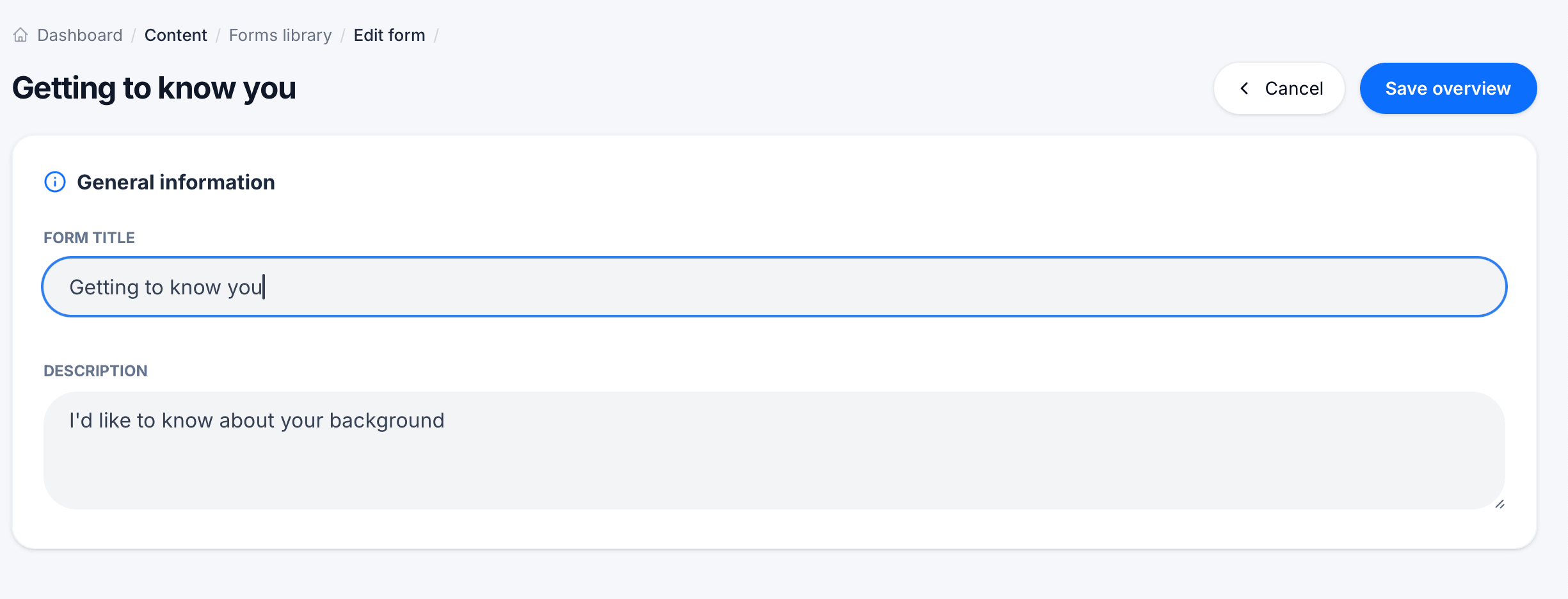
Edit info opens the General information section, where you set the Form title and Description. The description is the subtitle text respondents see at the top of the form, not an internal note, so write it the way you'd want a student to read it (for example, "I'd like to know about your background"). Click Save overview when you're done.
Editing form questions
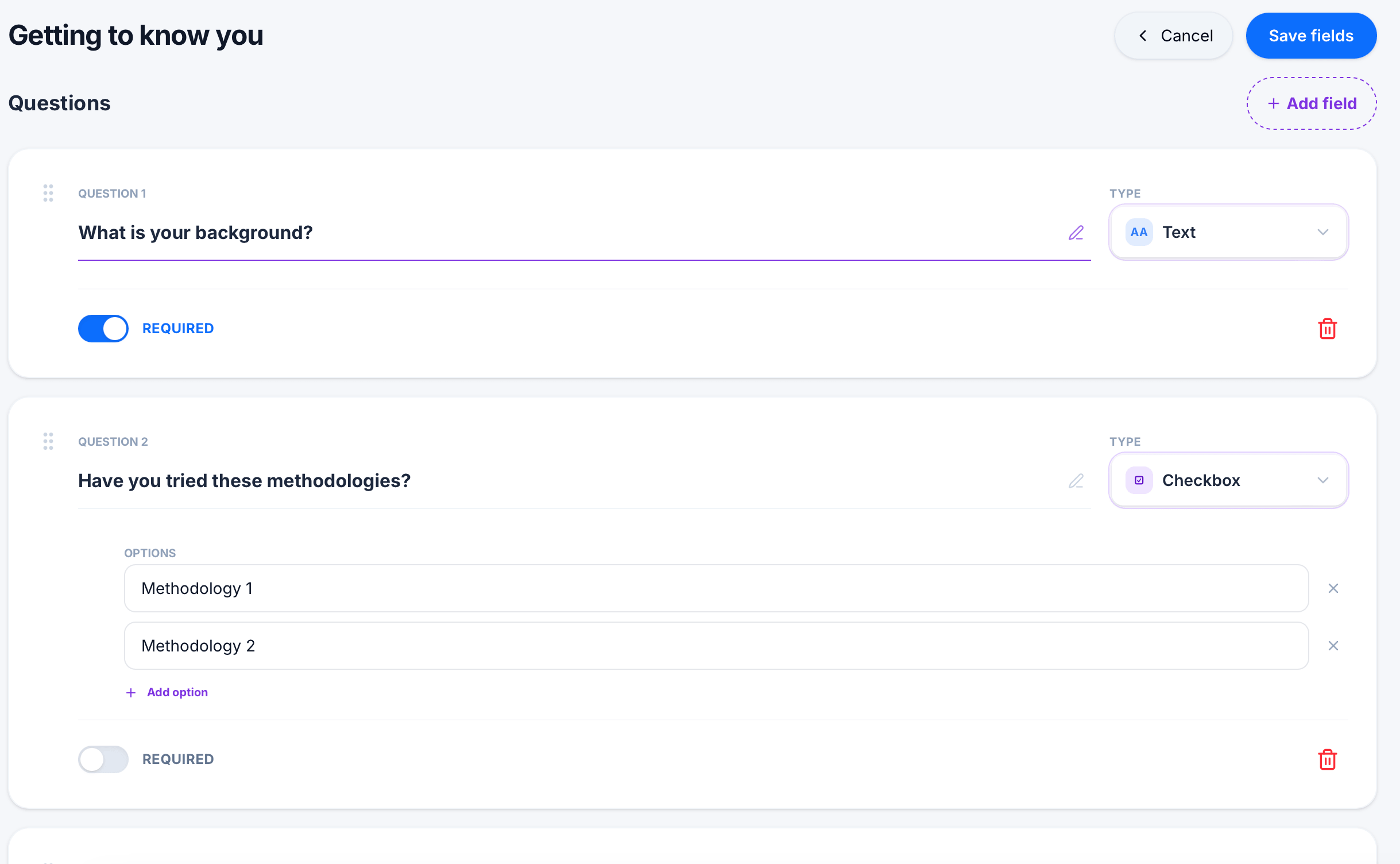
Edit form opens the question builder. Each question shows its number, its text (editable inline), and a Type dropdown to change the question's format. A pencil icon lets you tweak the question further, and a trash icon removes it entirely.
For choice-based questions like Checkbox, an Options list lets you add, edit, or remove individual choices using Add option, and the X next to each one to delete it. Every question has a REQUIRED toggle, controlling whether a respondent must answer it before submitting.
Click + Add field in the top right to add a new question to the form, and Save fields once your changes are ready.
Previewing the form
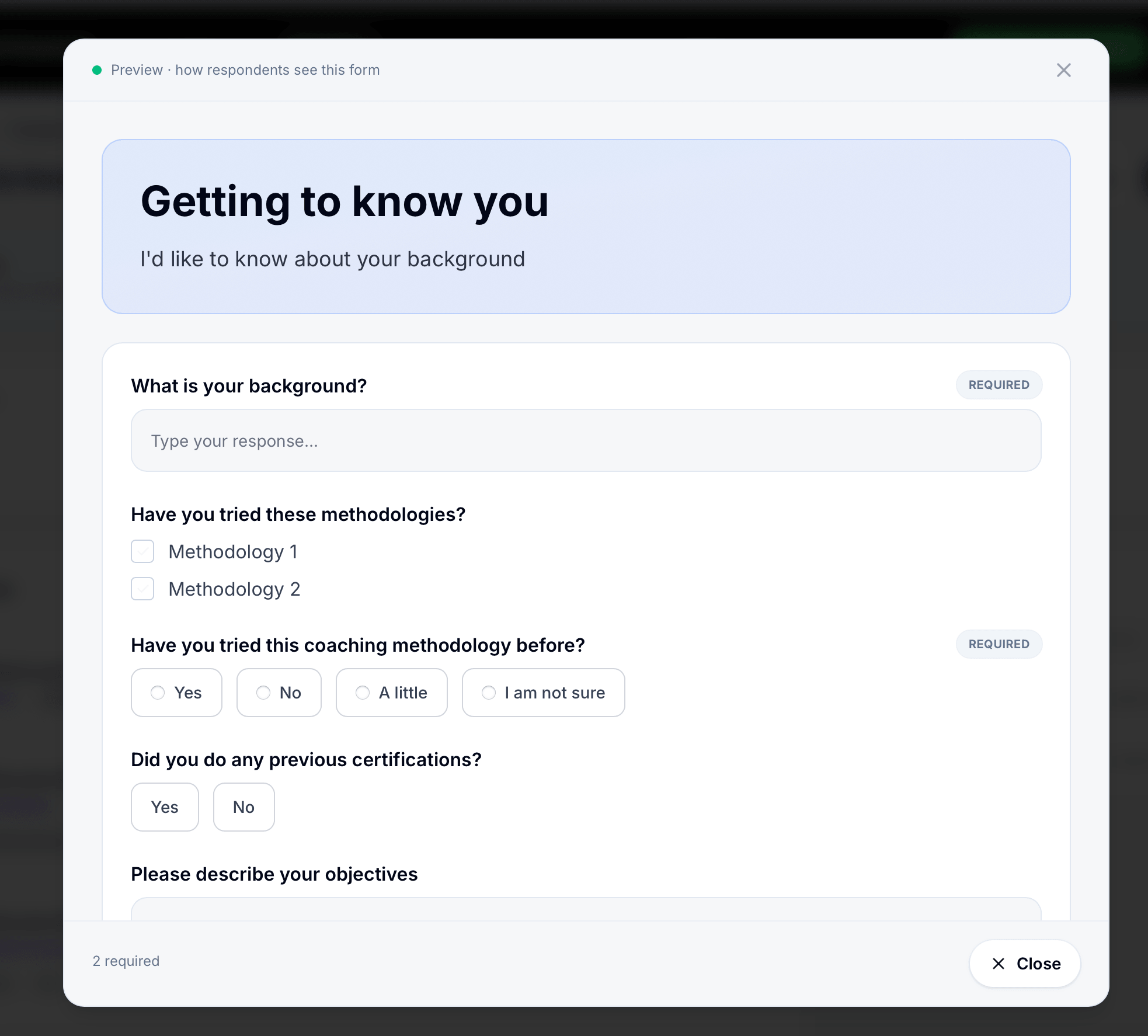
Preview shows exactly how the form looks to a respondent. Required questions are marked with a REQUIRED badge, and a running count at the bottom (for example, "2 required") tells you how many required questions remain. This is a reliable way to check your form reads correctly and flows well before it goes live for students.
Tips
Build a form once in the library rather than recreating it inside every course that needs it. Since a single form can be linked across multiple courses, editing it centrally updates it everywhere it's used, rather than needing separate edits per course.
Check Linked courses before making major changes to a form's questions. If a form is actively linked into several courses, editing its questions changes what every one of those courses is asking, not just the course you happened to be working in when you opened it.
Use the library's status filter to periodically review your Inactive forms. With 40 inactive forms against only 3 active ones in a typical account, it's easy to lose track of which forms are actually still in use versus old drafts or one-off forms nobody's collecting from anymore.