

Setting pass thresholds, timers, attempt limits
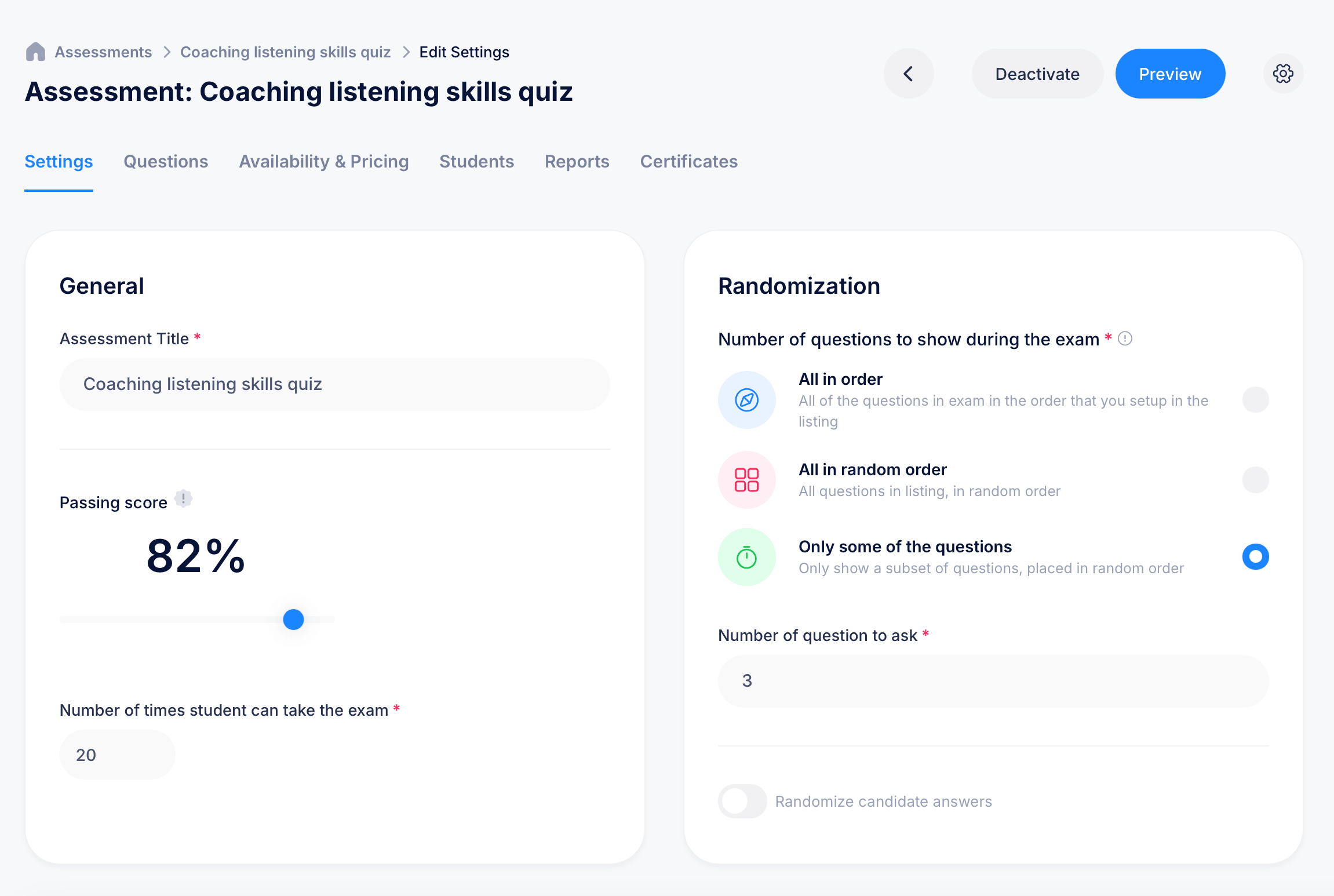
Once an assessment has been created, its Settings tab is where you fine-tune exactly how it behaves: how it's scored, how much time students get, how questions are randomized, and what students see once it's graded. Open any assessment and select Settings from the tab bar (alongside Questions, Availability & Pricing, Students, Reports, and Certificates) to access these controls.
General settings
Assessment Title — the name of the exam, editable at any time.
Passing score — set using a slider, expressed as a percentage. This is the minimum score a student must earn for their attempt to count as a pass. A higher passing score (80% or above, for example) sets a stricter bar for what counts as genuinely knowing the material, while a lower one is more forgiving of minor mistakes.
Number of times student can take the exam — how many attempts each student gets. Set this to 1 for a single, no-retake attempt, or a higher number, like 20, if you want students to be able to keep retrying until they pass, or to allow room for a technical issue mid-attempt without penalizing the student.
Randomization
This section controls how questions and answers are presented to each student. Three options are available for Number of questions to show during the exam:
All in order — every question in the exam appears, in the exact order you arranged them in the listing. No randomization at all.
All in random order — every question appears, but shuffled into a different order for each student.
Only some of the questions — only a subset of your full question bank is shown, pulled in random order. When you choose this, a Number of question to ask field appears, where you specify exactly how many questions should be drawn from your larger pool. For example, with a question bank of 100 and this set to 25, each student sees a different random subset of 25 questions.
A separate toggle, Randomize candidate answers, controls whether the order of answer choices within each question is also shuffled, independent of whether you're randomizing the questions themselves.
Combining "Only some of the questions" with "Randomize candidate answers" gives you the strongest protection against students sharing answers with each other, since neither the question set nor the answer order is guaranteed to match between any two students.
Timing
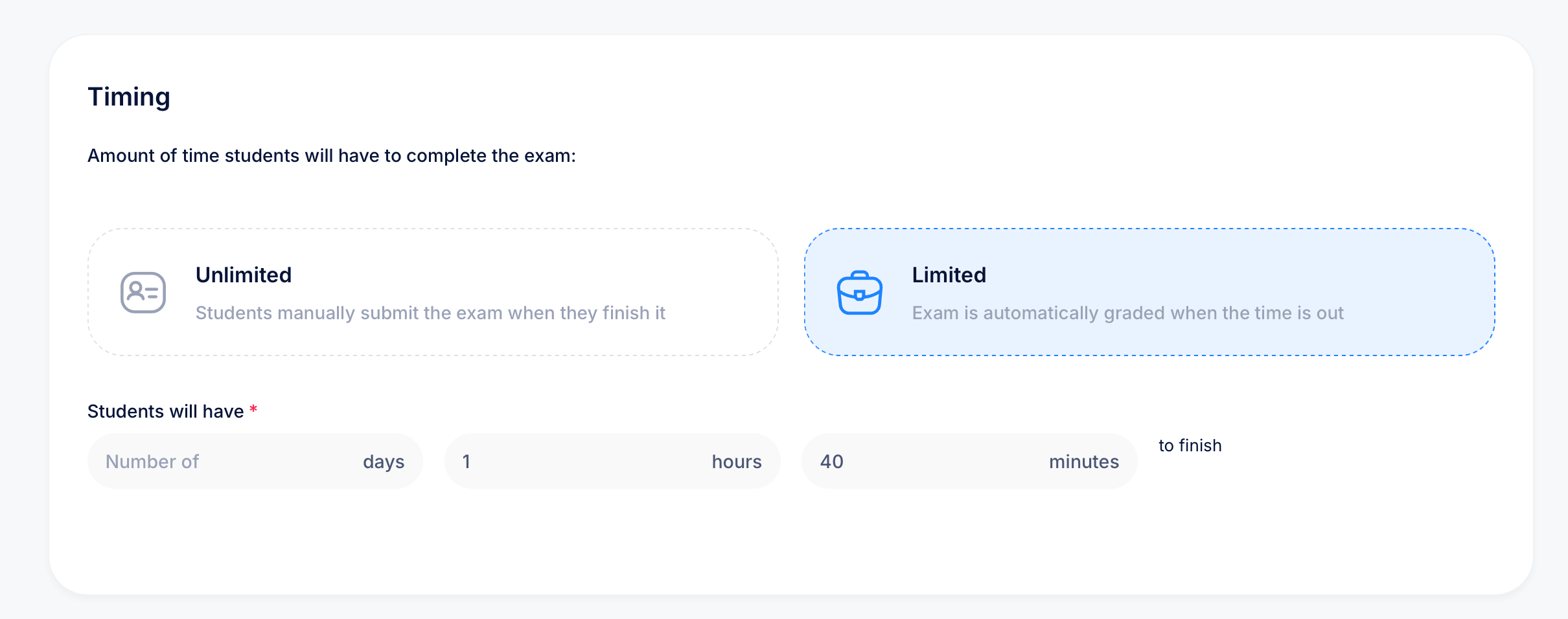
Set how much time students get to complete the exam. Choose between:
Unlimited — students manually submit the exam whenever they finish it, with no time pressure.
Limited — the exam is automatically graded the moment time runs out, using whatever answers the student had entered up to that point, whether or not they clicked submit.
If you choose Limited, fill in Students will have with the amount of time allowed. You're not restricted to a single unit, you can combine days, hours, and minutes together. For example, setting hours to 3 and minutes to 30 gives students 3 hours and 30 minutes once they begin the exam, leaving days blank.
After grading display preferences
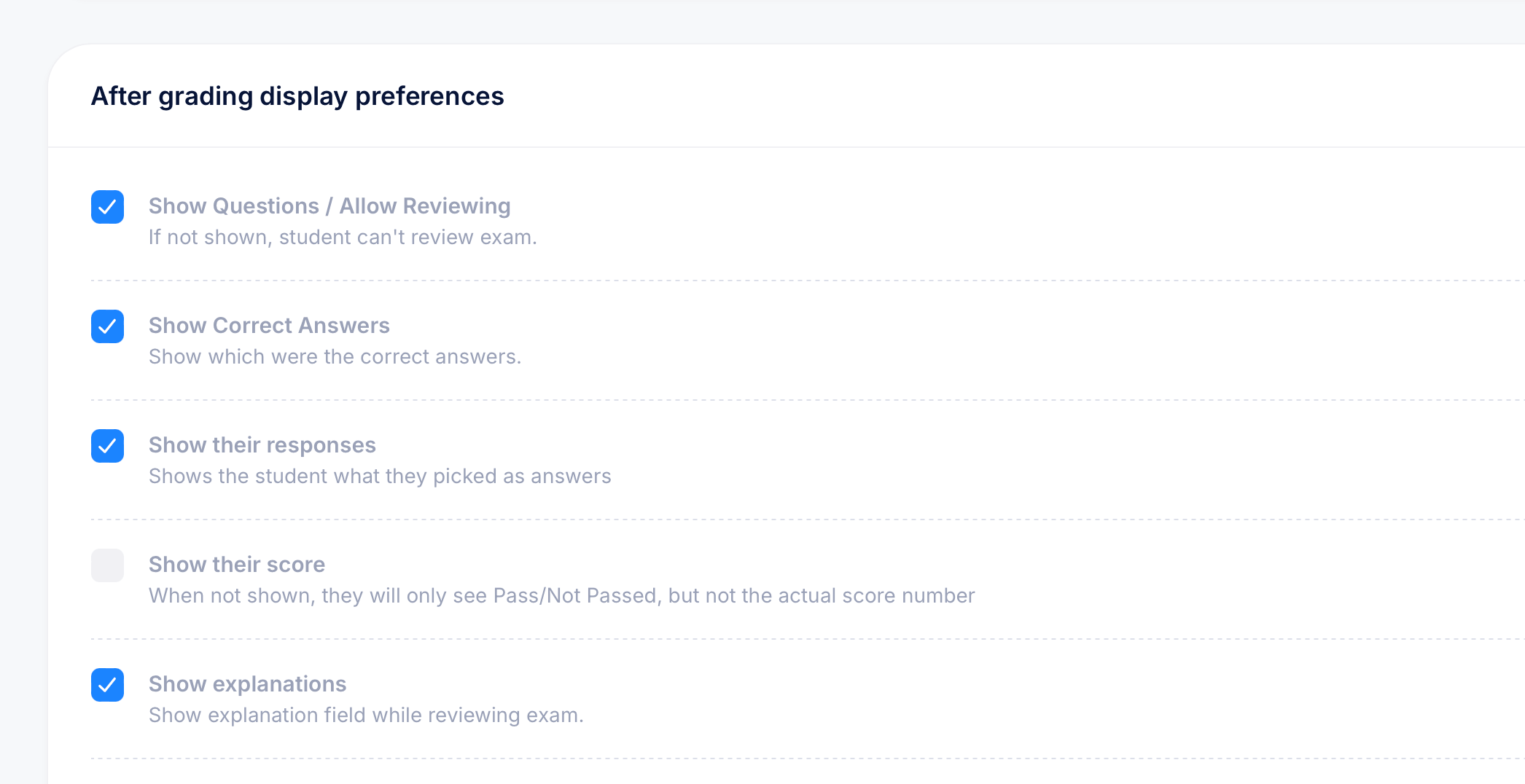
This section controls exactly what a student sees once their exam has been graded. Each option is an independent checkbox:
Show Questions / Allow Reviewing — if unchecked, students can't go back and review the exam at all once it's graded.
Show Correct Answers — reveals which answers were correct, useful for a learning-focused exam where mistakes should be a teaching moment, less useful for an exam you plan to reuse and don't want students memorizing the answer key from.
Show their responses — shows the student what they personally selected for each question, distinct from showing the correct answers.
Show their score — when this is unchecked, students only see a Pass or Not Passed result, without the actual percentage they scored. This is useful if you want students focused on whether they passed rather than comparing exact scores with classmates.
These settings can be combined however suits your goals. A high-stakes certification exam might leave all of these off except a simple pass/fail result, while a low-stakes practice quiz might turn everything on so students get maximum value out of reviewing their mistakes.
Putting it together
A few common configurations:
For a certification exam meant to be taken once and trusted, set a high passing score, limit attempts to 1 or 2, randomize both questions and answers, and turn off "Show Correct Answers" so the answer key doesn't leak to future test-takers.
For a practice quiz meant to help students learn, set a lower-stakes passing score, allow unlimited or generous attempts, and turn on every after-grading display option so students get full visibility into what they got right and wrong.
Tips
If you're reusing the same assessment across many students or cohorts over time, randomization and hiding correct answers matter more, since the risk of answers circulating increases the longer an exam stays in use.
Changes made in Settings apply going forward; they generally won't retroactively alter grades or results from attempts students have already completed.