

Managing Students on an Assessment
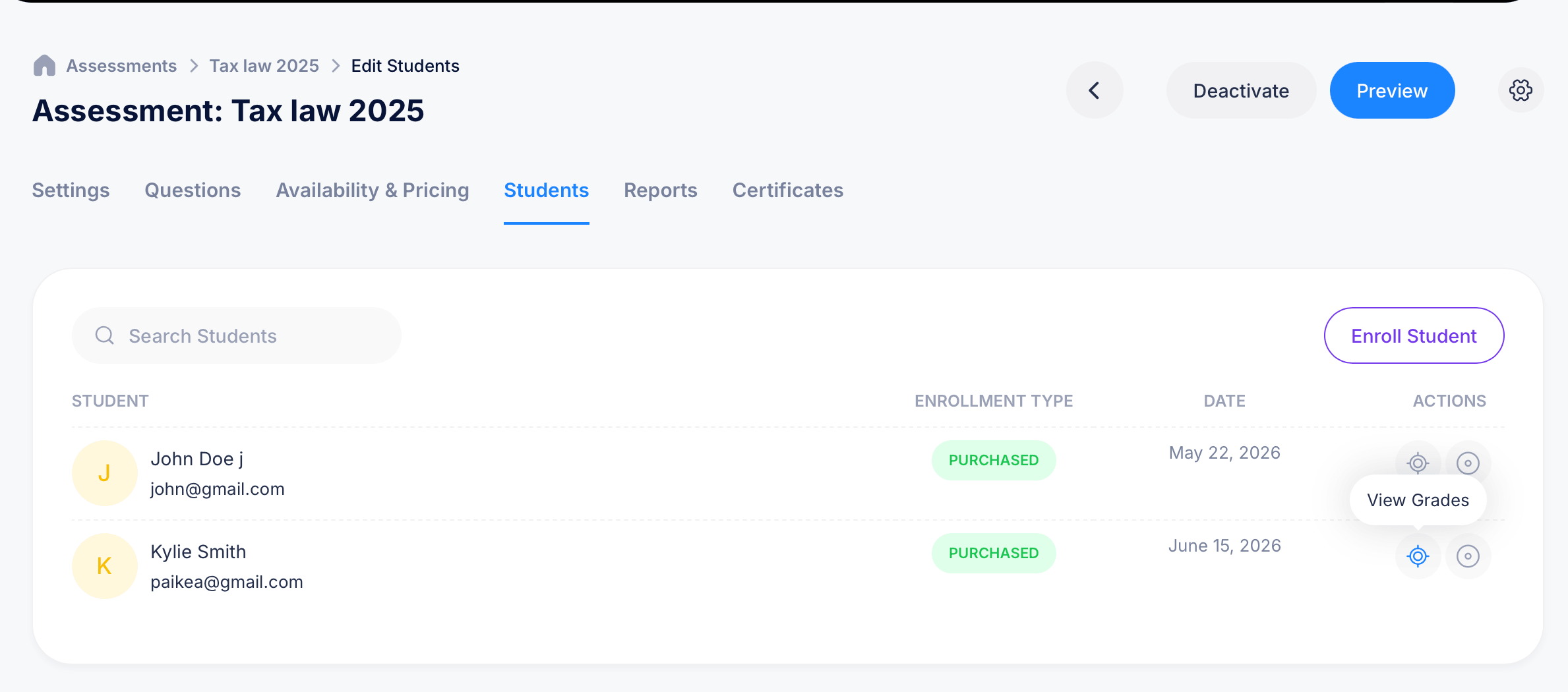
The Students tab on any assessment shows you everyone enrolled in that exam, lets you enroll students manually, and gives you a detailed look at each student's attempt history and grades.
The student list
Open an assessment and select Students from the tab bar to see who's enrolled. Each row shows the student's name and email, their Enrollment Type (such as Purchased, for students who paid for access), and the date they enrolled.
Use Search Students to find someone quickly in a large list.
Enrolling students manually
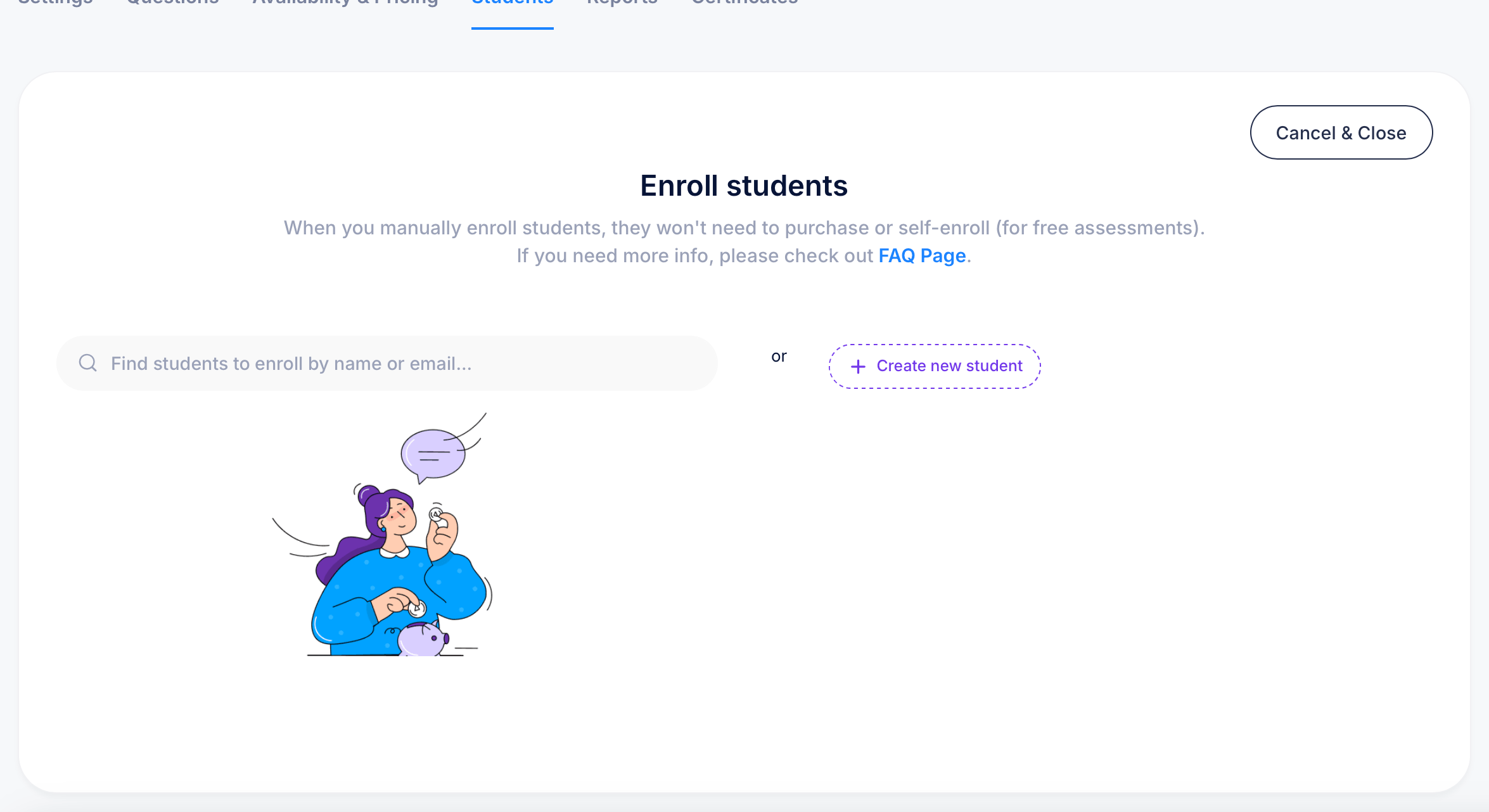
Click Enroll Student to add someone directly, without requiring them to purchase or self-enroll. This is especially useful for free assessments where you want to grant access yourself rather than waiting for a student to find and enroll in it on their own.
You can either search for an existing student using Find students to enroll by name or email, or click Create new student if they don't have an account yet. A note on this screen clarifies that manually enrolled students skip the purchase or self-enrollment step entirely.
Reviewing a student's attempts
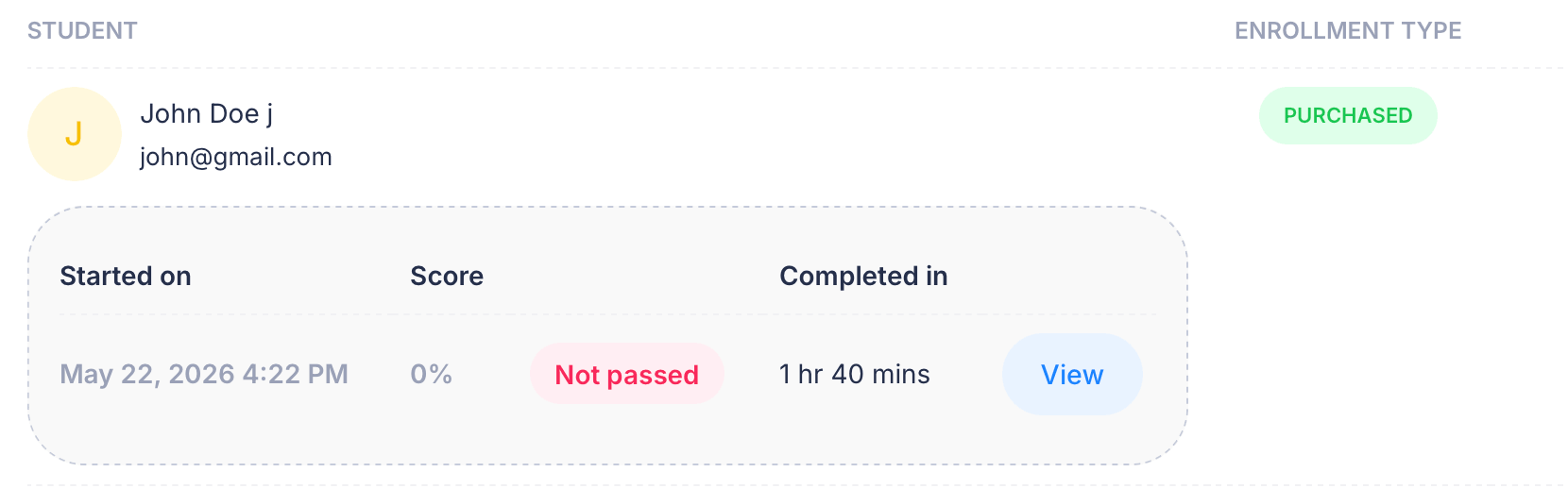
Click a student's row to expand their attempt history in place. This shows the Started on date, their Score, a pass/fail badge (Not passed or Passed), and Completed in, the total time the attempt took. Click View next to a specific attempt to open the full, detailed breakdown.
The detailed attempt view
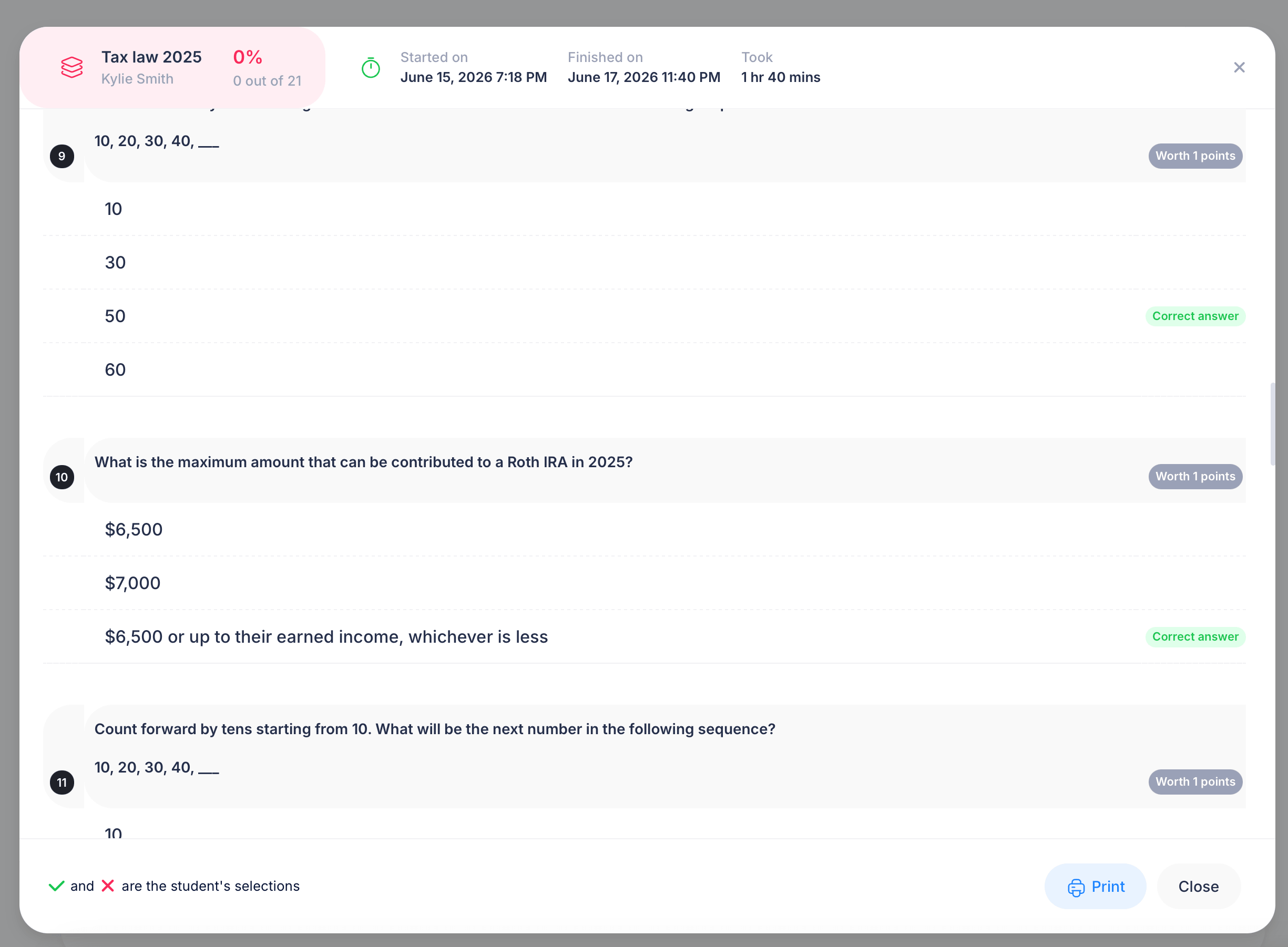
Opening a specific attempt shows you exactly what that student saw and answered. At the top, you'll see the assessment name, the overall score percentage, how many questions they got right out of the total, and timing details: Started on, Finished on, and Took (the total duration).
Below that, every question appears with the answer choices the student was shown. A green Correct answer label marks the right choice, and a checkmark or X next to an option shows what the student actually selected, a checkmark for correct selections, an X for incorrect ones. This lets you see not just whether a student passed, but exactly where they went right or wrong question by question.
Use Print if you need a physical or PDF copy of this breakdown, or Close to return to the student list.
Actions on enrolled students
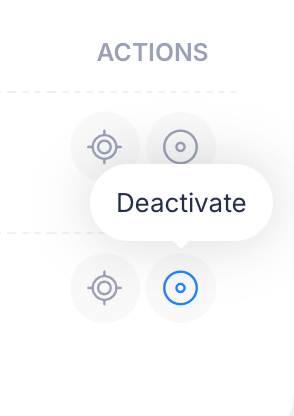
Each student row includes two action icons on the right. The crosshair icon opens View Grades, taking you straight to that student's attempt history without needing to click the row itself first. The circular icon is Deactivate, which removes a student's active access without deleting their enrollment record or attempt history.
Tips
Manually enrolling students is the right approach for cohorts, internal teams, or any group you want to grant access to without making them go through a checkout or self-enrollment flow, especially common for free internal assessments.
If a student scores 0% or fails unexpectedly, opening their detailed attempt view is the fastest way to diagnose what happened, whether they genuinely struggled with the material, ran out of time, or perhaps didn't realize the assessment had been assigned to them at all.