E
P
R
O
F
E
S
S
O
R

Viewing a student's course progress
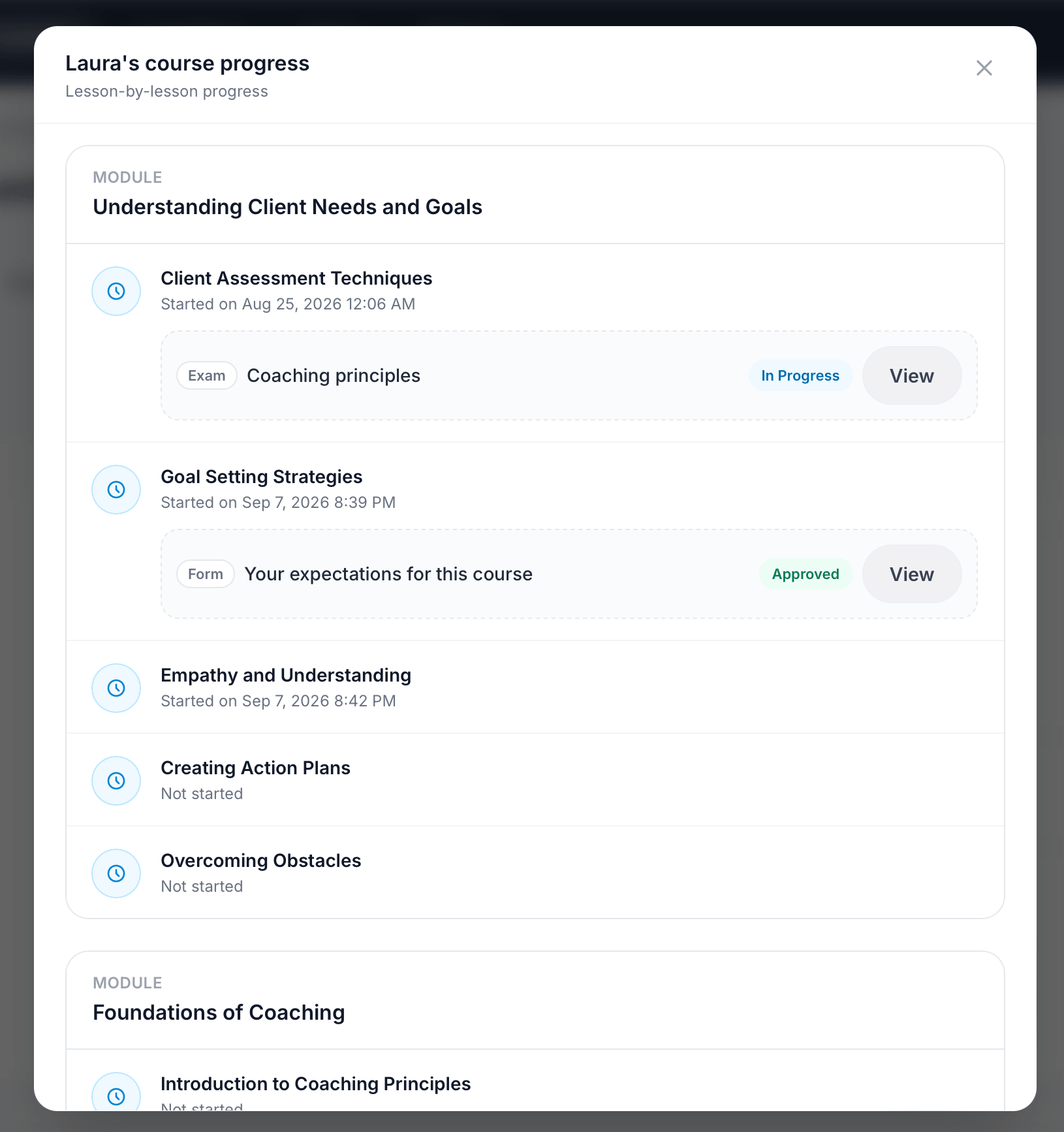
Open the lesson-by-lesson breakdown of what a student has completed, started, or hasn't touched yet — right from your Students list.
On this page
- Find progress from the Students list
- Read the progress breakdown
- Understand item statuses
1 - Find progress from the Students list
Every enrolled student gets a progress indicator in the Students table, whether or not they've started.
- Go to Students and locate the student, using the search bar if your list is long.
- Look at the Progress column on the right. A student who hasn't opened the course yet shows a Not started badge instead of a percentage.
- For a student who has begun the course, click View Progress to open their full breakdown.
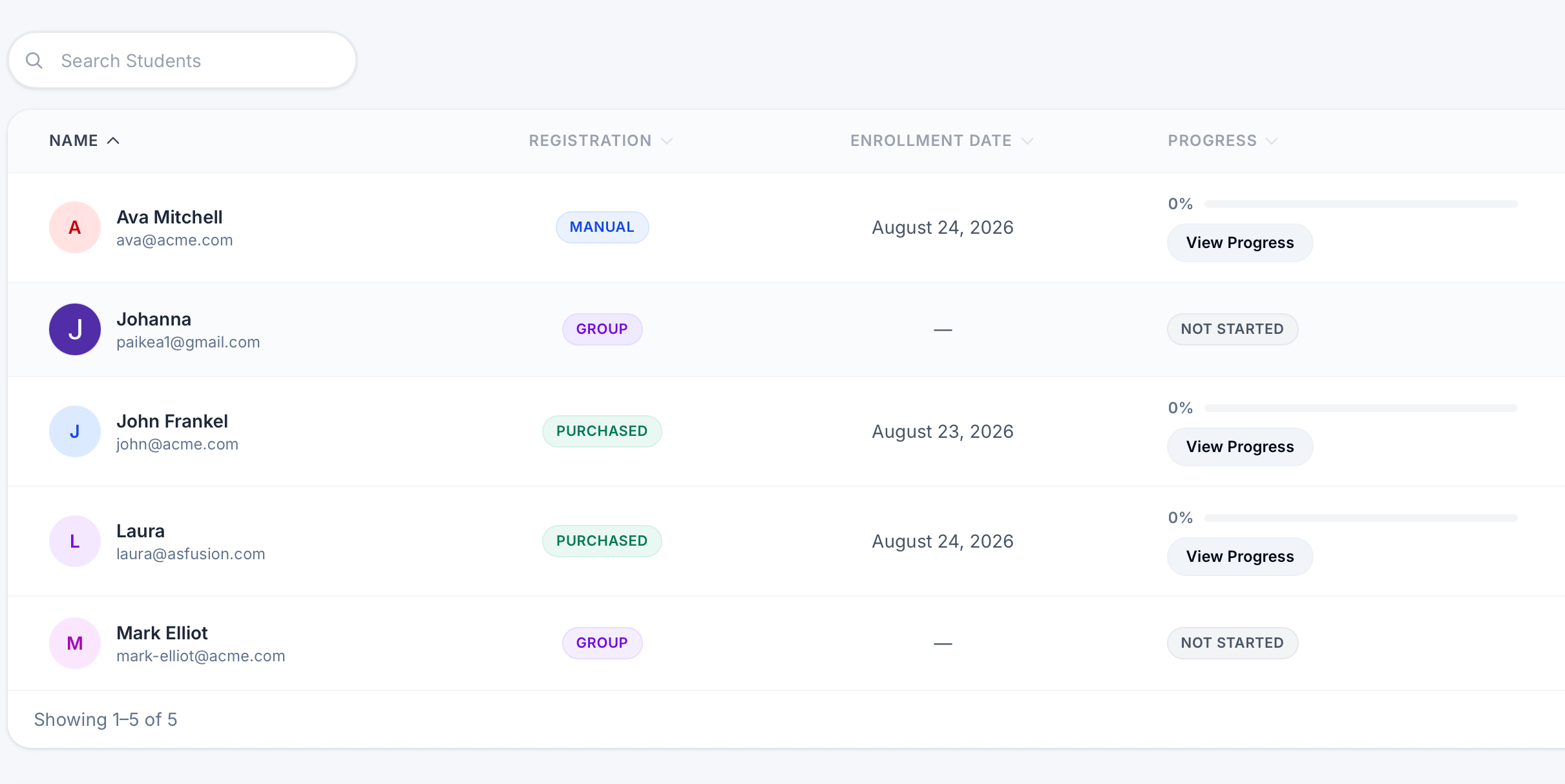
Note: a student stays at Not started and shows no enrollment date until they log in and open a lesson for the first time.
2 - Read the progress breakdown
The progress window groups everything by module, then lists each lesson in order with its own status.
- Each module header groups the lessons that belong to it, in the order students see them.
- Each lesson shows when the student started it, or Not started if they haven't reached it yet.
- If a lesson contains a graded item — an exam or a form — it appears nested underneath with its own status and a View button to open the student's submission.
- Scroll down to move through every module in the course.
3 - Understand item statuses
Exams and forms carry their own status, separate from whether the lesson itself has been started.
| Status | What it means |
|---|---|
| In Progress | The student has opened the exam but hasn't submitted it yet. |
| Approved | The submission has been reviewed and accepted. |
| Not started | The student hasn't reached this lesson or item yet. |
Note: a lesson can show a start date while its exam still reads Not started — students often read a lesson before attempting its exam.