

Exam reports: filtering by exam, status, date range
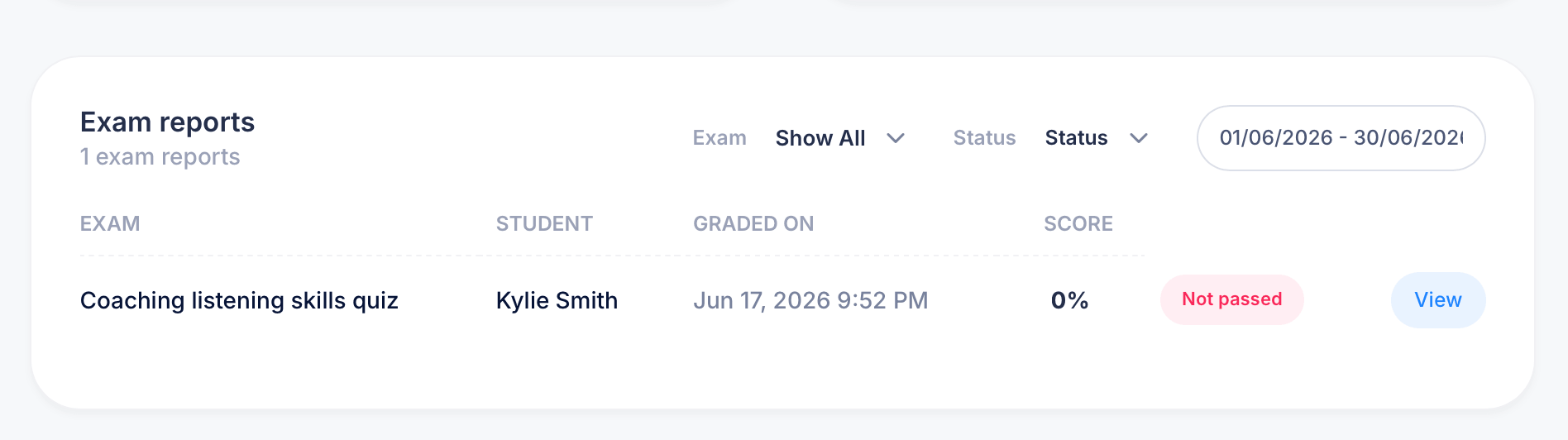
The Exam reports panel on your Dashboard gives you a running record of graded exams across your courses. Instead of opening each exam individually to check results, this single table shows every graded attempt, who took it, when it was graded, and whether the student passed.
What the table shows
Each row in Exam reports represents one graded exam attempt, with five columns:
- Exam — the name of the exam or quiz
- Student — who took it
- Graded on — the date and time the attempt was scored
- Score — the percentage the student earned
- Status — whether the attempt counts as Passed or Not passed, based on the pass threshold you set for that exam
A View button sits at the end of each row, letting you open that specific attempt to see the student's full answers.
Filtering the report
Three controls above the table let you narrow down what you're looking at:
Exam — defaults to "Show All." Use this dropdown to filter the table down to a single exam or quiz, useful when you only want to review results for one assessment rather than everything across your courses.
Status — filter by passed or not passed. This is the fastest way to find students who didn't clear the pass threshold, without scrolling through everyone who did.
Date range — defaults to the last 7 days. Adjust this if you're looking for older results, or widen it to cover a longer exam window.
The panel header updates to reflect how many results match your current filters, so "1 exam report" means only one graded attempt falls within the Exam, Status, and date range you've selected.
Reading a result
A row like "Coaching listening skills quiz, Kylie Smith, Jun 17 2026 9:52 PM, 0%, Not passed" tells you everything at a glance: which exam, which student, exactly when it was graded, the score they earned, and whether that score cleared the pass bar. Clicking View opens the full attempt if you need to see which specific questions they got wrong.
Why this is useful
Checking Exam reports regularly is the fastest way to spot students who are struggling before it becomes a bigger problem. A "Not passed" result, especially a very low score like 0%, is worth a closer look. It might mean a student didn't understand the material, ran out of time, or didn't realize an exam was assigned at all.
If you're running the same exam across a large group, filtering by Status: Not passed lets you quickly pull a list of everyone who needs a retake or some follow-up, without manually checking every student one by one.
Tips
Narrow the Exam filter before narrowing Status if you're focused on one specific assessment. Filtering by status first across all exams is more useful when you want a broad view of who's struggling across your entire course load.
Widen the date range if a report you expect to see isn't showing up. The default range only covers the last 7 days, so older exam attempts won't appear until you adjust it.