

Managing Students
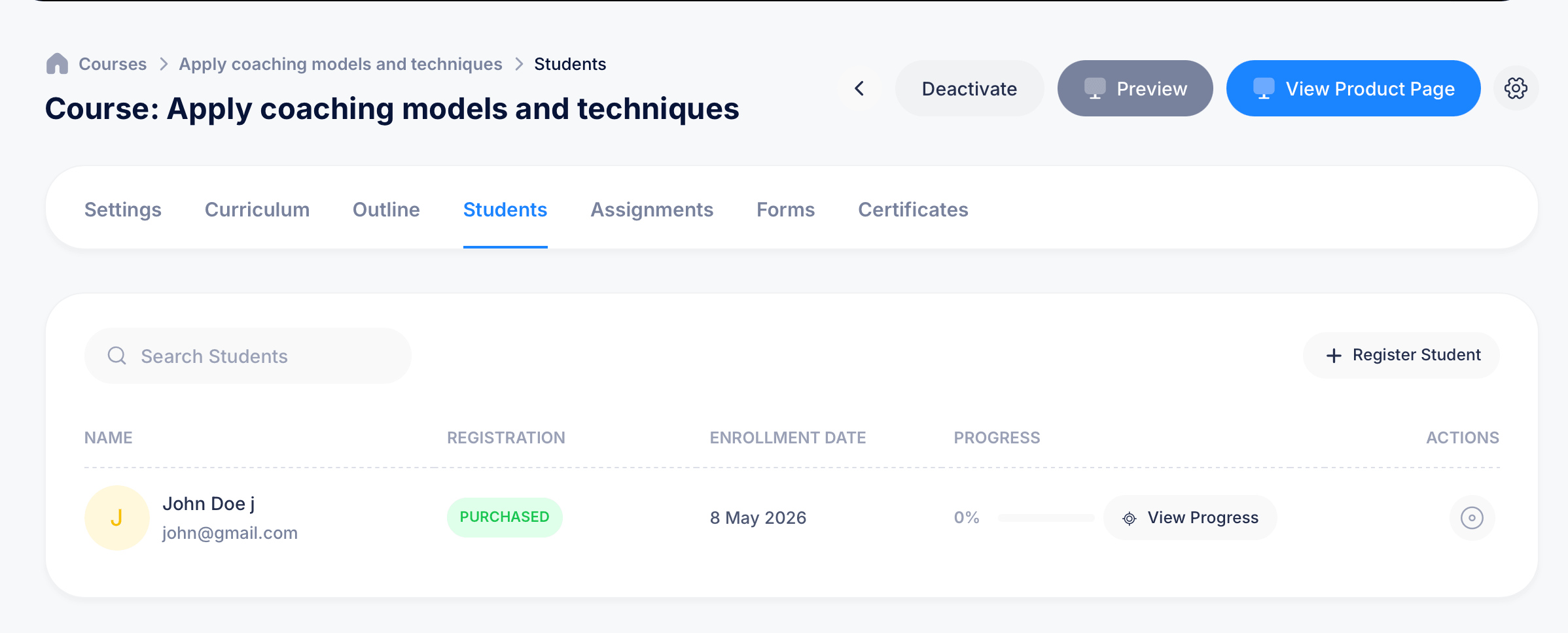
The Students tab on a course shows everyone registered for that course, lets you register students manually, and gives you a detailed breakdown of each student's progress through every module and lesson.
Getting there
Open a course and select Students from the tab bar, alongside Settings, Curriculum, Outline, Assignments, Forms, and Certificates.
The student list
Each row shows the student's Name and email, their Registration status (such as Purchased, for students who paid to enroll), the Enrollment Date, and a Progress bar showing what percentage of the course they've completed.
Use Search Students to find someone quickly in a larger course.
Registering students manually
Click Register Student to add someone to the course directly, the course-level equivalent of manually enrolling a student into an assessment. This is the right approach when you want to grant access yourself, for free courses, internal teams, or any group you don't want going through a purchase or self-enrollment flow.
Viewing detailed progress
Click View Progress on any student's row to open a complete breakdown of where they stand in the course. This view is organized by Module, matching the structure you built in Curriculum and Outline, with each lesson inside showing its own status.
For each lesson, you'll see either Started on [date] or Not started, depending on whether the student has engaged with it yet. Beneath each lesson, individual graded or submittable items appear with their own status:
- Assignment items show Not Submitted until the student turns something in
- Exam items show a result like Passed, with a View button to open that specific attempt's full detail
- Form items show Not Submitted until the student fills it out
This gives you a precise picture of not just overall course completion, but exactly which lesson, assignment, or exam a specific student is stuck on or hasn't reached yet.
Tips
If a student's overall progress looks stalled, opening View Progress is the fastest way to find out why; you'll often find a specific lesson marked Not started further down even if earlier ones show as complete, rather than the student having stopped at the very beginning.
Registering students manually works well alongside drip or scheduled content release. Even if you enroll someone today, content set to unlock gradually will still follow its own schedule from their enrollment date.