

Using the Referral Program
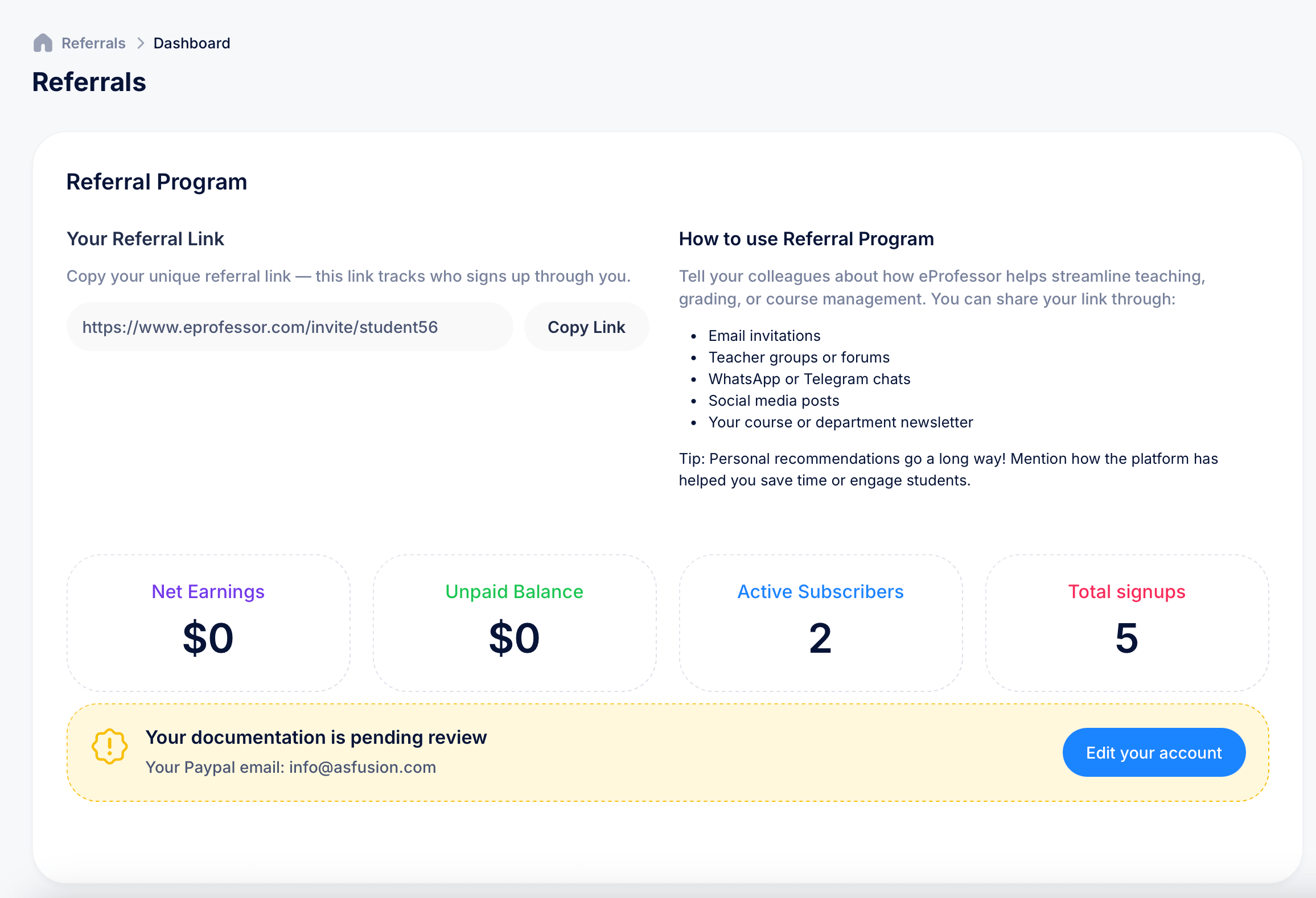
The Referral Program lets you earn rewards by inviting other educators and trainers to eProfessor. Anyone who signs up through your unique link gets tracked back to you, and you can earn payouts based on signups that convert to paying subscribers.
Getting there
Open the Referral Program from your account menu (click your avatar in the top right).
Your referral link
At the top of the page, Your Referral Link shows a unique URL in the format https://www.eprofessor.com/invite/[yourname]. This link tracks who signs up through you. Click Copy Link to copy it to your clipboard for sharing.
How to use it
A panel on the right suggests several ways to share your link: email invitations, teacher groups or forums, WhatsApp or Telegram chats, social media posts, or your own course or department newsletter. The page's own tip is worth repeating: personal recommendations go a long way, mentioning specifically how the platform has helped you save time or engage students tends to land better than a generic link drop.
Tracking your performance
Four stats below your link show how your referrals are doing:
- Net Earnings — total money earned from referrals after any fees
- Unpaid Balance — earnings that haven't been paid out to you yet
- Active Subscribers — how many people you referred are currently paying subscribers
- Total signups — everyone who has signed up through your link, whether or not they converted to a paid plan
Setting up payment

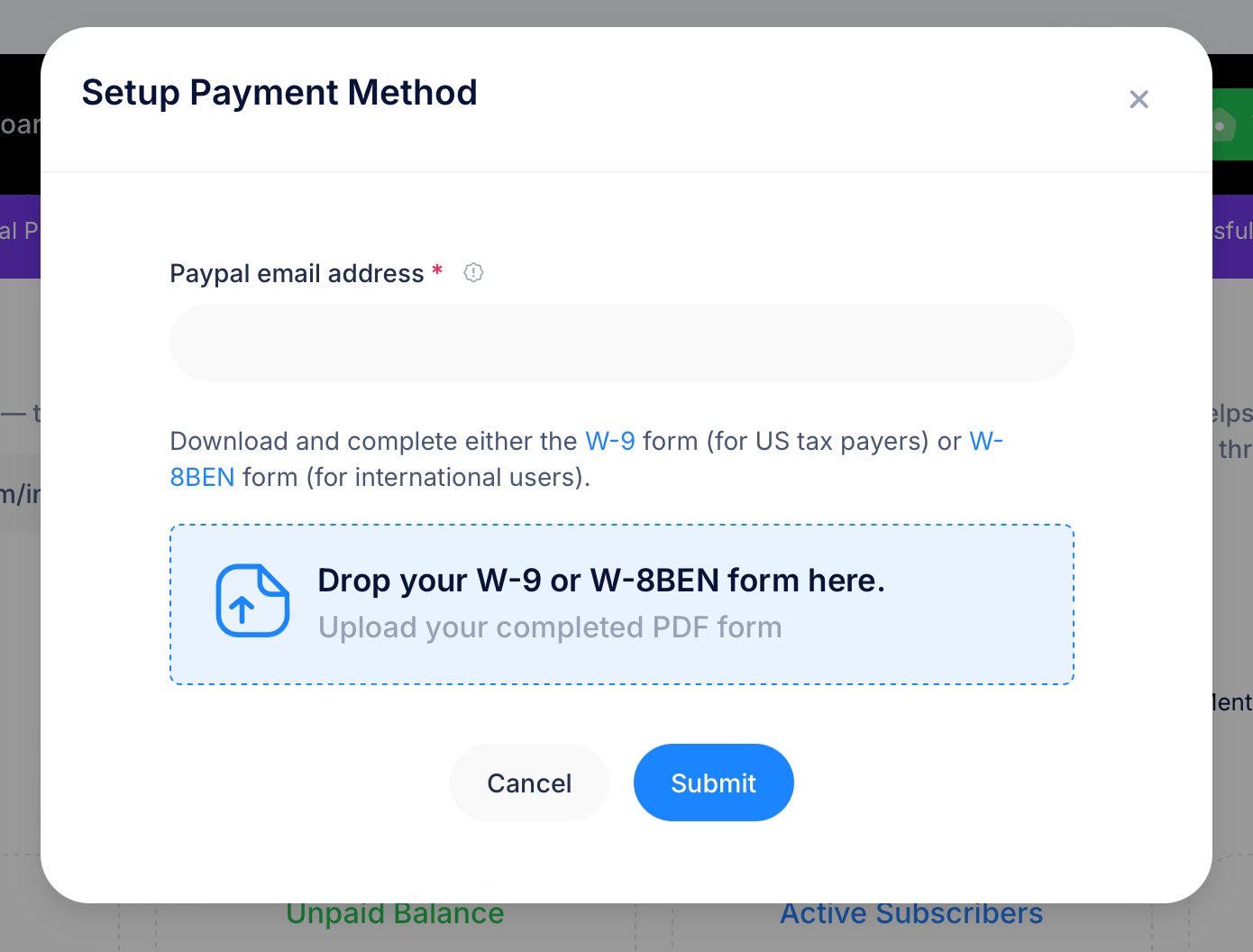
Before you can receive any referral earnings, you need to set up how you'll get paid. A prompt reading Set up PayPal to securely receive your earnings walks you through this. Click Setup to open the Setup Payment Method form, where you'll provide:
- Your Paypal email address (required), the account your earnings will be sent to
- A completed W-9 form if you're a US taxpayer, or a W-8BEN form if you're an international user. Download the relevant form using the links provided, fill it out, then drop the completed PDF into the upload area
Click Submit once both pieces are in place.
Documentation review
After submitting, you may see a note like Your documentation is pending review along with the PayPal email you provided. This means your submission is being verified before payouts can begin. Click Edit your account if you need to correct anything you submitted.

Tips
Set up your PayPal and tax form early, even before you start actively sharing your link. Earnings can't be paid out until your documentation is approved, so getting it submitted ahead of time means you won't have to wait once referrals start converting.
Total signups will usually be higher than Active Subscribers, since not everyone who signs up through your link ends up as a paying customer. Use the gap between the two numbers to gauge how well your referral pitch is converting, not just how many people are clicking your link.