

Website design and layout
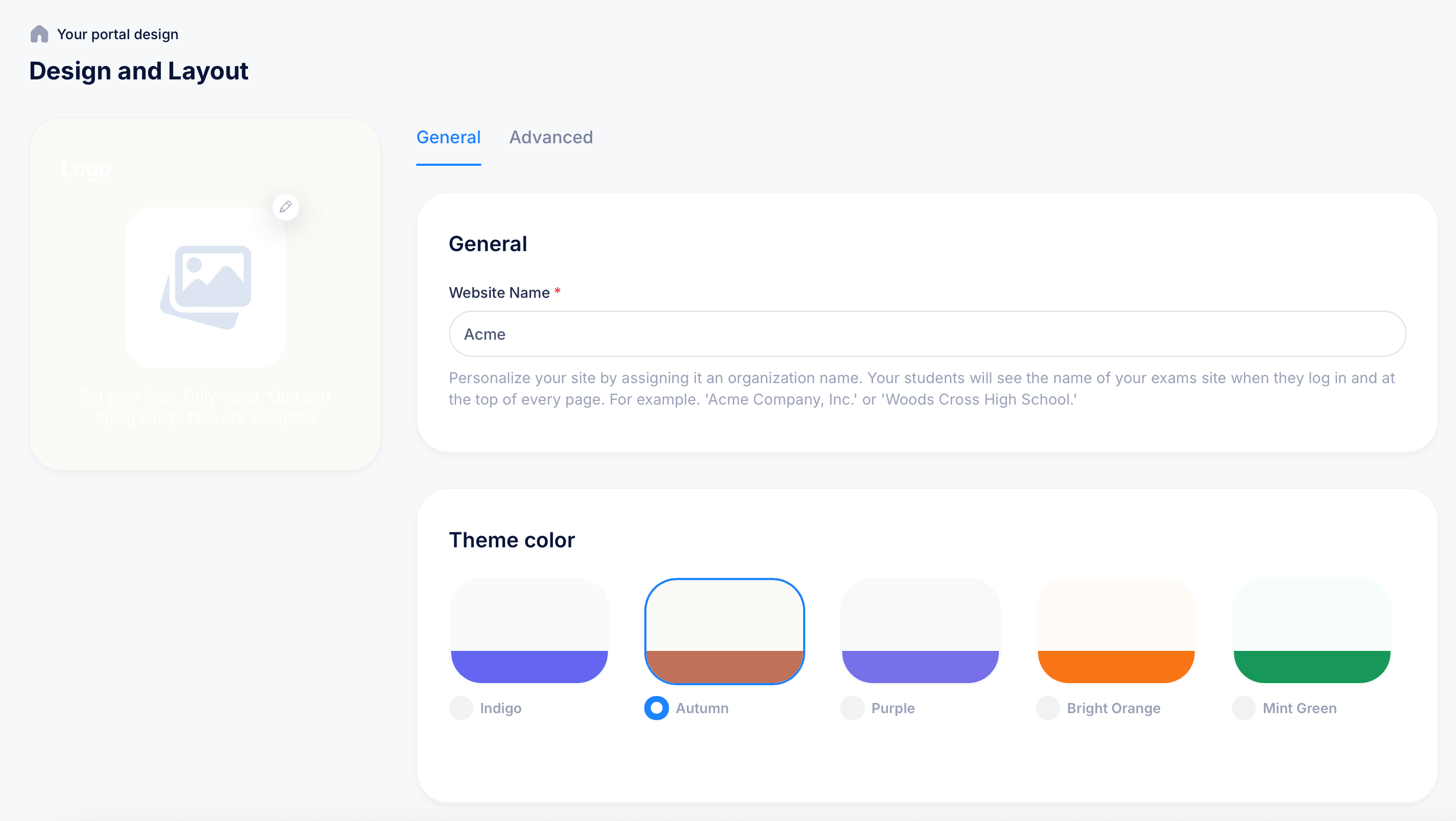
Look & Feel > Website is where you control how your student portal looks and behaves — its name, logo, color theme, URL, and who can register. These settings apply across your entire portal, not just a single course.
Getting there
Go to Look & Feel in the top navigation and select Website.
General tab
Logo
On the left side of the page, a preview area shows how your portal currently looks. Click the pencil icon on the image placeholder to upload your logo. This is what students see at the top of your portal when they log in and browse your courses.
Website Name
Under General, the Website Name field sets your organization name as it appears to students — at login and at the top of every page. Enter something like "Acme Company, Inc." or "Woods Cross High School" rather than a personal name. This is required.
Theme color
Choose from five preset color themes: Indigo, Autumn, Purple, Bright Orange, and Mint Green. The selected theme controls the accent color used throughout your student portal. Select the one that best fits your brand and click to apply it.
Student registration
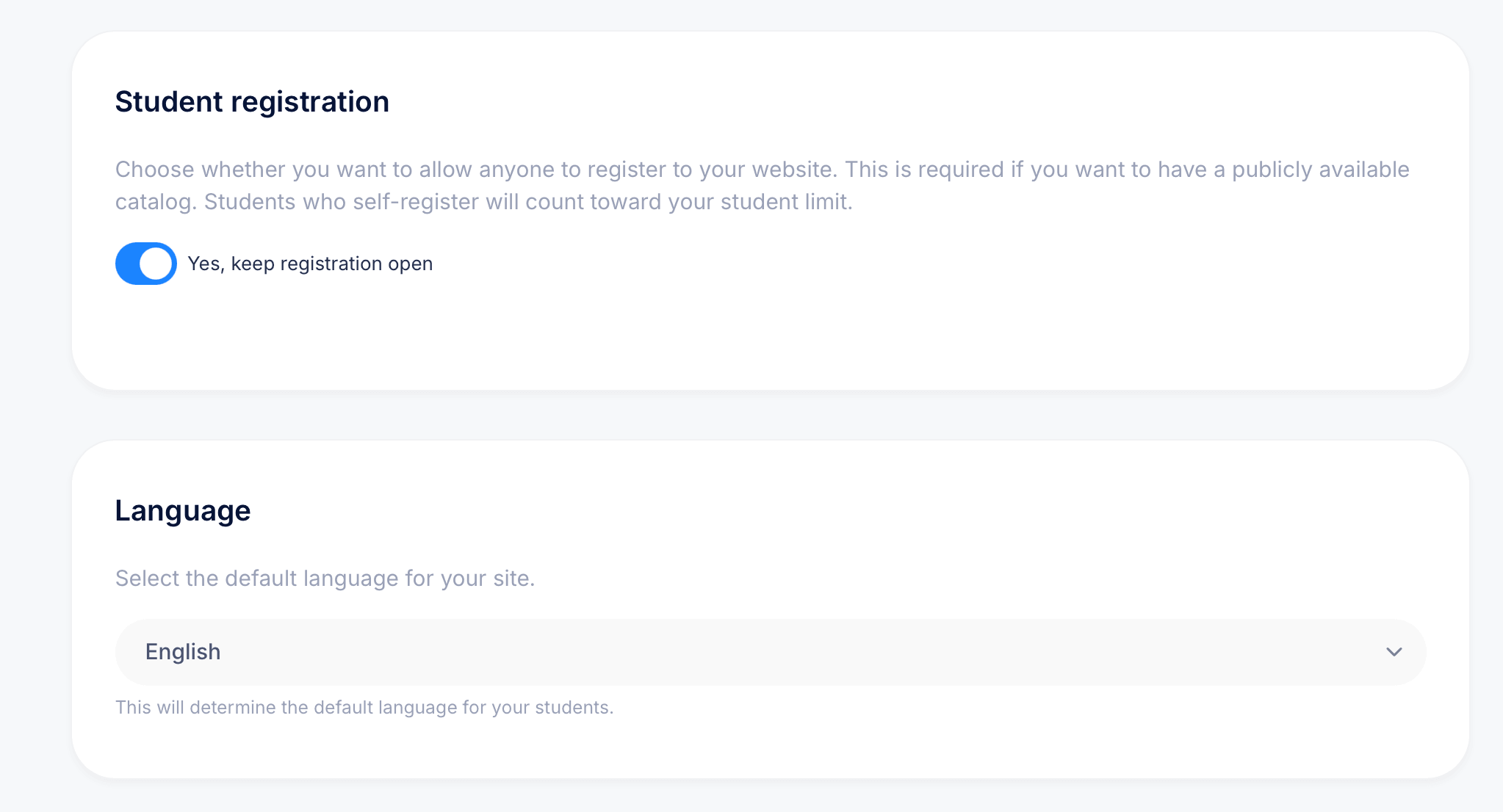
This toggle controls whether anyone can create an account on your portal or whether access is invite-only. With Yes, keep registration open turned on, students can self-register to your site, which is required if you want a publicly available course catalog. With it off, only students you manually add can access the portal.
Keep in mind that self-registered students count toward your plan's student limit.
Language
Sets the default language for your student-facing portal. The current default is English, and changing it will apply that language to what your students see across the site.
Tips
Your Website Name appears on every certificate issued through your portal, so use the full, official name of your organization rather than an abbreviation or nickname.
If you're running a private internal training portal, turn off Student registration so only people you've manually enrolled can get in. If you're selling courses publicly, keep it on so students can discover and sign up on their own.