

Pending submission reviews
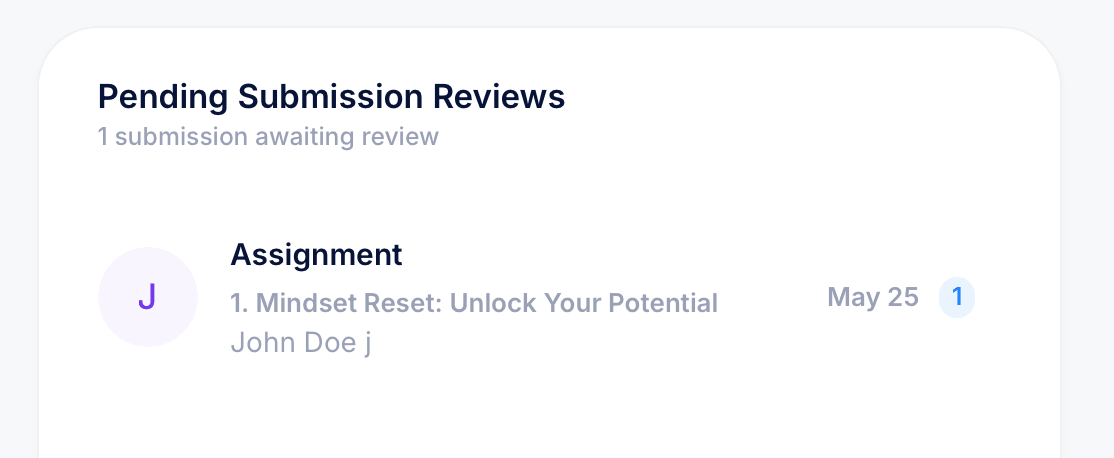
Some coursework can't be graded automatically. Homework assignments that require a student to submit written work, files, or other deliverables need a teacher to look at them before they're considered reviewed. That's what the Pending Submission Reviews panel on your Dashboard is for: it shows you every homework submission that's waiting on your review, in one place, so nothing gets missed.
Where to find it
Pending Submission Reviews appears on the right side of your Dashboard. The panel header tells you how many submissions are currently awaiting review. Below that, each entry shows:
- A label identifying the submission as an Assignment
- The name you gave that specific assignment when you created it, this can be anything you choose
- The student's full name
- The date the submission came in
- A count badge showing how many submissions are waiting for that entry
If the panel is empty, there's nothing currently awaiting review. New entries appear here as soon as a student submits homework that requires manual review.
Why a submission ends up here
A homework submission lands in this queue any time it requires a teacher to look at the student's actual work rather than an automatically scored answer. This is common for assignments that ask students to submit written responses, files, or other deliverables rather than select from preset answer choices.
Auto-gradable question types inside quizzes and exams, like multiple choice or true/false, don't go through this queue. They're scored the moment the student submits.
How to review a submission
Click on the submission entry in the Pending Submission Reviews panel to open it and see the student's work. Once you've reviewed it and marked it accordingly, the entry clears from your pending queue automatically. You don't need to do anything else to make it disappear, reviewing it is what removes it from the list.
Why this matters
A submission sits in this queue until you review it, so it's the most direct way to see whether any student work is waiting on you. Checking this panel regularly keeps grading turnaround fast and avoids a backlog building up, especially in courses with larger enrollment.
Tips
If you manage multiple courses, submissions from all of them funnel into this single queue, so you don't need to check each course separately to find homework waiting on your review.
For courses with a lot of homework-based assignments, consider checking the Dashboard daily rather than waiting for a count to build up. A queue of one or two submissions is quick to clear; a queue of fifty is not.