

Managing Instructors
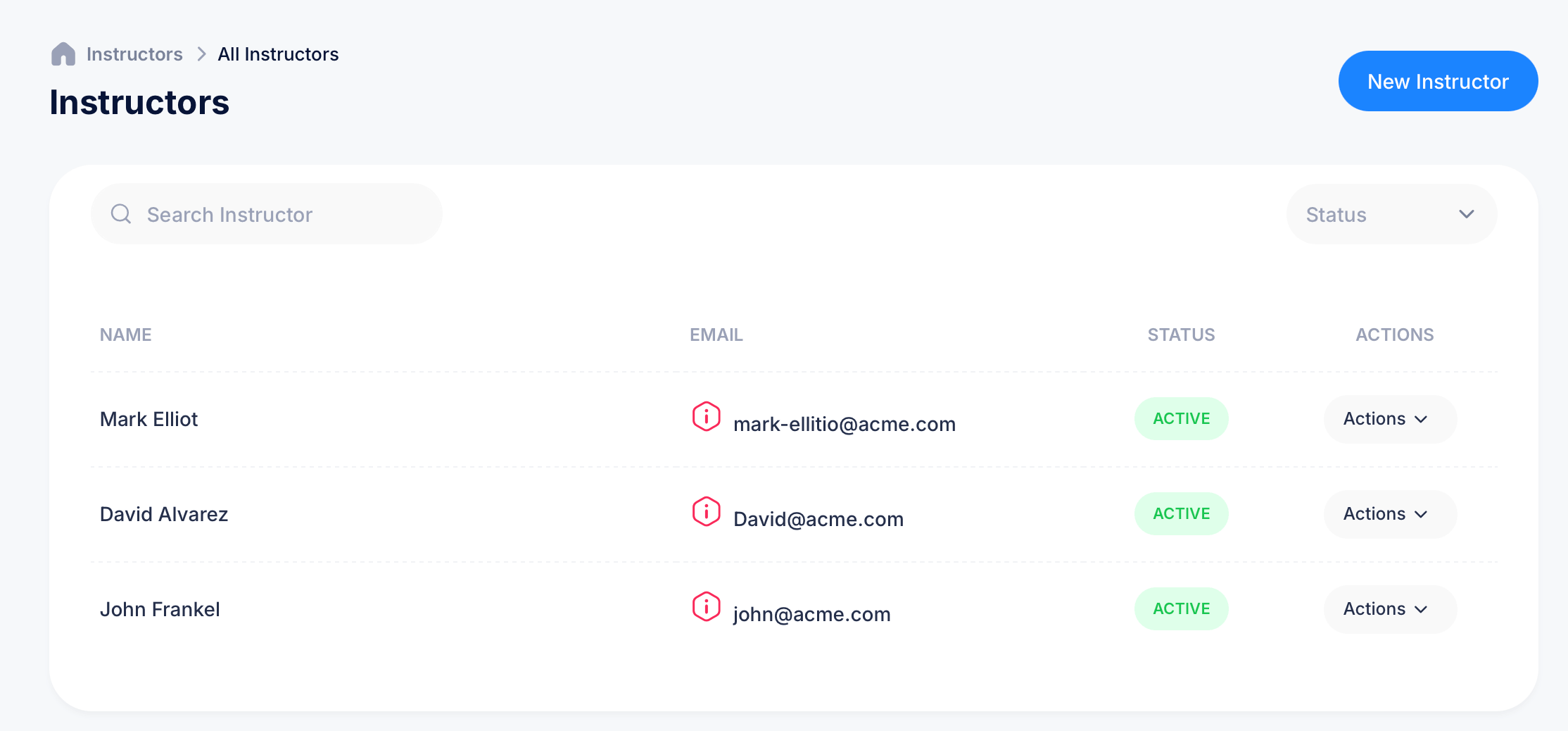
The Instructors section, found under Users, is where you add and manage everyone on your team who needs admin or teaching access to your eProfessor account. This is distinct from collaborators, who are added per course or assessment; instructors are account-level users who can access multiple courses depending on their permissions.
Getting there
Go to Users in the top navigation and select Instructors.
The instructor list
Every instructor on your account appears in a table showing their Name, Email, Status (Active or Inactive), and an Actions dropdown. Use Search Instructor to find someone quickly, or the Status filter to show only active or inactive users.
Adding a new instructor
Click New Instructor in the top right to create an account for a new team member. They'll receive an invitation to set up their login.
Editing an instructor
Click on any instructor's name to open their full profile, which has three tabs: Overview, Permissions, and Exam Reports.
Overview
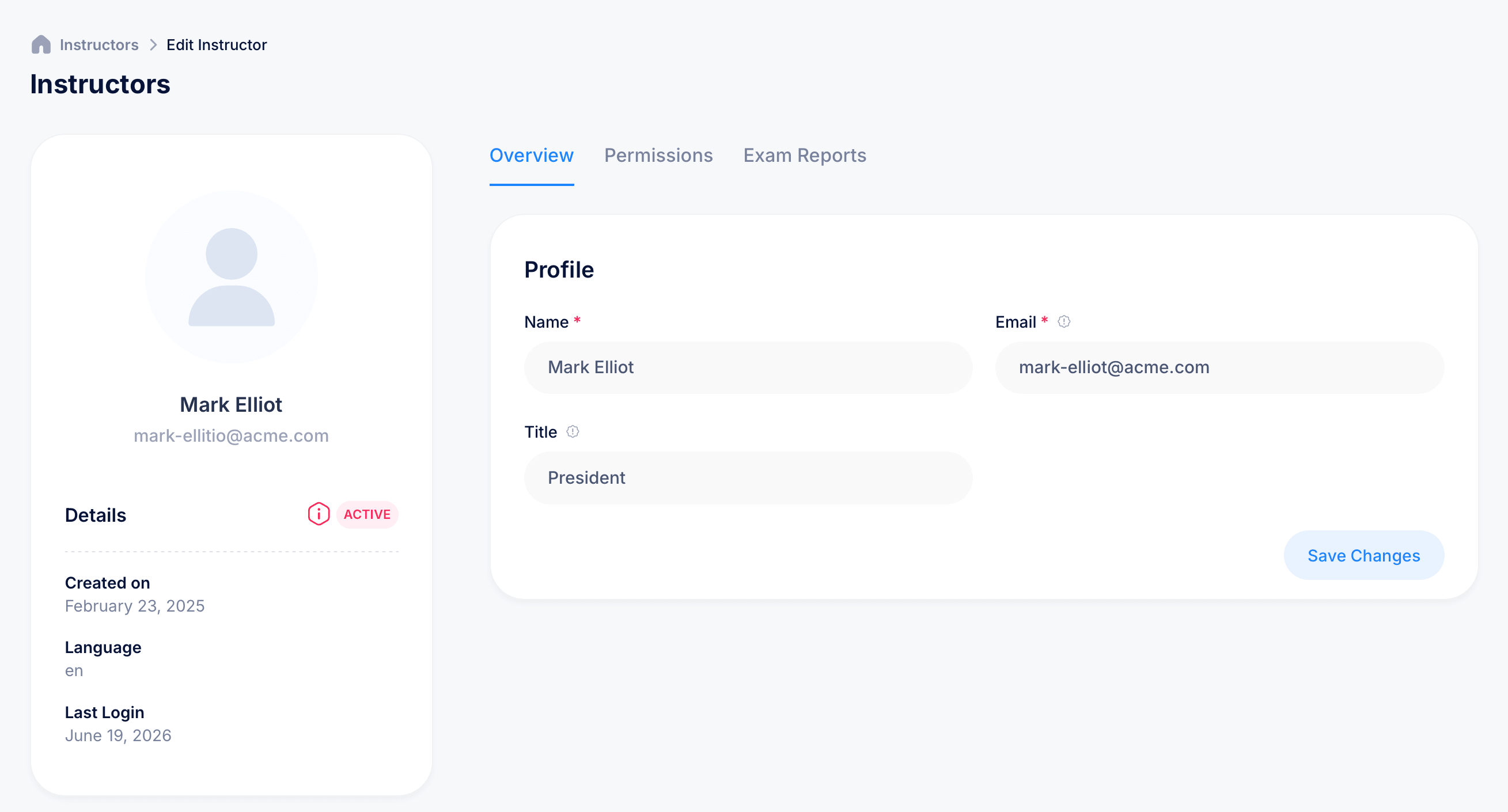
The Overview tab shows the instructor's profile on the right and their account details on the left.
The Profile section lets you edit their Name, Email, and Title, which is the job title that appears on certificates they issue. Click Save Changes after making edits.
The Details panel on the left shows read-only information: their account status (Active), the date the account was Created on, their Language setting, and their Last Login date. This is useful for confirming whether an instructor is actually using their account or hasn't logged in in some time.
Exam Reports
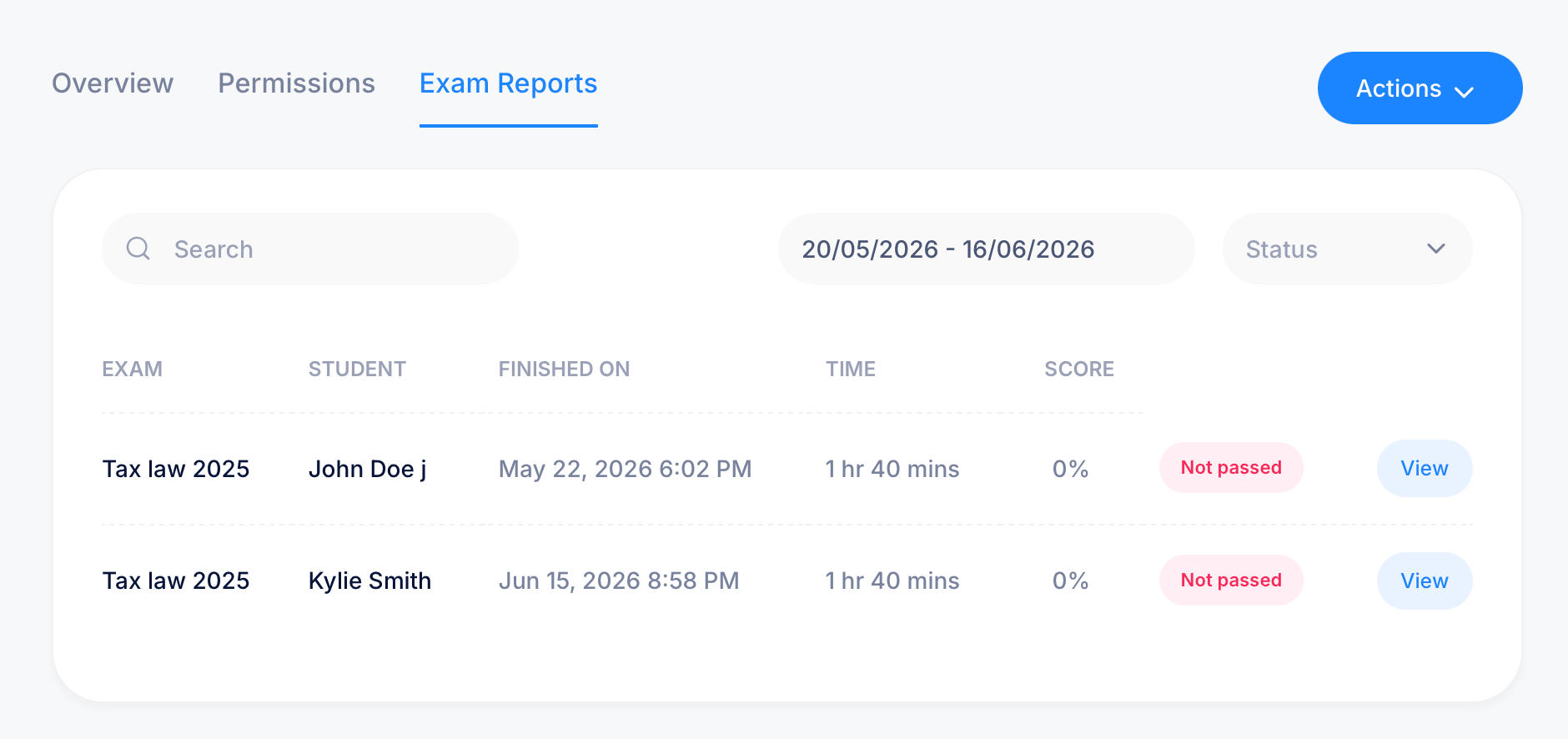
The Exam Reports tab shows a filtered view of all exam attempts across every assessment this instructor is associated with. The table shows the Exam, Student, Finished On, Time, and Score, with the same date range and status filters available elsewhere in the platform. Click View on any row to open the full attempt detail.
Actions menu
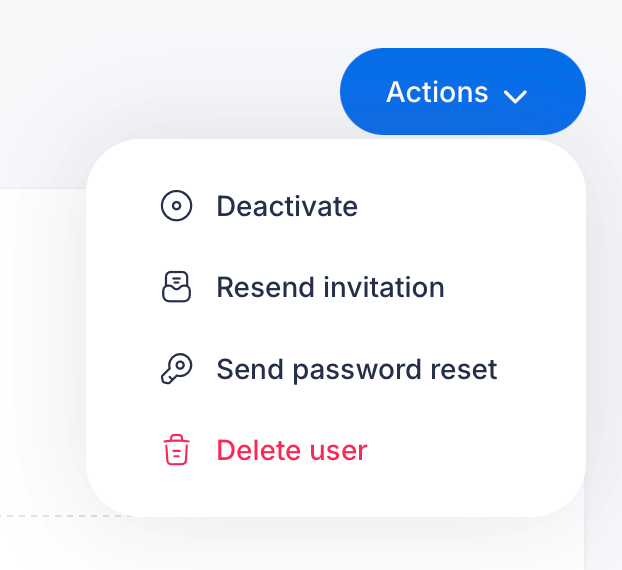
The Actions dropdown on an instructor's profile (or in the list) offers four options:
- Deactivate — suspends the instructor's access without deleting their account or any content they've created
- Resend invitation — sends the invitation email again if the instructor never set up their login
- Send password reset — emails the instructor a password reset link
- Delete user — permanently removes the instructor's account
Tips
Use Deactivate rather than Delete user for instructors who are leaving temporarily or whose role is changing. Deactivation preserves their content and history; deletion is permanent.
Check Last Login on the Overview tab if you're unsure whether an instructor is actively using their account before making changes to their permissions or status.
If an instructor says they never received their invitation, use Resend invitation before troubleshooting further since the original email may have gone to spam.