

Adding Content to a Lesson
Each lesson in your course is built from content blocks. Rather than being limited to a single format, you can mix and match different block types within the same lesson, video, text, a downloadable file, an assessment, and more, stacking them in whatever order makes sense for what you're teaching.
Where to add content
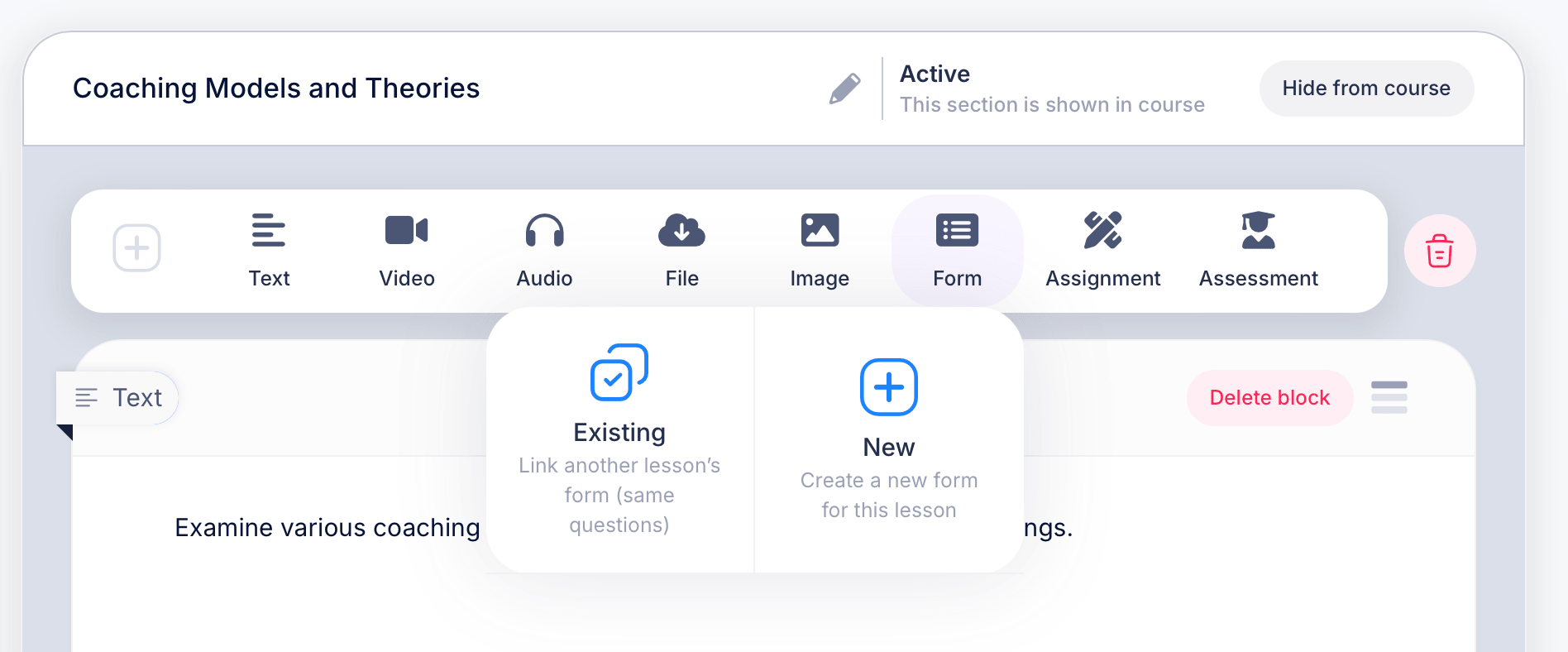
Open a course and go to the Curriculum tab. Click into any lesson on the left to open its content editor on the right. Above the lesson's existing content, you'll see a row of content type buttons you can click to add a new block:
- Text — written content, formatted directly in the lesson
- Video — choose Upload to add a video file from your device, Embed to link an existing YouTube or Vimeo video, Screencast to record your screen, or Webcam to record yourself
- Audio — choose Upload to add an audio file, or Record to record audio directly from your device
- File — attach a downloadable file, such as a PDF or document
- Image — add a standalone image
- Form — choose Existing to link another lesson's form so it reuses the same questions, or New to create a fresh form for this lesson
- Assignment — collect homework, files, or written submissions from students, with optional instructor review
- Assessment — choose Existing to select one already saved in your exams and assessments, or New to create a new assessment from scratch
Click the + button to the left of these options if you want to insert a new block in a specific position within the lesson rather than at the end.
Reusing Forms and Assessments across lessons
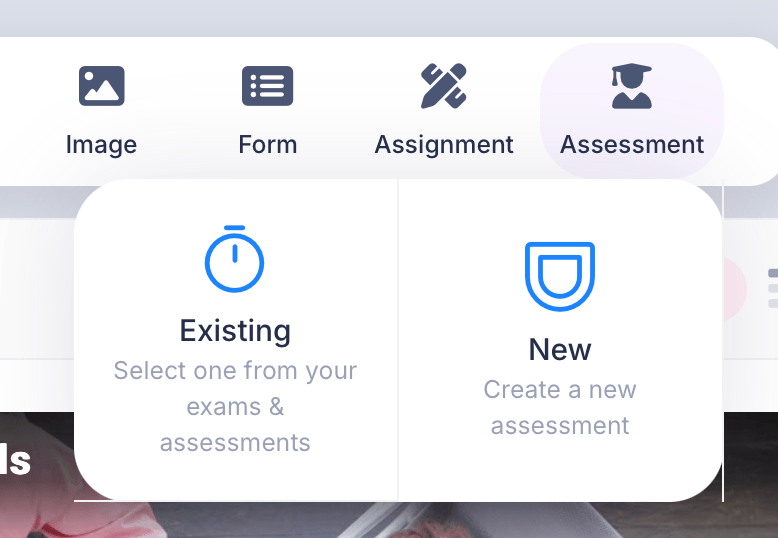
Form and Assessment blocks both offer a choice between Existing and New when you add them.
For a Form block, choosing Existing links to another lesson's form, so it reuses the exact same questions rather than duplicating them. Choosing New creates a fresh form specifically for this lesson.
For an Assessment block, choosing Existing lets you select one already saved in your exams and assessments rather than rebuilding it. Choosing New opens the assessment builder to create one from scratch.
This is worth using deliberately. If you're giving the same quiz at the end of several related lessons, building it once and selecting Existing each time keeps everything consistent and saves you from rebuilding the same questions repeatedly.
Working with a block once it's added
Each block you add appears in the lesson with its own controls. For example, a Video block shows a label identifying it as "Embedded video," with a Delete block option to remove it, and a drag handle on the right to reorder it relative to other blocks in the same lesson.
Most block types follow this same pattern: add it, fill in or upload its content, then reorder or delete it as needed using the controls that appear directly on the block.
Choosing the right block type
A lesson doesn't need to use every block type, and most don't. A typical lesson might combine just two or three: a video to introduce a topic, a short text block to summarize key points, and an assignment or assessment to check understanding.
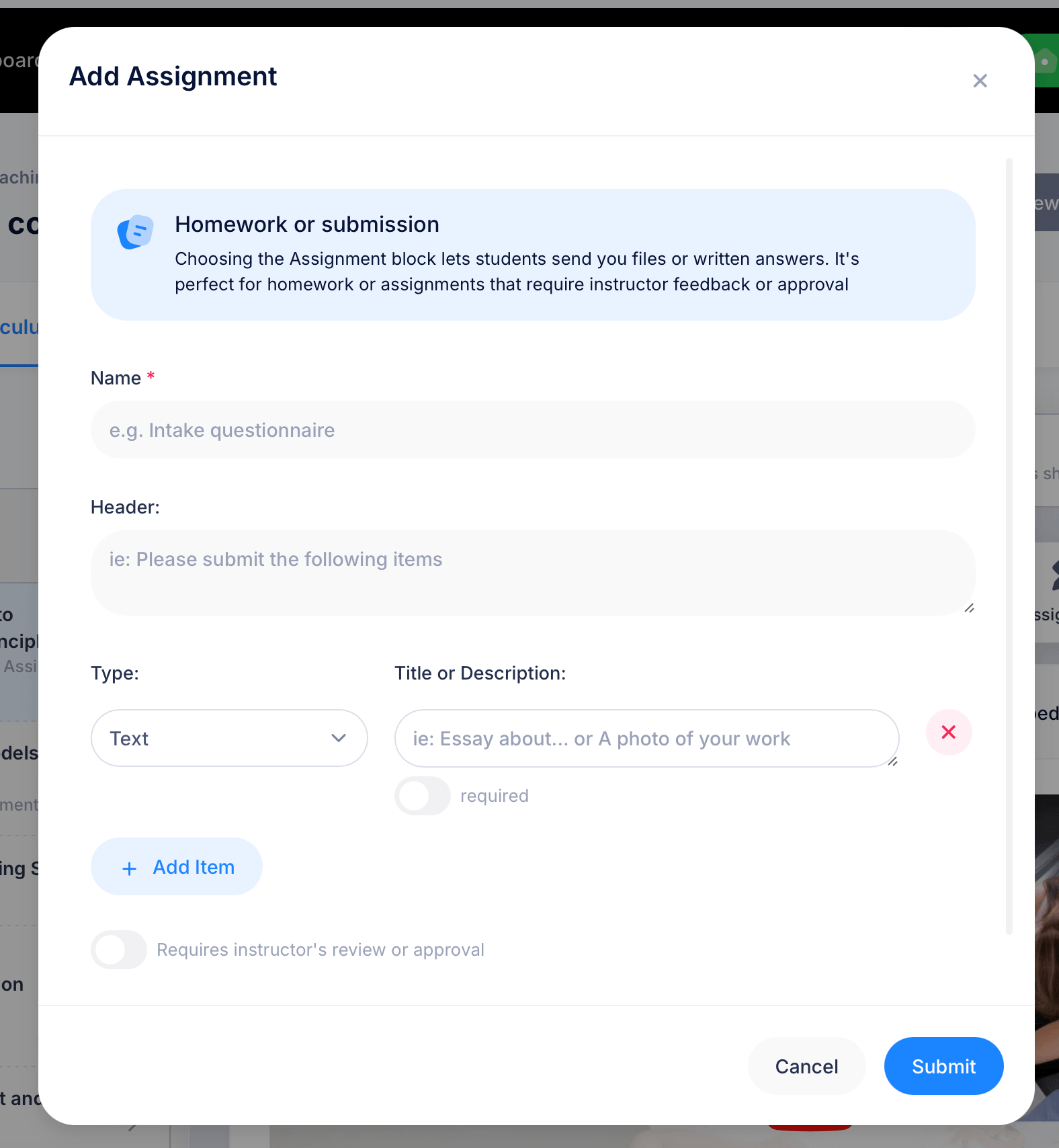
Reserve Assignment blocks for homework or submissions you want to collect from students, files or written answers they send you directly. When you add an Assignment block, you'll fill in a Name (required), an optional Header message students see before submitting (for example, "Please submit the following items"), and one or more items defining exactly what you want submitted. Each item has a Type (such as Text), a Title or Description explaining what's expected, and a toggle marking whether that item is required. Use Add Item to request multiple things in a single assignment.
By default, an assignment doesn't require your review, students submit and it's considered complete. If you want to personally check and approve submissions before they count as done, turn on Requires instructor's review or approval. With that toggle on, submissions land in your Pending Submission Reviews queue on the Dashboard until you review them; with it off, they don't.
Use Assessment blocks instead when you want a quiz or exam scored automatically, with no manual review needed.
Tips
Order matters. Blocks display in the lesson in the same sequence you arrange them in the editor, so place context-setting content like video or text before any assessment or assignment that depends on it.
For Video and Audio blocks, you're not limited to uploading existing files. Screencast and Webcam let you record video on the spot, and Record does the same for audio, useful if you want to create instructional content without separate recording software.