

Reviewing Reports
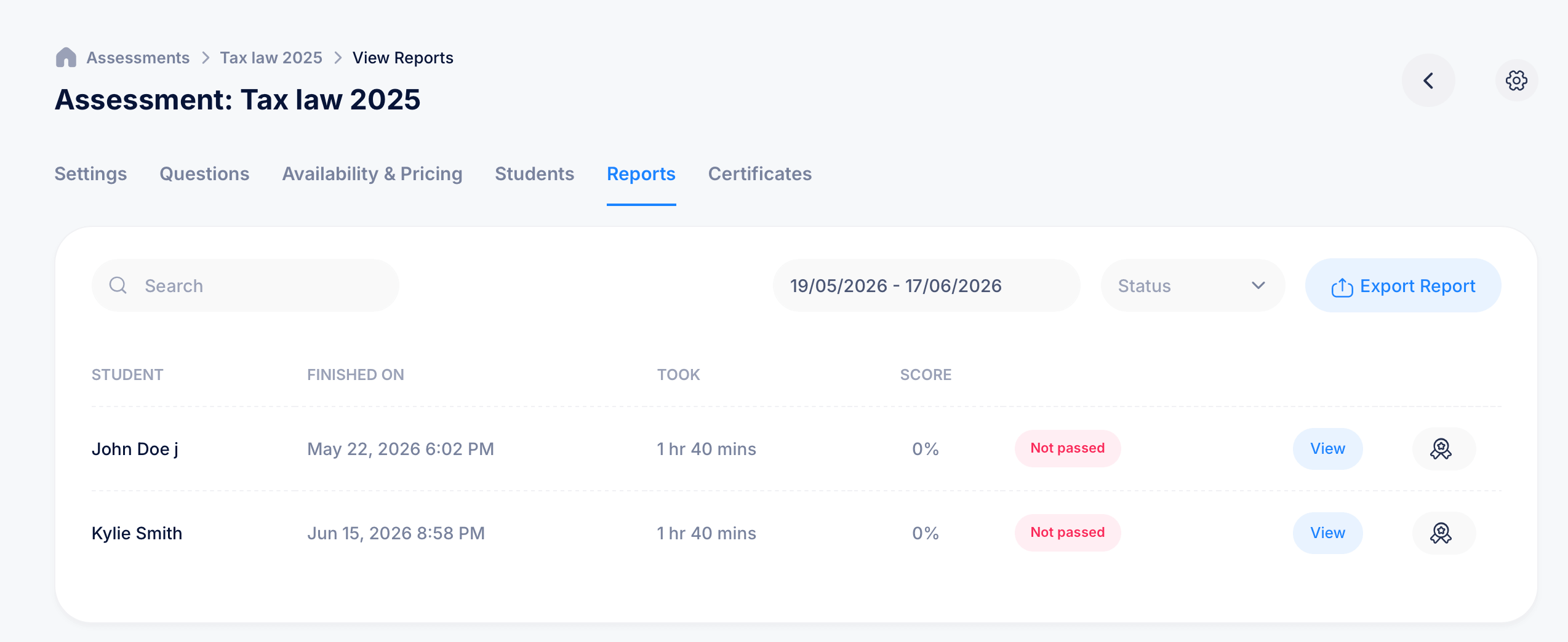
The Reports tab gives you a results-focused view of every completed attempt on an assessment, separate from the Students tab. While Students is organized around who's enrolled, Reports is organized around finished attempts, with built-in filtering and export options for when you need the data outside of eProfessor.
The reports table
Open an assessment and select Reports from the tab bar. Each row represents one completed attempt, showing:
- Student — who took the exam
- Finished on — the date and time they completed it
- Took — how long the attempt lasted
- Score — the percentage they earned, alongside a Passed or Not passed badge
Click View on any row to open that attempt's detailed, question-by-question breakdown, the same view available from the Students tab.
Filtering and searching
Search lets you find a specific student's report by name.
A date range picker, defaulting to a recent window, lets you narrow results down to attempts finished within a specific timeframe.
The Status filter lets you show only Passed or only Not passed attempts, useful for quickly identifying everyone who needs a retake without scrolling through students who already passed.
Exporting your data
Click Export Report to download the results shown in the table as a spreadsheet file, useful if you need to share results outside eProfessor, archive them for compliance purposes, or analyze them further in Excel or Google Sheets.
Certificates from the Reports tab
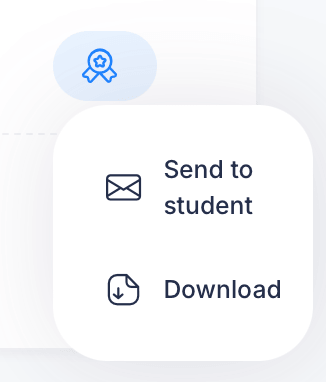
Each row includes a medal icon on the right, which appears for every attempt regardless of whether the student passed or not. Clicking it opens two options:
Send to student — emails the certificate directly to the student associated with that attempt.
Download — saves a copy of the certificate for yourself, useful if you want to print it, archive it, or distribute it through a channel other than email.
This gives you a way to issue or re-send a certificate for a specific completed attempt without needing to navigate to the separate Certificates tab.
Tips
If you're checking results for a specific exam window, like a cohort that all took the exam during the same week, narrow the date range first before applying a Status filter. This avoids missing earlier attempts if your default range happens to start after they were completed.
Use Export Report any time you need to share pass rates or scores with someone who doesn't have access to your eProfessor account, rather than asking them to log in just to see results.