

Understanding your dashboard at a glance
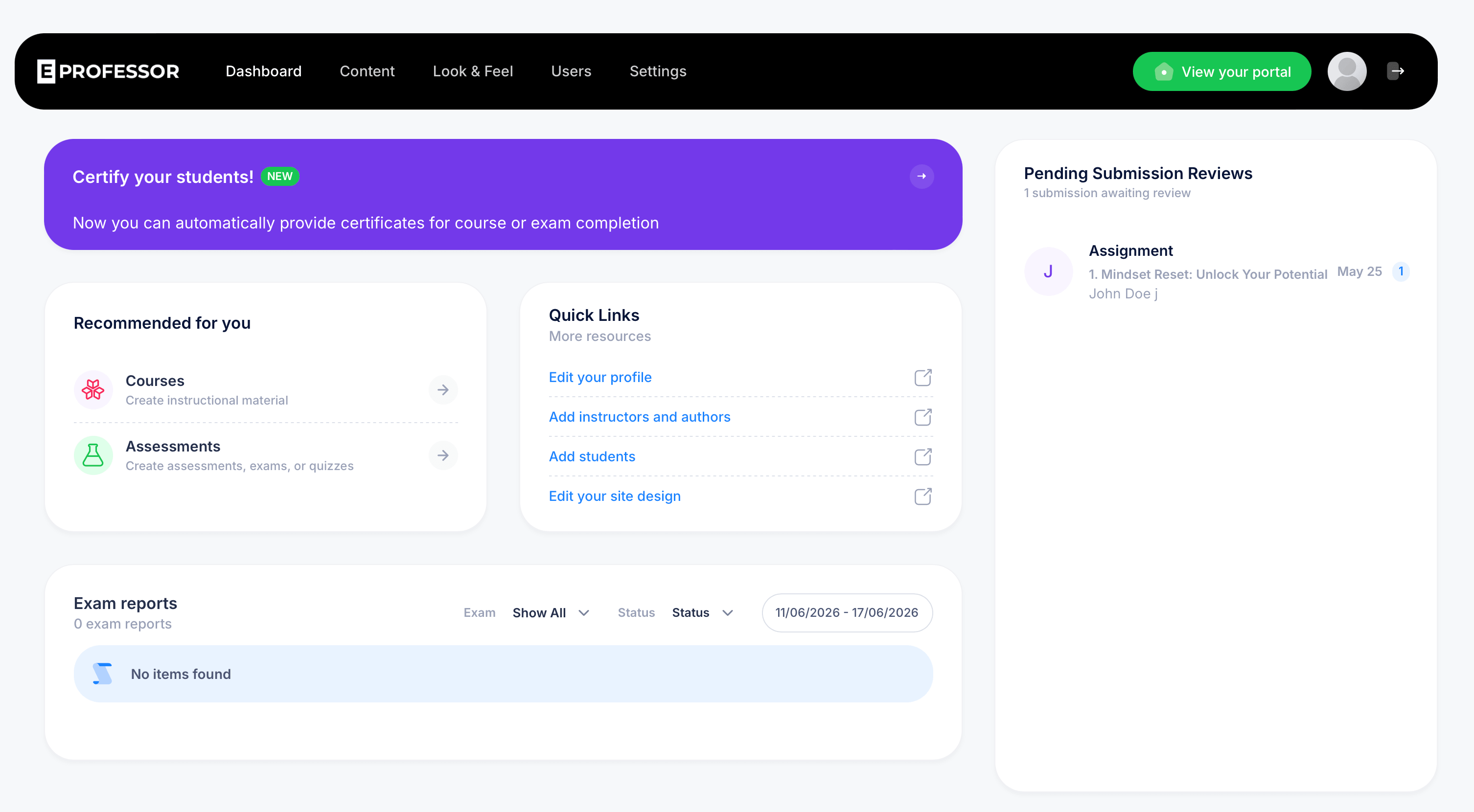
When you log into eProfessor, the Dashboard is the first thing you see. It gives you a quick snapshot of what needs your attention, shortcuts to common tasks, and a summary of recent exam activity. Here's what each part means and how to use it.
What's on the Dashboard
Pending Submission Reviews
This panel shows assignments or open-ended submissions waiting for your review. Each entry lists the assignment name, the student who submitted it, and the date it came in. If a submission needs grading, you'll see it here before it shows up anywhere else, so this is the fastest way to check whether any student work is waiting on you.
Recommended for you
This section gives you shortcuts into the two most common starting points in eProfessor:
- Courses — jump straight into creating instructional material
- Assessments — jump straight into creating exams or quizzes
These links route to the same places you'd reach through the Content menu, just surfaced earlier for convenience.
Quick Links
A set of shortcuts to account and setup tasks you might need early on:
- Edit your profile — update your name, photo, and account details
- Add instructors and authors — invite team members to help build or manage content
- Add students — enroll students manually, or set up self-enrollment
- Edit your site design — adjust the look of your student-facing portal
Exam reports
This panel shows a summary of exam activity, filterable by exam, status, and date range. If you haven't run any exams yet, or none fall within the selected date range, you'll see "No items found." Once students start taking exams, this is where you can review results without digging into each course individually.
Tips for using the Dashboard effectively
Check Pending Submission Reviews regularly if any of your courses include manually graded assignments. Submissions sit here until you act on them, and students can't see their final grade until you do.
If you're just getting started, the Quick Links panel is the fastest path through initial setup: profile, team, students, and design, roughly in the order most admins tackle them.
The Exam reports date range defaults to the past week. Widen it if you're checking on a course that ran exams earlier and don't see expected results.