

Pricing, Landing Pages, and Customers
This article covers the remaining three tabs on a digital download product: Pricing, Landing page, and Customers. For product info, files, and visibility settings, see Digital Downloads: Creating and Managing a Product.
Pricing tab
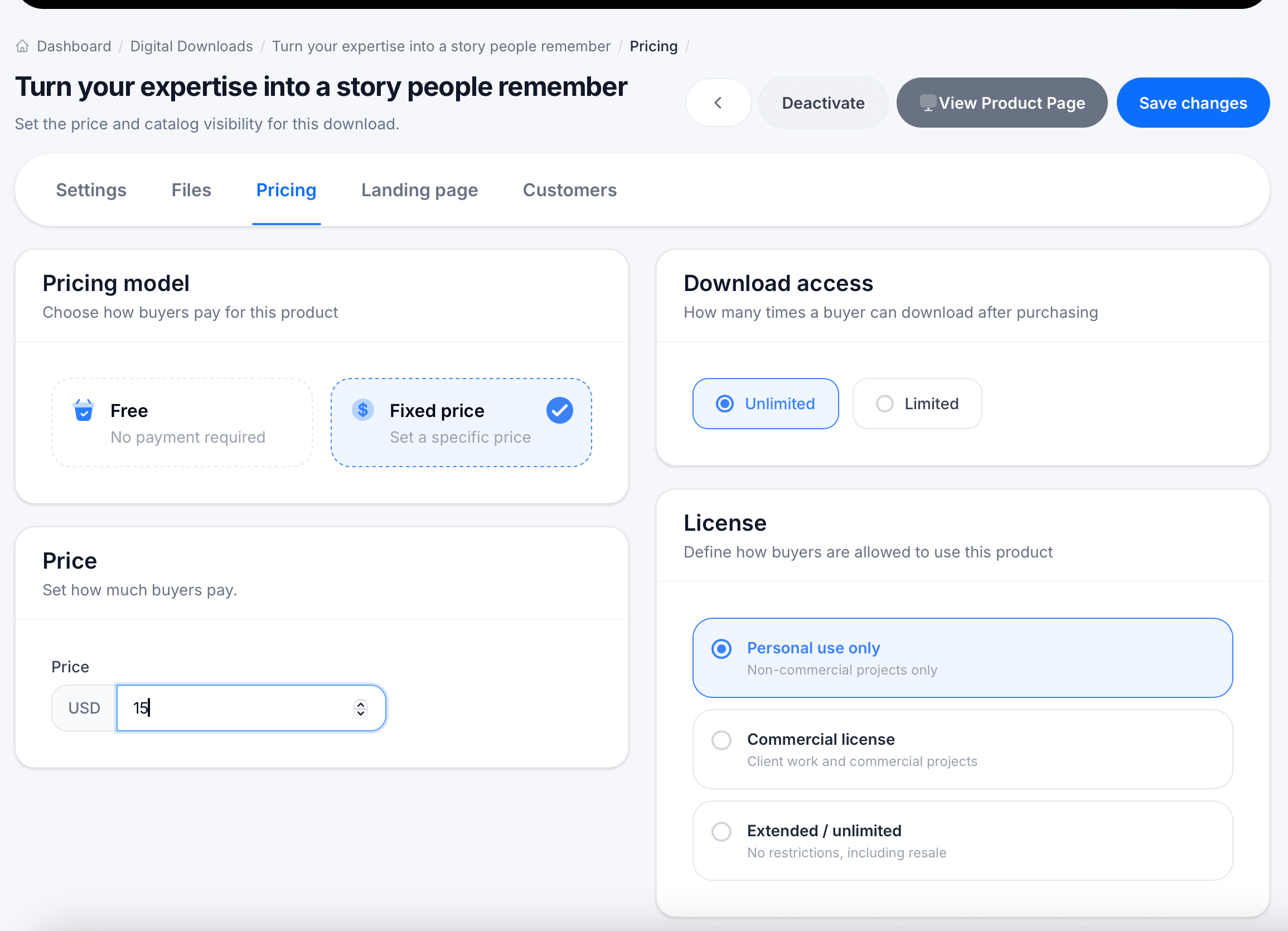
The Pricing tab sets the price and catalog visibility for this download.
Pricing model lets you choose how buyers pay:
- Free — no payment required
- Fixed price — set a specific price
If you choose Fixed price, a Price field appears where you set the amount and currency (for example, USD 15).
Download access controls how many times a buyer can download the file after purchasing:
- Unlimited — buyers can re-download anytime
- Limited — buyers get a capped number of downloads
License defines how buyers are allowed to use what they've purchased:
- Personal use only — non-commercial projects only
- Commercial license — client work and commercial projects
- Extended / unlimited — no restrictions, including resale
Click Save changes after adjusting any of these.
Landing page tab
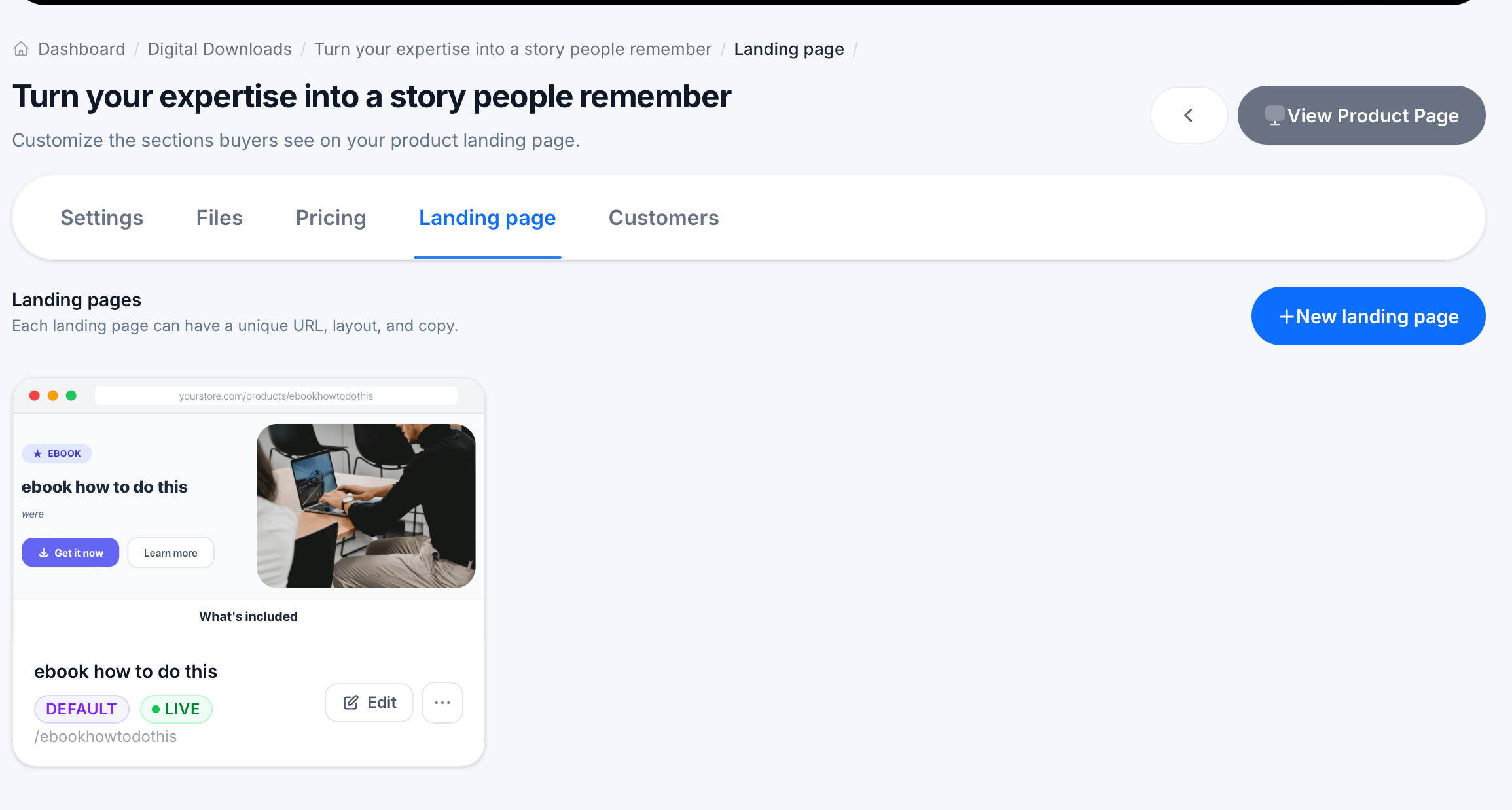
Every digital download gets its own landing page, the page buyers actually see and purchase from. You can create more than one landing page per product, each with its own unique URL, layout, and copy, useful for testing different angles or running separate campaigns for the same underlying product.
Managing landing pages
The main Landing page tab lists every landing page you've created for this product, showing a live preview thumbnail, the page title, a status badge (DEFAULT and/or LIVE), and its URL slug (for example, /ebookhowtodothis). Click Edit to open a specific page, the ... menu for more options, or New landing page to create another one.
Editing a landing page
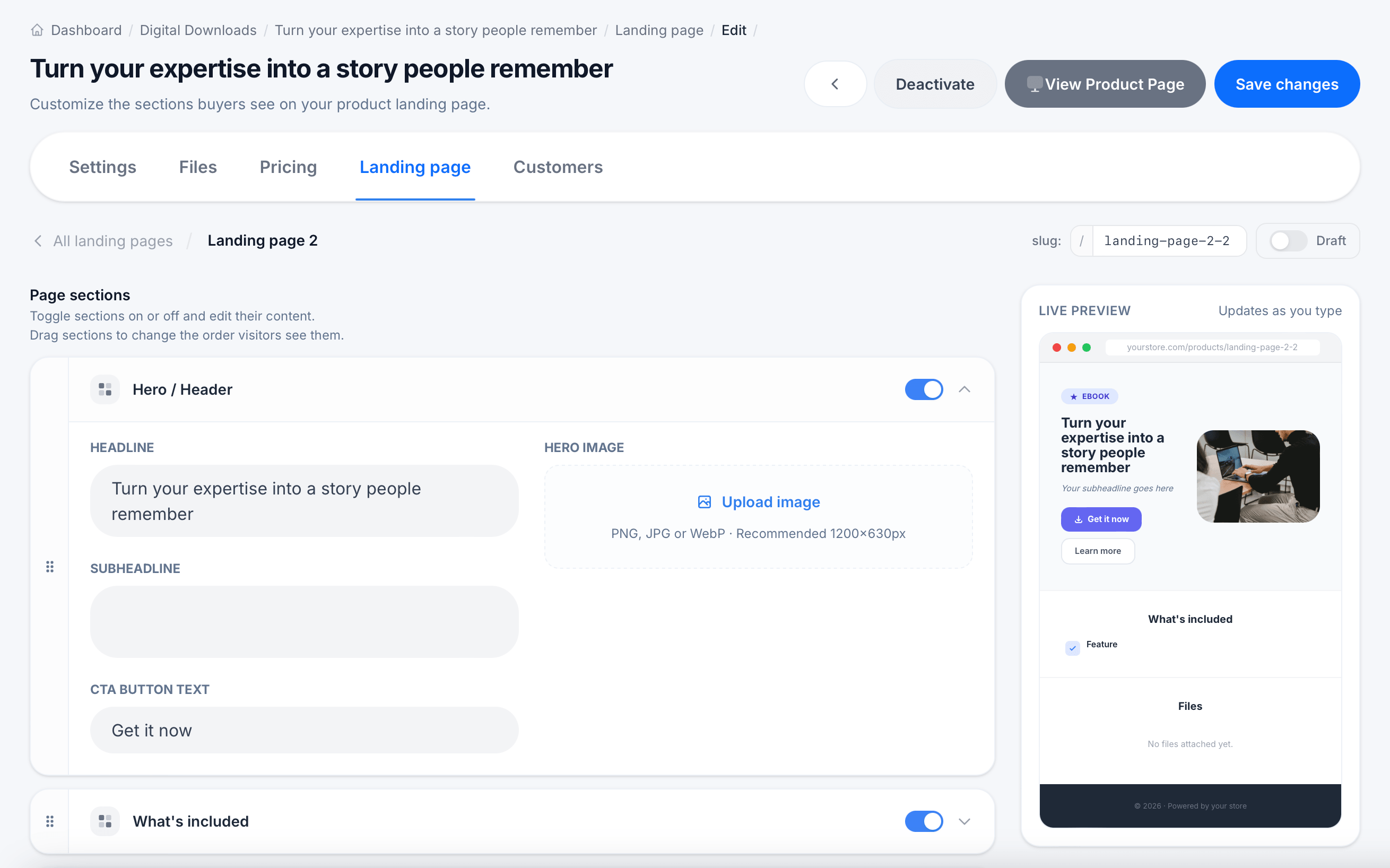
Opening a landing page for editing shows Page sections on the left and a Live Preview on the right that updates as you type. A note at the top explains the controls: toggle sections on or off, and drag sections to change the order visitors see them.
Available sections include:
- Hero / Header — the main headline, subheadline, hero image, and call-to-action button text (for example, "Get it now")
- What's included — a list of features or contents in the download
- Product files — automatically reflects the files attached in the Files tab
- Testimonials — buyer or student quotes
- FAQ — frequently asked questions
- Preview video — an embedded video preview of the product
Use Add section at the bottom to add more sections beyond the default set.
Each landing page also has its own slug (the URL path after your domain) and a Draft toggle, letting you build and preview a page before making it live. Click Save changes when you're done, or View Product Page to see the live version.
Customers tab
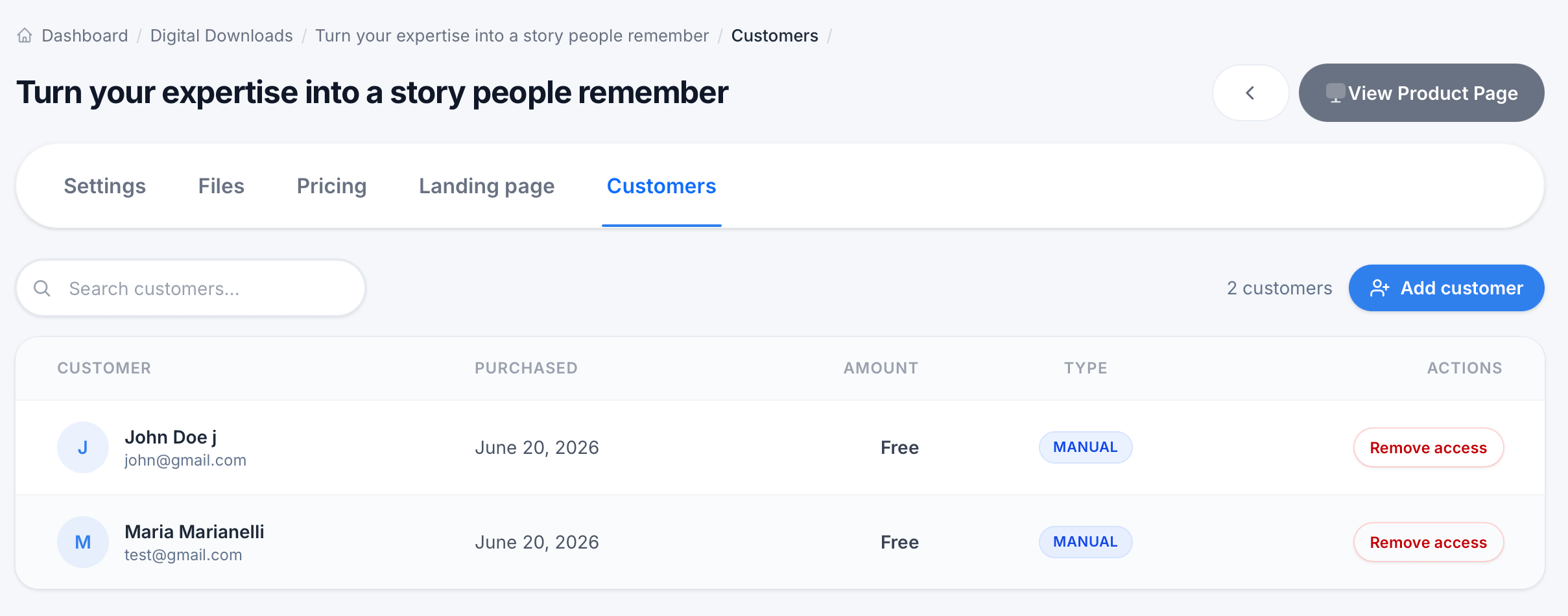
The Customers tab lists everyone who has access to this download, whether they purchased it or were added manually.
The table shows the Customer name and email, the date Purchased, the Amount paid (showing "Free" for no-cost downloads), the Type of access (such as Manual, for customers you added yourself rather than who paid through checkout), and a Remove access action.
Click Add customer to manually grant someone access without requiring them to go through checkout, useful for comps, support cases, or giving early access to a reviewer.
Tips
Build multiple landing pages if you want to test different framing for the same download, for example one page emphasizing the time saved and another emphasizing the price, then compare which converts better.
Match your License choice to how you actually expect buyers to use the product. A template meant for client work needs a Commercial license, not Personal use only, or you'll create confusion about what buyers are actually allowed to do with their purchase.
Use Add customer sparingly and track why someone was given manual access, since these purchases won't show real revenue in your reporting the way a checkout-based purchase will.