

Attaching forms to courses or assessments
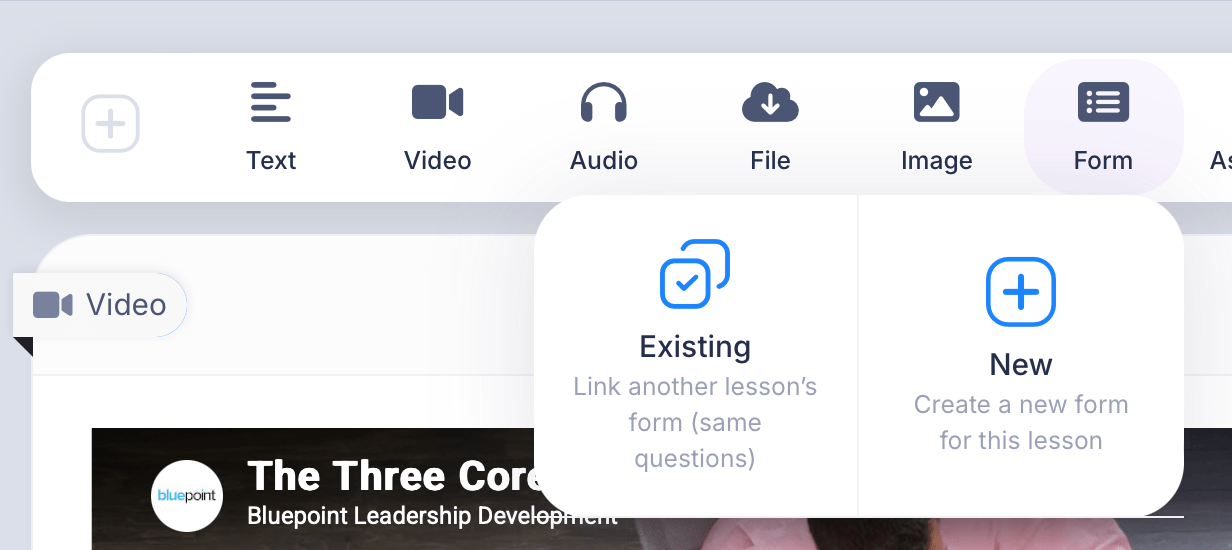
When you add a Form block to a lesson, you have two ways to attach a form: create a brand new one on the spot, or link an existing form you've already built elsewhere. This article covers both paths.
Getting there
Open a course and go to the Curriculum tab. Click into a lesson, then click Form in the content type row to open the Existing/New choice.
Option 1: Creating a new form
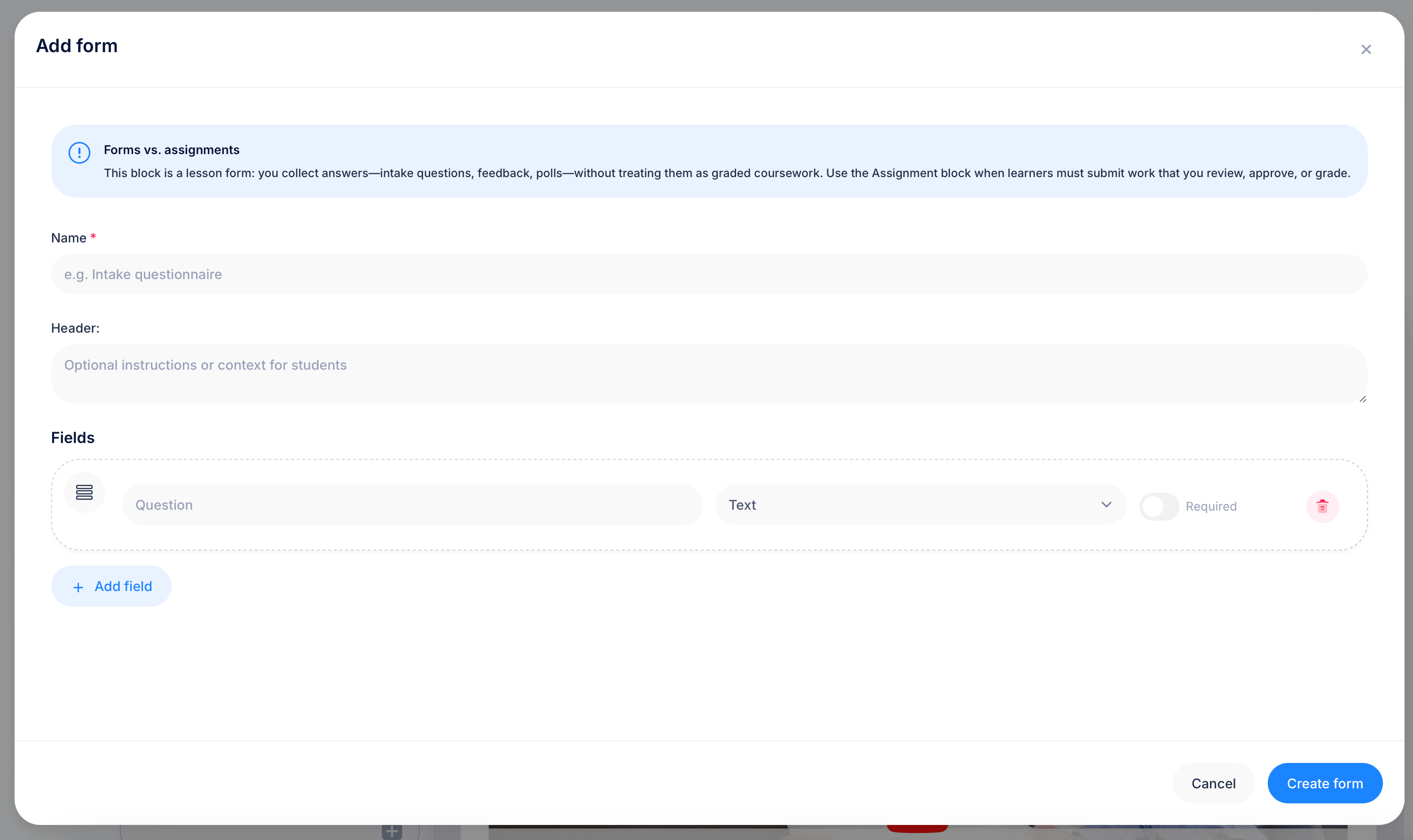
Choose New ("Create a new form for this lesson") to build a form from scratch directly inside the lesson editor.
This opens the Add form dialog. Before you fill anything in, a blue note clarifies an important distinction: Forms vs. assignments. A form is for collecting answers, intake questions, feedback, or polls, without treating them as graded coursework. If you need learners to submit work you'll review, approve, or grade, use the Assignment block instead, not a form.
The Add form dialog has three parts:
Name (required) — the form's title, for example "Intake questionnaire."
Header — optional instructions or context shown to students before they start answering, for example explaining why you're asking these questions.
Fields — your actual questions. Each field has a Question text box, a type dropdown (defaulting to Text), a Requiredtoggle, and a trash icon to remove it. Click Add field to add more questions.
Click Create form to finish. The new form is now attached to this lesson and also becomes part of your account-wide Forms library, available to reuse elsewhere later.
Option 2: Attaching an existing form
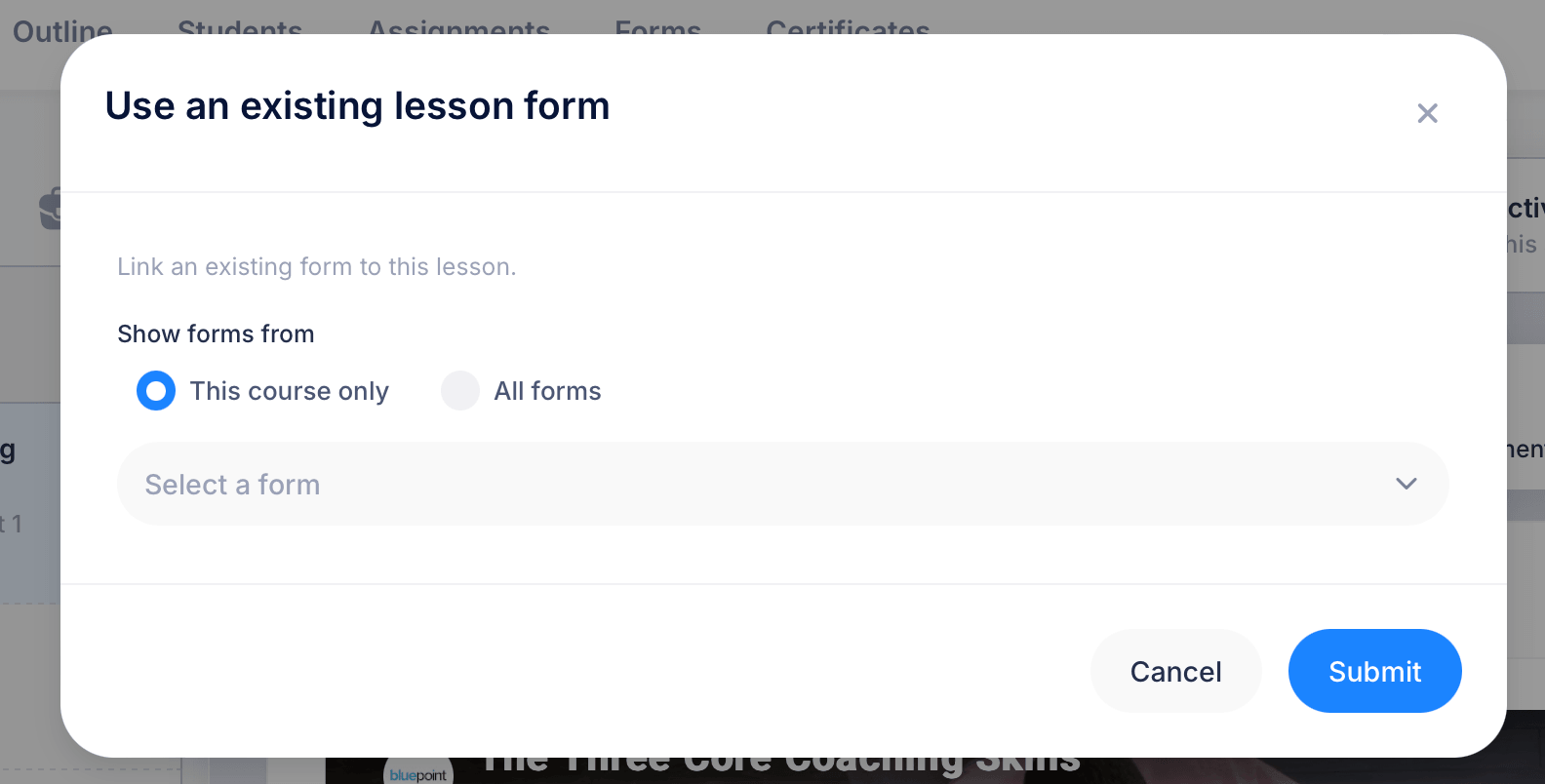
Choose Existing ("Link another lesson's form, same questions") if you want to reuse a form you've already built rather than creating a duplicate.
This opens Use an existing lesson form, which lets you link an existing form to this lesson. First, choose where to look:
Show forms from:
- This course only — limits the list to forms already used somewhere else in the current course
- All forms — searches your entire account-wide Forms library, including forms originally built for other courses
Once you've chosen a scope, use Select a form to pick the specific form, then click Submit to link it.
Why reuse instead of recreate
Linking an existing form means the lesson uses the exact same questions as wherever else that form appears. Responses from this lesson feed into the same aggregated data and response list as every other lesson using that form, since it's really one form being referenced in multiple places rather than separate copies.
This matters if you're collecting the same intake information at the start of several related courses, or running the same feedback survey at the end of multiple modules. Building it once and linking it everywhere keeps your data unified and saves you from maintaining duplicate copies of the same questions.
Choosing between the two options
Create a New form when the questions are specific to this one lesson and you don't expect to reuse them elsewhere.
Choose Existing when you're attaching a form you've already built, whether that's something used earlier in the same course or a form from your broader Forms library used in a completely different course.
Tips
If you're not sure whether a form already exists for what you need, search All forms rather than just This course onlybefore creating a new one. It's easy to end up with several near-duplicate forms across different courses if you default to creating new ones each time.
Remember the Forms vs. assignments distinction before you start building. If you catch yourself wanting to mark answers right or wrong, or approve a submission, you're describing an Assignment block, not a Form.