

Setting Up Certificates
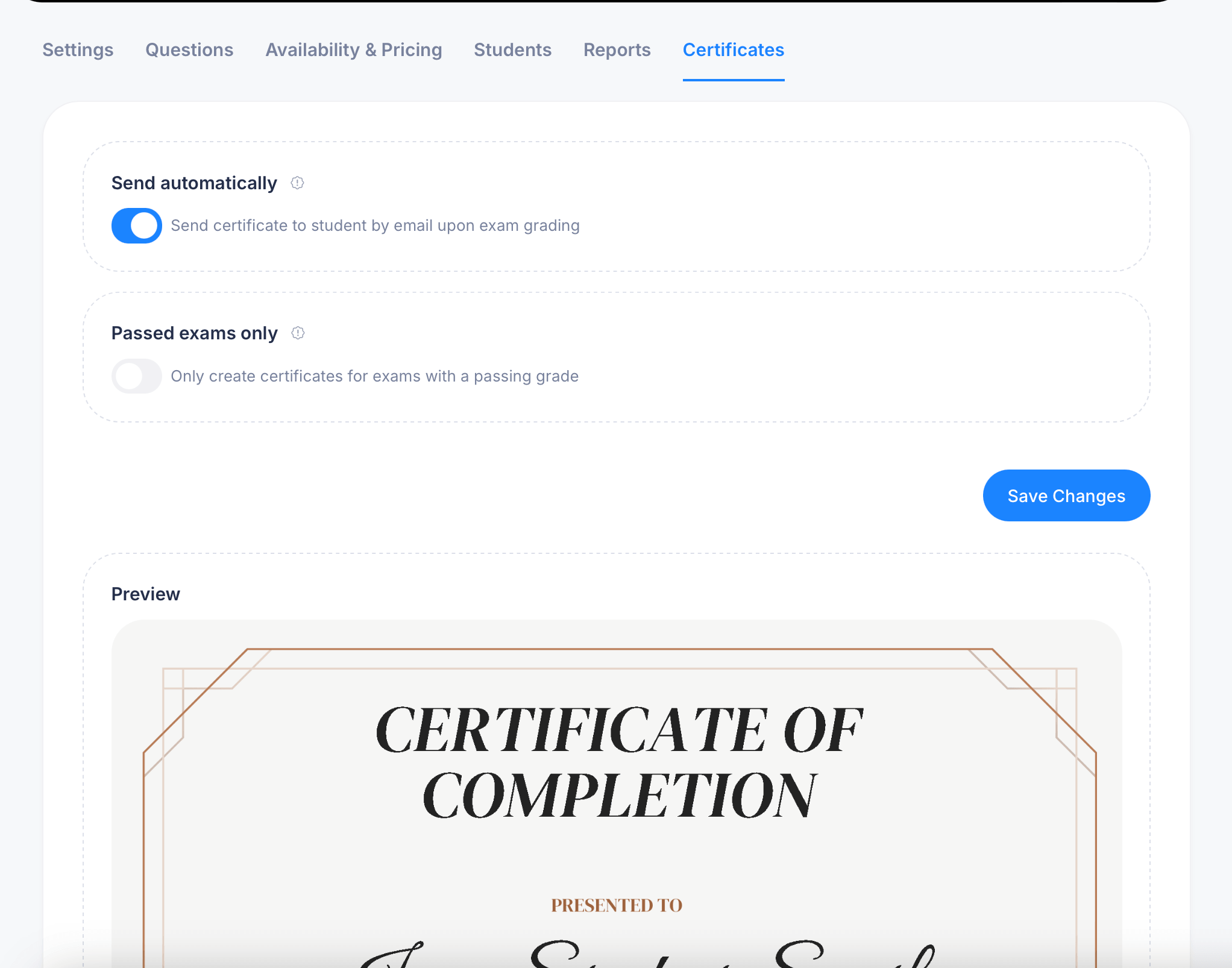
The Certificates tab controls whether and how students receive a certificate after completing an assessment. Open any assessment and select Certificates from the tab bar to configure these settings and preview exactly what the certificate will look like.
Certificate settings
Send automatically — when this toggle is on, eProfessor sends the certificate to the student by email automatically as soon as their exam is graded. Turn this off if you'd rather review and send certificates manually yourself.
Passed exams only — when this toggle is on, certificates are only created for attempts that earned a passing grade. With it off, certificates can be generated regardless of whether the student passed, which is closer to a certificate of participation than a certificate of achievement.
Click Save Changes after adjusting either setting.
Previewing the certificate
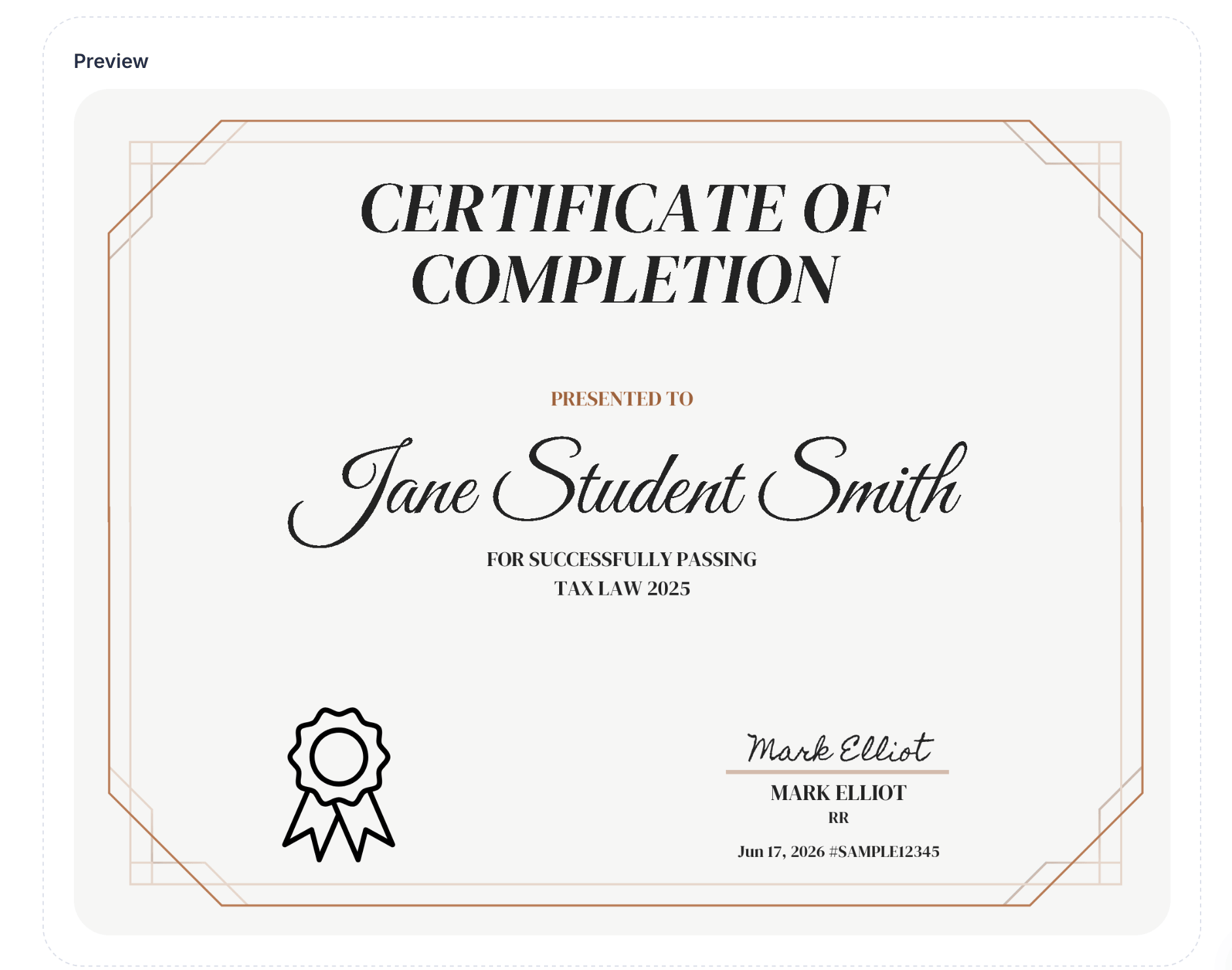
Below the settings, a live Preview shows exactly what the certificate looks like with sample data. The template includes:
- A title, Certificate of Completion
- Presented to, followed by the student's name in a signature-style font
- A line stating what they completed, for example "For successfully passing TAX LAW 2025"
- A decorative seal/ribbon graphic
- A signature line with the issuing instructor's name and an editable job title field beneath it
- The completion date and a unique certificate number (shown as #SAMPLE12345 in preview)
This preview updates to reflect your actual settings, so it's a reliable way to confirm everything looks right before any certificates go out to real students.
Sending or downloading a certificate manually
If you'd rather not send certificates automatically, you can issue them individually from the Reports tab. Each completed attempt has a medal icon with two options, Send to student to email it directly, or Download to save a copy yourself.
Choosing the right settings for your assessment
For a certification exam where passing genuinely means something, turn on both Send automatically and Passed exams only. This makes sure certificates only go to students who earned them, the moment they pass, with no manual work on your end.
For a practice quiz or low-stakes assessment, you might leave Send automatically off entirely and skip certificates altogether, since a completion certificate doesn't add much value for content that isn't meant to be a credential.
If you want every student who attempts an exam to receive some form of recognition regardless of outcome, perhaps for an internal training exercise where participation matters more than the score, turn on Send automatically but leave Passed exams only off.
Tips
Always check the Preview after changing your certificate's underlying course or assessment title, since the certificate text pulls directly from that title, for example "For successfully passing [Assessment Title]."
If you're not sure whether to automate sending, start with it off and send certificates manually for the first few completions. That gives you a chance to spot any formatting issues before students start receiving them automatically.