

Instructor permissions
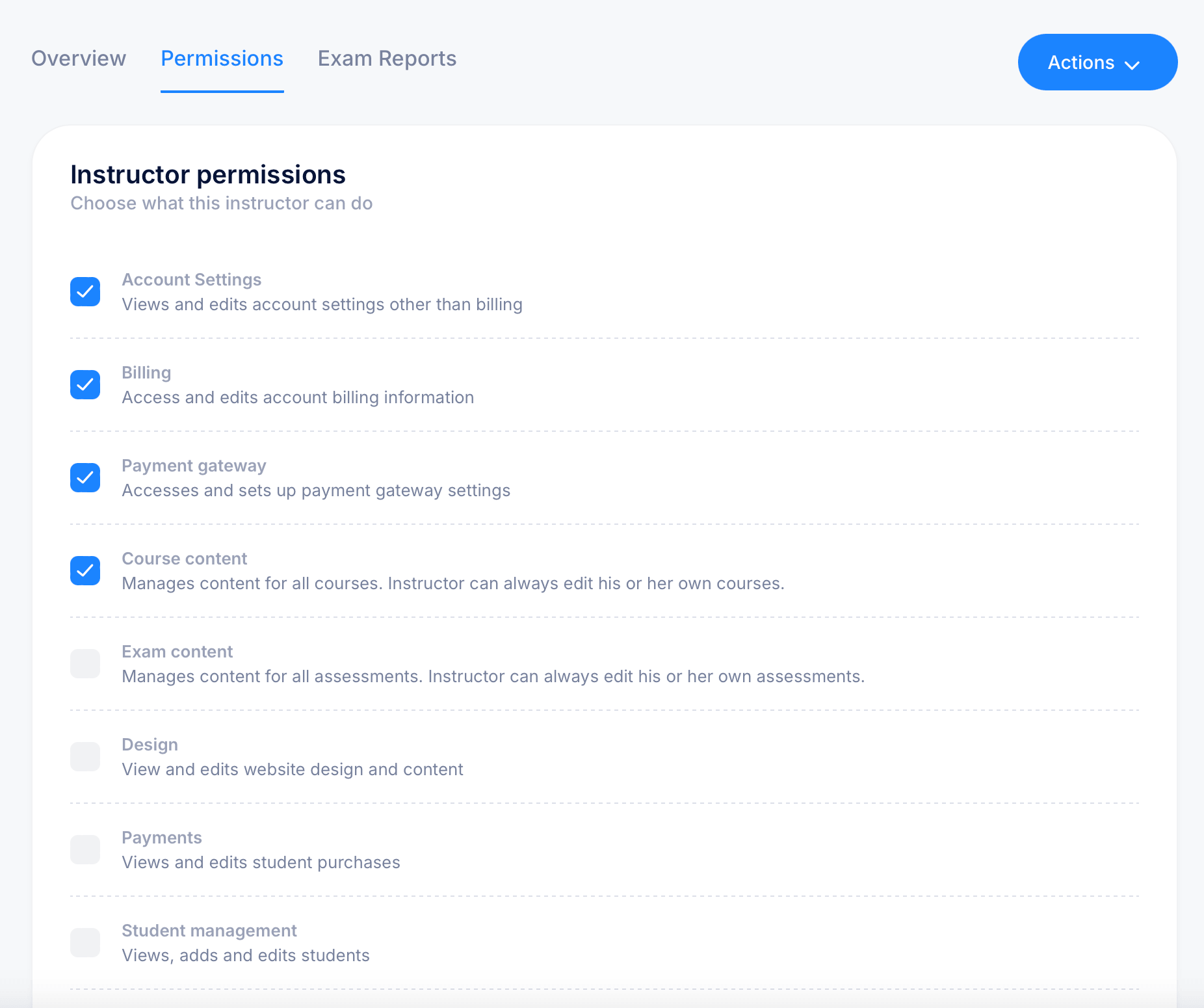
Every instructor on your account has a set of permissions that controls what they can see and do beyond their own courses and assessments. By default, an instructor can always create and edit their own content, but permissions determine whether they can reach anything outside of that, such as other instructors' courses, billing, student management, or the site design.
Getting there
Go to Users > Instructors, click on any instructor's name, and select the Permissions tab.
Available permissions
Each permission is an independent checkbox. Check or uncheck them individually to build the right access level for each instructor.
Account Settings — views and edits account settings other than billing. Give this to administrators who need to manage platform-wide configuration.
Billing — accesses and edits account billing information. Keep this restricted to whoever is actually responsible for the subscription.
Payment gateway — accesses and sets up payment gateway settings. Relevant for instructors who manage how students pay for courses.
Course content — manages content for all courses. Without this, an instructor can only edit courses they created themselves. With it, they can edit any course on the account.
Exam content — manages content for all assessments. Same logic as Course content but scoped to assessments. Without it, instructors can only edit their own assessments.
Design — views and edits website design and content. Give this only to instructors who need to change the look and feel of your student portal.
Payments — views and edits student purchases. Useful for support or billing roles that need to see transaction history.
Student management — views, adds, and edits students. Give this to instructors who manage enrollment, not just content.
How permissions interact with course-level collaborator access
Permissions here are account-wide. A separate, more granular access level exists at the course and assessment level through Collaborators, where you can give a specific instructor Content editor, Student manager, or All access on a single course without granting them account-wide permissions.
If you want someone to help manage one specific course, adding them as a collaborator on that course is usually more appropriate than giving them account-wide Course content permission.
Tips
Start with the minimum permissions an instructor actually needs and add more if they ask for access to something specific. It's easier to expand permissions than to explain why something was accidentally changed.
The Exam content permission is separate from Course content on purpose. An instructor who builds courses doesn't necessarily need to edit other instructors' exams, and vice versa.
Be cautious with Billing and Payment gateway, these are the highest-sensitivity permissions on the list and should only go to people with a direct reason to access financial settings.