

Notifications and Collaborators
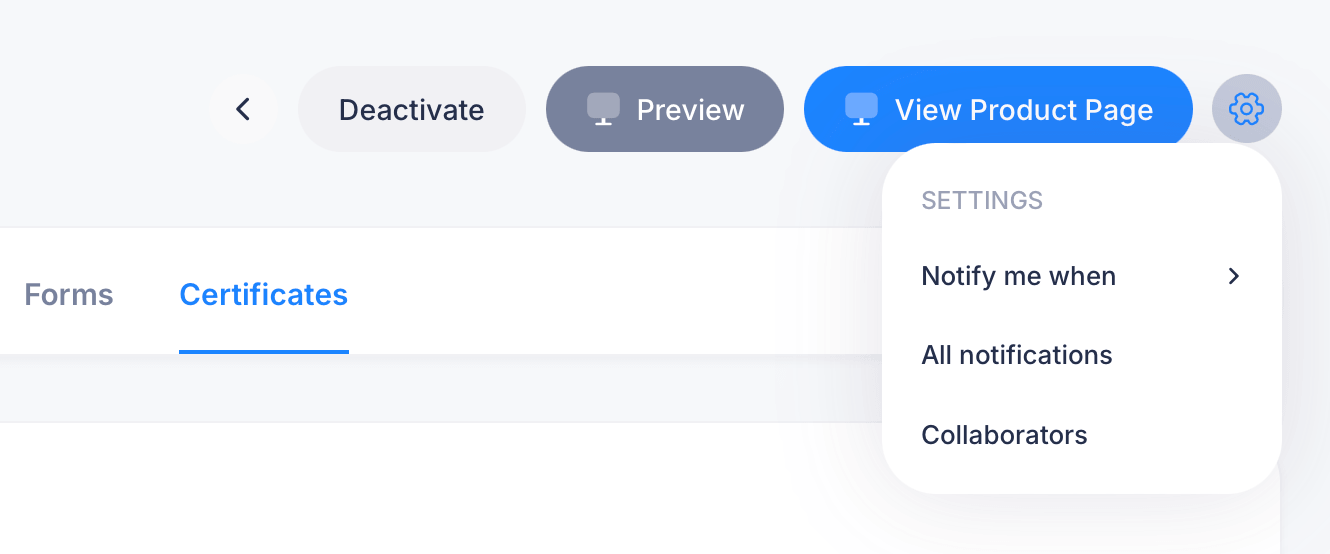
Alongside the main tab bar on a course (Settings, Curriculum, Outline, Students, Assignments, Forms, Certificates), a small gear icon in the top right opens a separate menu covering two things that apply to the course as a whole: who gets notified about activity, and who else can help manage it.
Getting there
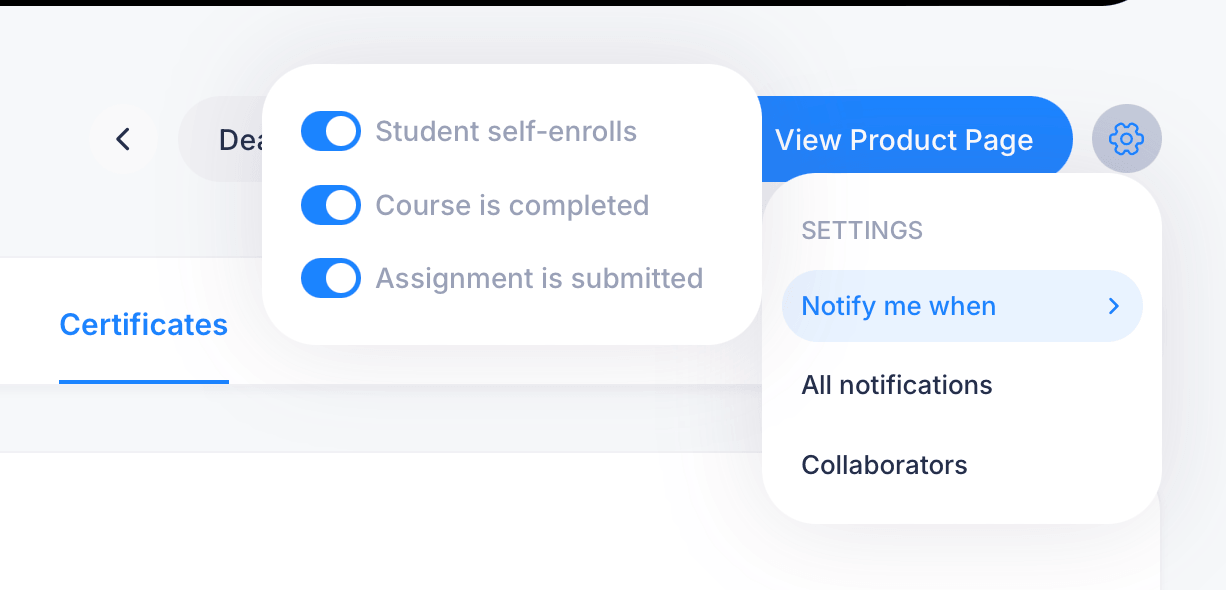
Open any course and click the gear icon next to View Product Page. A small menu appears with three options: Notify me when, All notifications, and Collaborators.
Notify me when
This opens a focused view of your own notification preferences for this course. Three toggles control whether you get notified by email when:
- Student self-enrolls
- Course is completed
- Assignment is submitted
Turn on whichever activity you want to stay on top of. If you're actively managing a course with assignments that need review, keeping Assignment is submitted on means you'll know the moment something lands in your queue, rather than having to remember to check.
All notifications
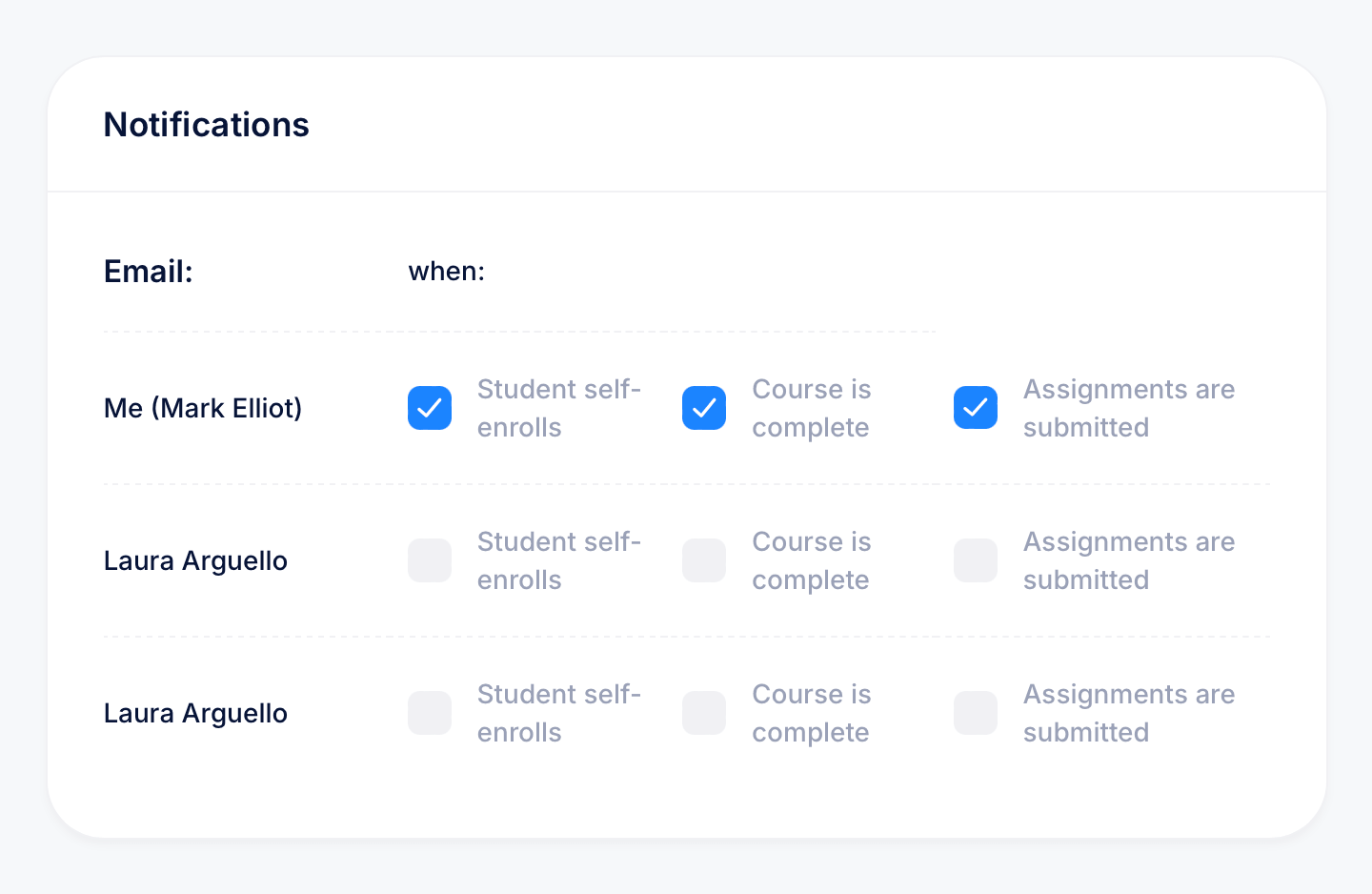
This expands the view to show notification settings for everyone with access to the course, not just yourself. Each person listed, including you (shown as "Me") and any collaborators, has their own row with the same three toggles: Student self-enrolls, Course is complete, and Assignments are submitted.
This is useful for confirming who's actually receiving alerts. A collaborator might have access to the course but all their notification toggles switched off, meaning they won't get emailed about activity unless they turn them on themselves.
Collaborators
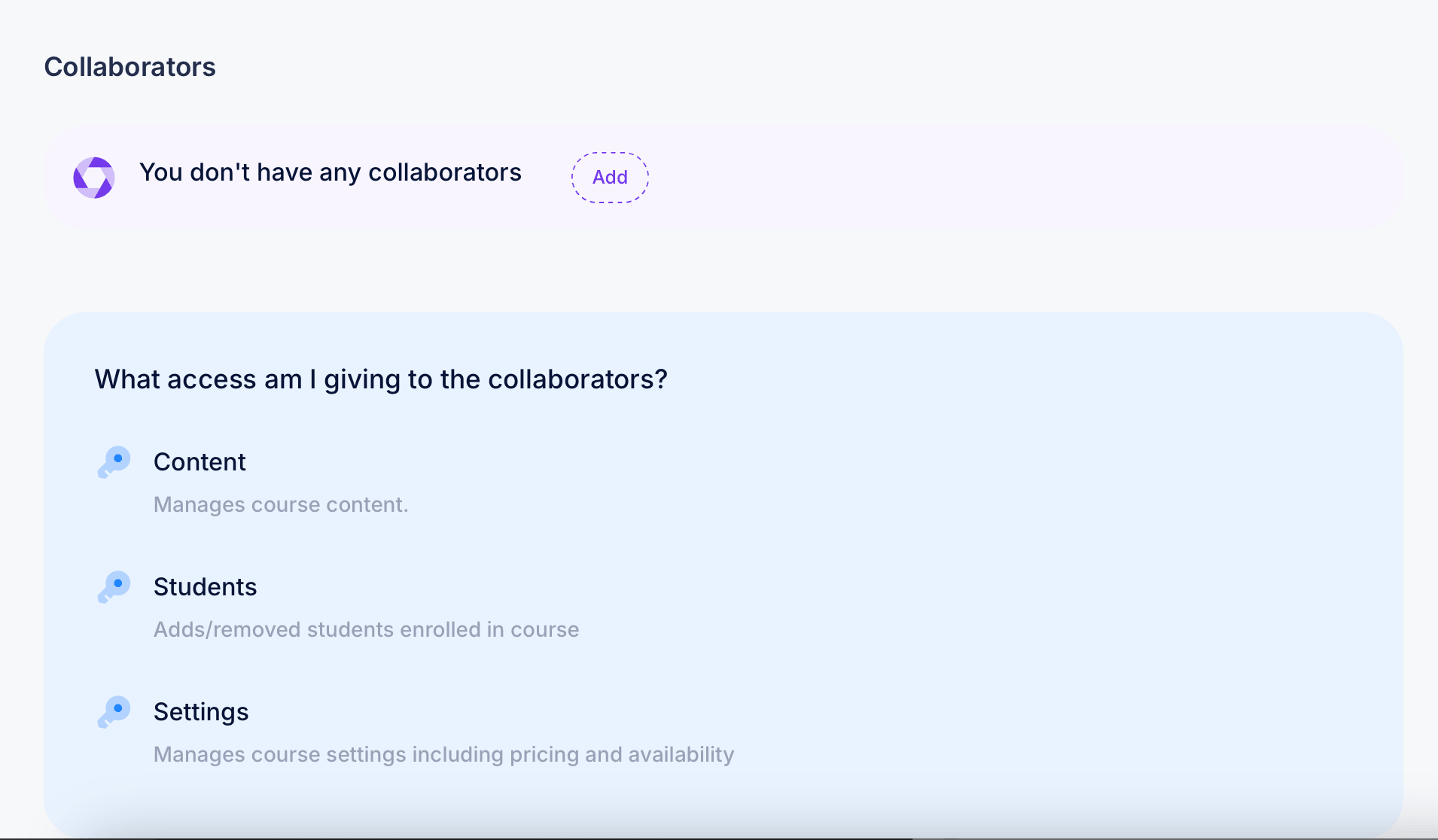
This is where you manage who else has access to help run the course. If nobody has been added yet, you'll see "You don't have any collaborators" with an Add button.
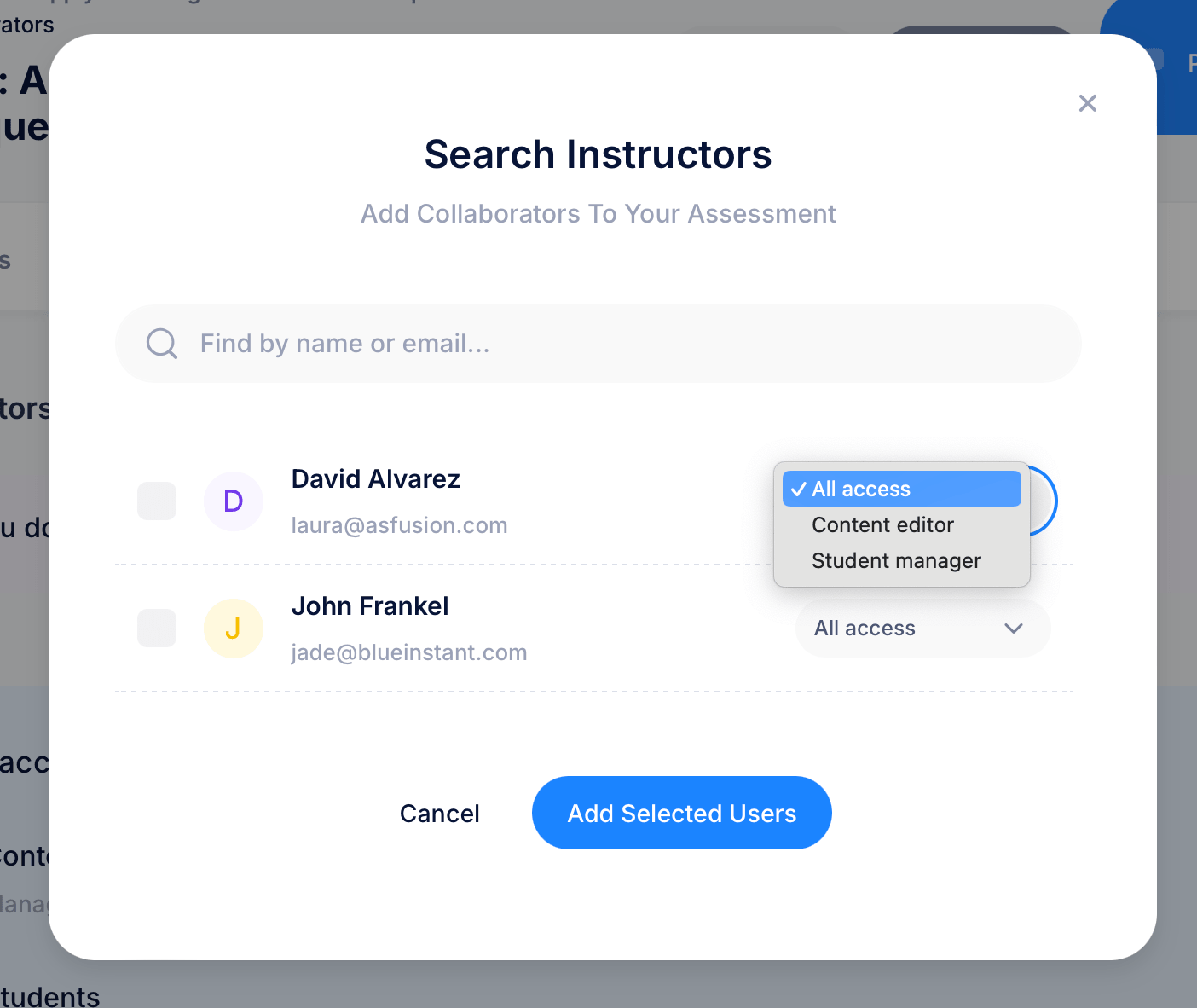
Clicking Add opens Search Instructors, where you can find people by name or email, select one or more, and assign each person an access level before adding them:
- All access — full access to manage the course
- Content editor — manages course content specifically
- Student manager — adds or removes students enrolled in the course
A reference panel explains what each access level can actually do. Content manages course content. Students adds and removes students enrolled in the course. Settings manages course settings, including pricing and availability. Choose the level that matches what you actually want that person responsible for, then select the checkbox next to their name and click Add Selected Users.
Tips
Give collaborators the narrowest access level that still lets them do their job. Someone who only needs to grade assignments and manage the roster doesn't need All access; Student manager or Content editor is usually enough and limits what they can accidentally change elsewhere in the course.
Check All notifications periodically if you're working with a team. It's easy to add someone as a collaborator and assume they're getting alerts, when in reality their notification toggles are all off by default until they turn them on.
This same gear menu and access-level structure appears on assessments as well, letting you add collaborators to a specific exam rather than an entire course.