

Subscription and Billing
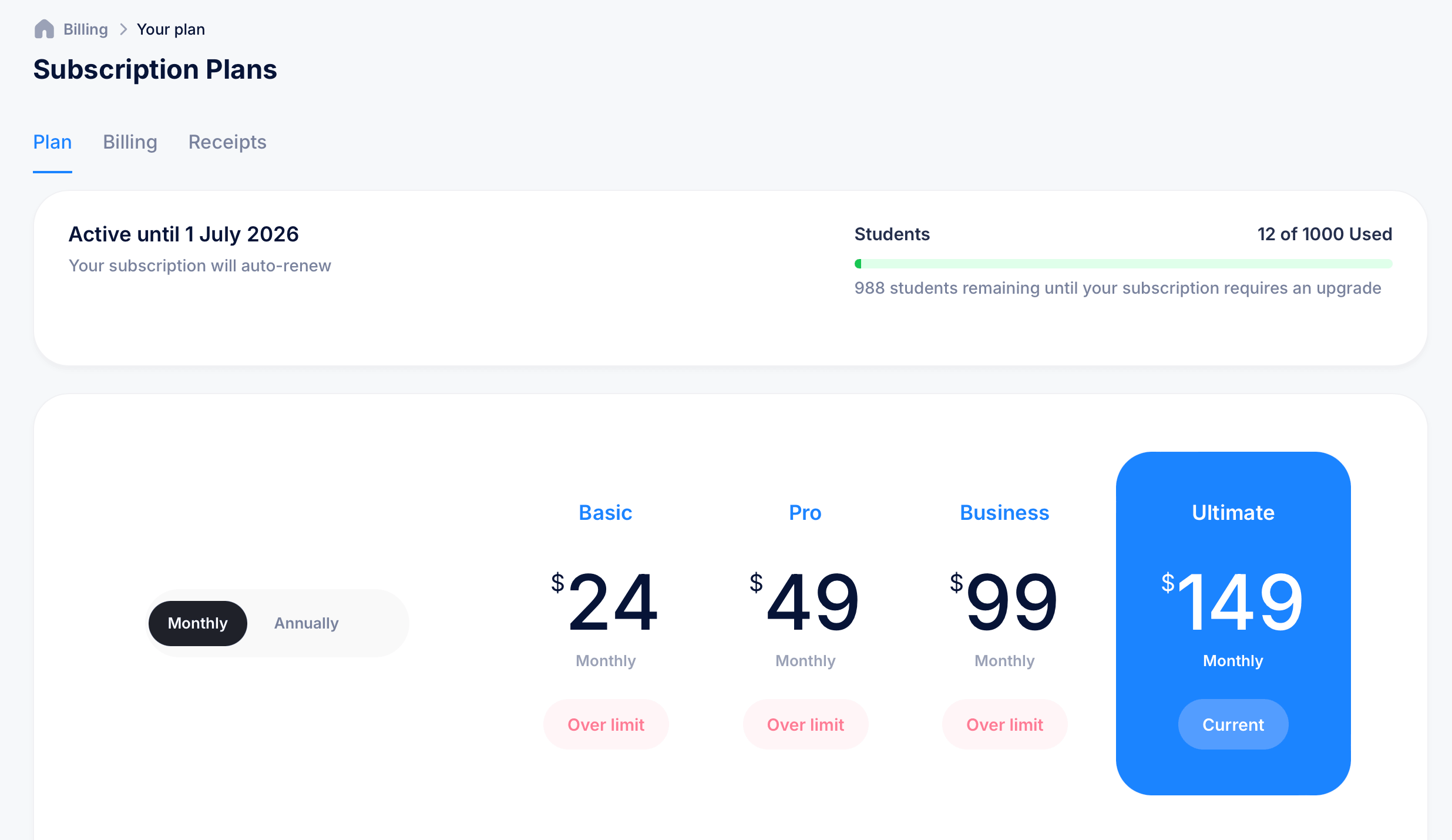
The Subscription & Billing section, found under Settings, is where you manage your eProfessor plan, payment methods, and billing history. It has three tabs: Plan, Billing, and Receipts.
Getting there
Click your profile icon in the top right and select Subscription & Billing, or go to Settings in the top navigation.
Plan tab
The Plan tab shows your current subscription status and lets you switch plans.
At the top, a status bar shows when your subscription is Active until (the next renewal date), that it will auto-renew, and a Students usage bar showing how many student accounts you've used out of your plan's limit — for example, "12 of 1000 Used" with 988 remaining before an upgrade is required.
Below that, four plans are displayed side by side with a Monthly / Annually toggle to compare pricing across billing cycles.
Your current plan is highlighted and marked Current. Plans that your current student count already exceeds are marked Over limit, meaning you'd need to reduce your student count before downgrading to them.
Billing tab
The 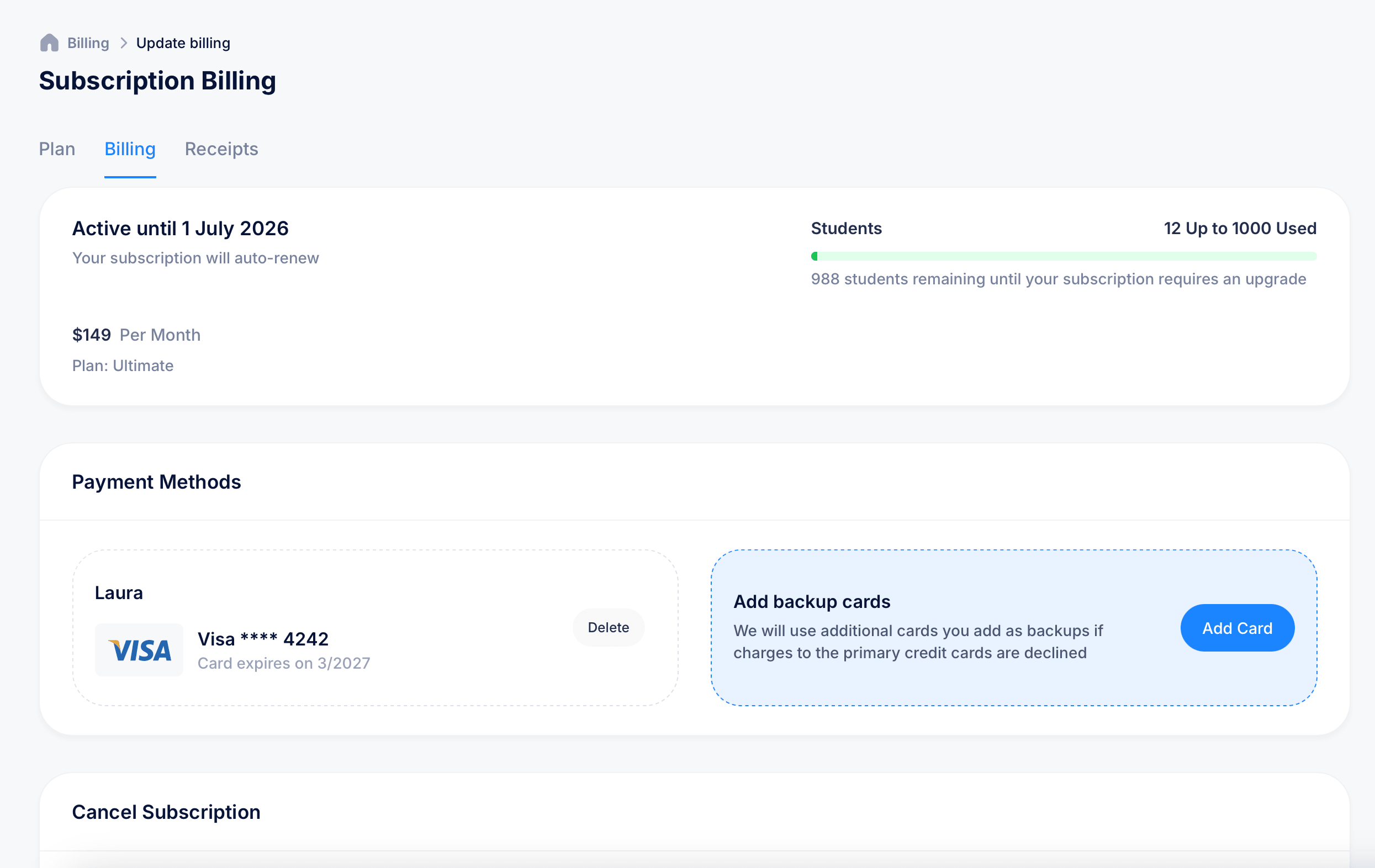 g tab shows the same subscription status bar at the top, and lets you manage your payment method.
Payment Methods shows any card on file with the card holder name, card type, last four digits, and expiry date. Click Delete to remove a card.
An Add backup cards panel lets you add additional cards. If a charge to your primary card fails, eProfessor will attempt the backup cards you've added rather than immediately suspending your subscription.
A Cancel Subscription section appears at the bottom of this tab for if you need to cancel your plan.
Receipts tab
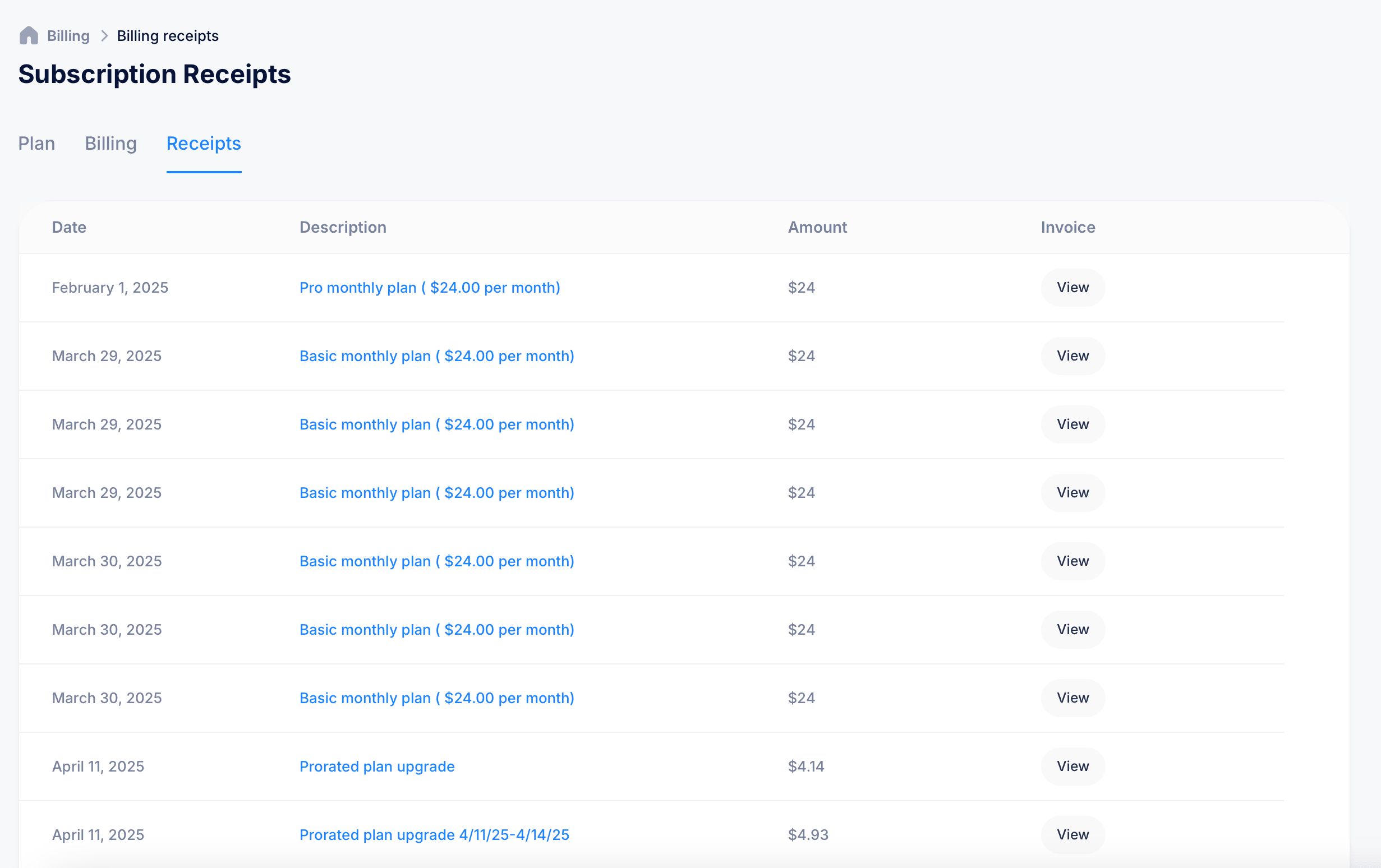
The Receipts tab is a full history of every charge on your account, showing the Date, a Description of what was billed (such as "Basic monthly plan ($24.00 per month)" or "Prorated plan upgrade"), the Amount, and a View button to open the full invoice for that transaction.
Prorated charges appear here when you upgrade mid-billing cycle, showing the exact dates and amounts charged for the partial period.
Tips
Check the Students usage bar before downgrading your plan. If your current student count exceeds the limit on a lower plan, it will show as Over limit and you won't be able to select it until you've reduced your enrolled student count.
Add a backup card if your subscription auto-renews on a card that might expire or hit its limit. It takes seconds to set up and prevents an unexpected interruption to your access.
The Receipts tab is the fastest way to find a specific invoice if you need one for accounting or expense reporting. Click View on any row to open and print or save the full invoice.